
Using Benchmark Email with Claude
Beta: The Benchmark Email connector for Claude is in beta and is currently available to select customers by invitation. If you'd like to participate, contact Benchmark Support.
With the Benchmark Email connector for Claude, you can manage your email marketing by simply chatting with Claude. Ask Claude to design an email, add contacts, build a list, or summarize how your recent campaigns performed, and it does the work in your Benchmark account for you. Get more done, faster, by combining the power of Claude with Benchmark.
Topics Covered
Before Getting Started
- Benchmark account: You need an existing Benchmark account. You can't sign up for Benchmark through Claude, so create your account first, then connect it to Claude. You sign in to the connector with your normal Benchmark login. [PLACEHOLDER: which user roles can connect, e.g., Owner and Admin only, or all roles.]
- Claude account: You need a Claude account. You can use Claude on the web at claude.ai or in the Claude desktop app. Once connected, Benchmark is also available in the Claude mobile app.
- Claude Team and Enterprise plans: If your Claude account is managed by your company, an administrator may need to add the connector for your organization first.
- Claude is separate from Benchmark Email. Claude is a product of Anthropic. Your use of Claude is subject to Anthropic's terms and privacy policy.
What You Can Do
Claude can work with most of the everyday parts of your Benchmark account. For example, you can ask Claude to:
- Create emails: Design a custom email for either the drag-and-drop editor or the HTML Email Editor, and save it to Benchmark as a draft, ready for you to review and send.
- Manage contacts: Add contacts one at a time or import a .csv file, update contact details, find contacts, and unsubscribe contacts.
- Organize lists: Create, rename, merge, and duplicate lists, and add contacts to them.
- Review performance: Get open, click, and other metrics for your recent campaigns, compare results, and turn them into a summary or custom dashboard.
- Look things up: Find templates, images in your Image Gallery, and the status of your sending domains.
Claude never sends an email on its own. It prepares your campaign as a draft, and you send or schedule it from Benchmark.
Connect Benchmark Email to Claude
You only need to connect once. A connection you add on the web is also available in the desktop and mobile apps, and vice versa.
Step 1: Add the connector in Claude
-
In Claude, go to Customize > Connectors.
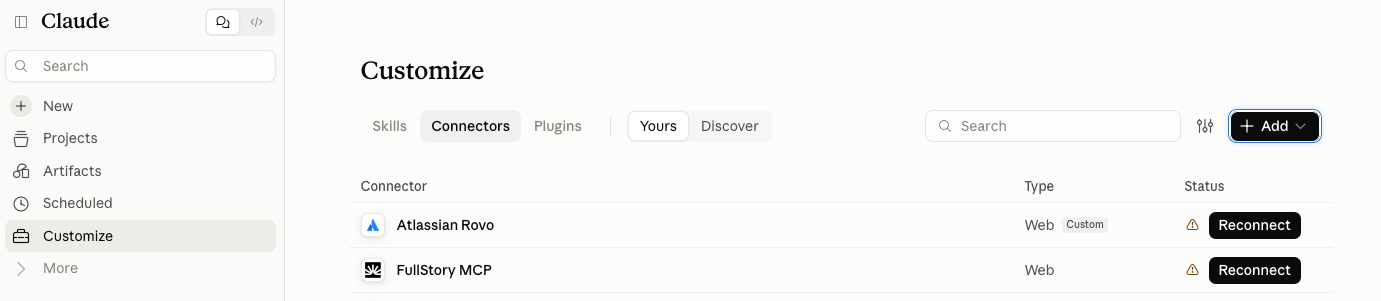
- Click the + button, then select Add custom connector.
- Enter a name, such as Benchmark Email.
- Enter the Remote MCP server URL for your region:
- Customers in Japan:
https://mcp-ap-northeast-1-a.benchmarkemail.io/mcp -
All other customers:
https://mcp-us-west-2-a.benchmarkemail.io/mcp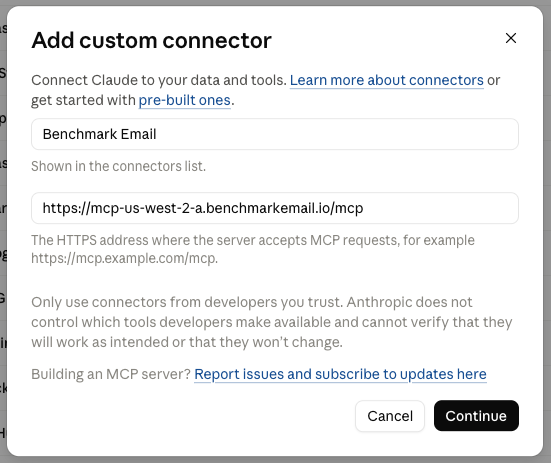
- Customers in Japan:
- Click Continue.
-
You’ll see two extra sections — Authentication and OAuth client. You don’t need to change anything here. Claude automatically detects how Benchmark’s server works and pre-selects the right options.
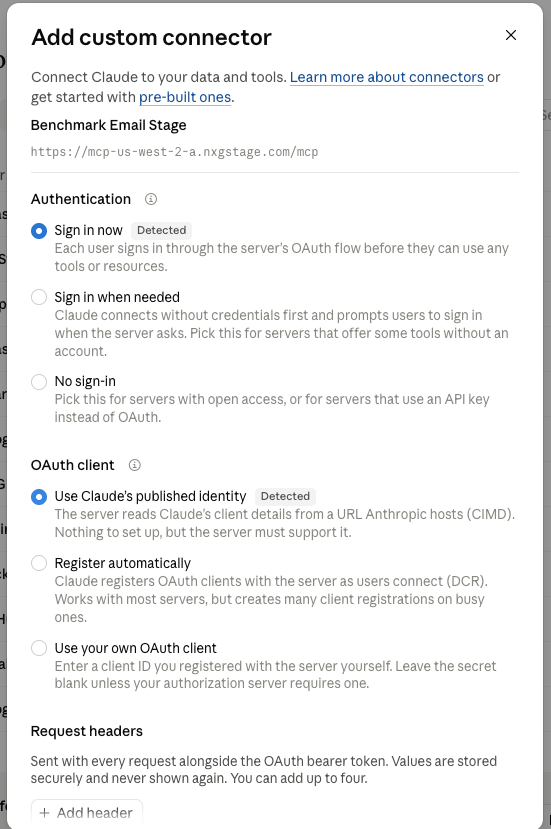
- Scroll down and click Add.
Step 2: Sign in to Benchmark
-
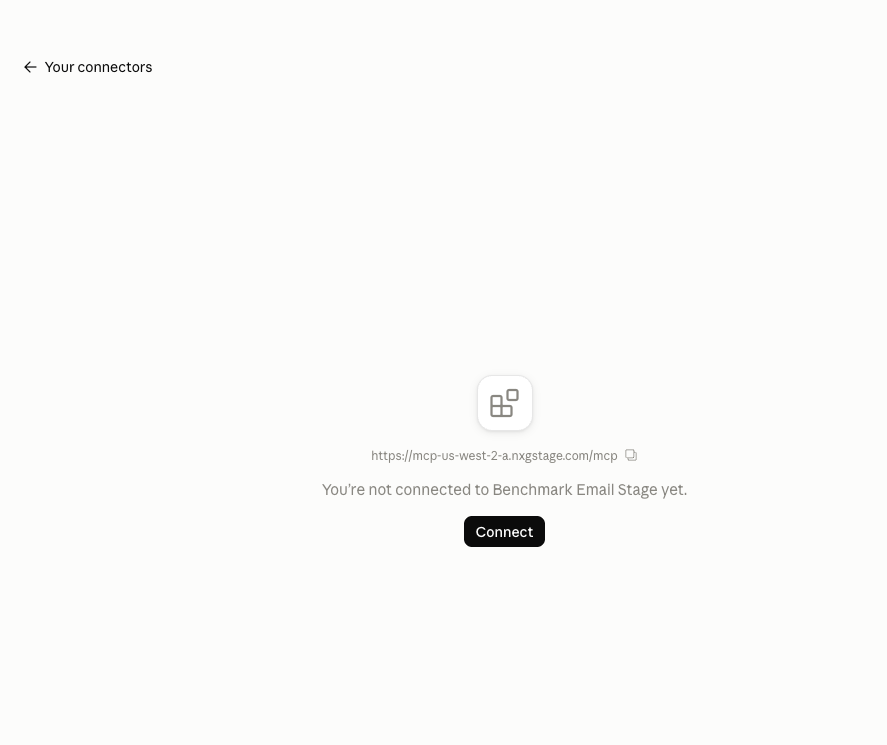
On the new Benchmark Email connector, click Connect.
-
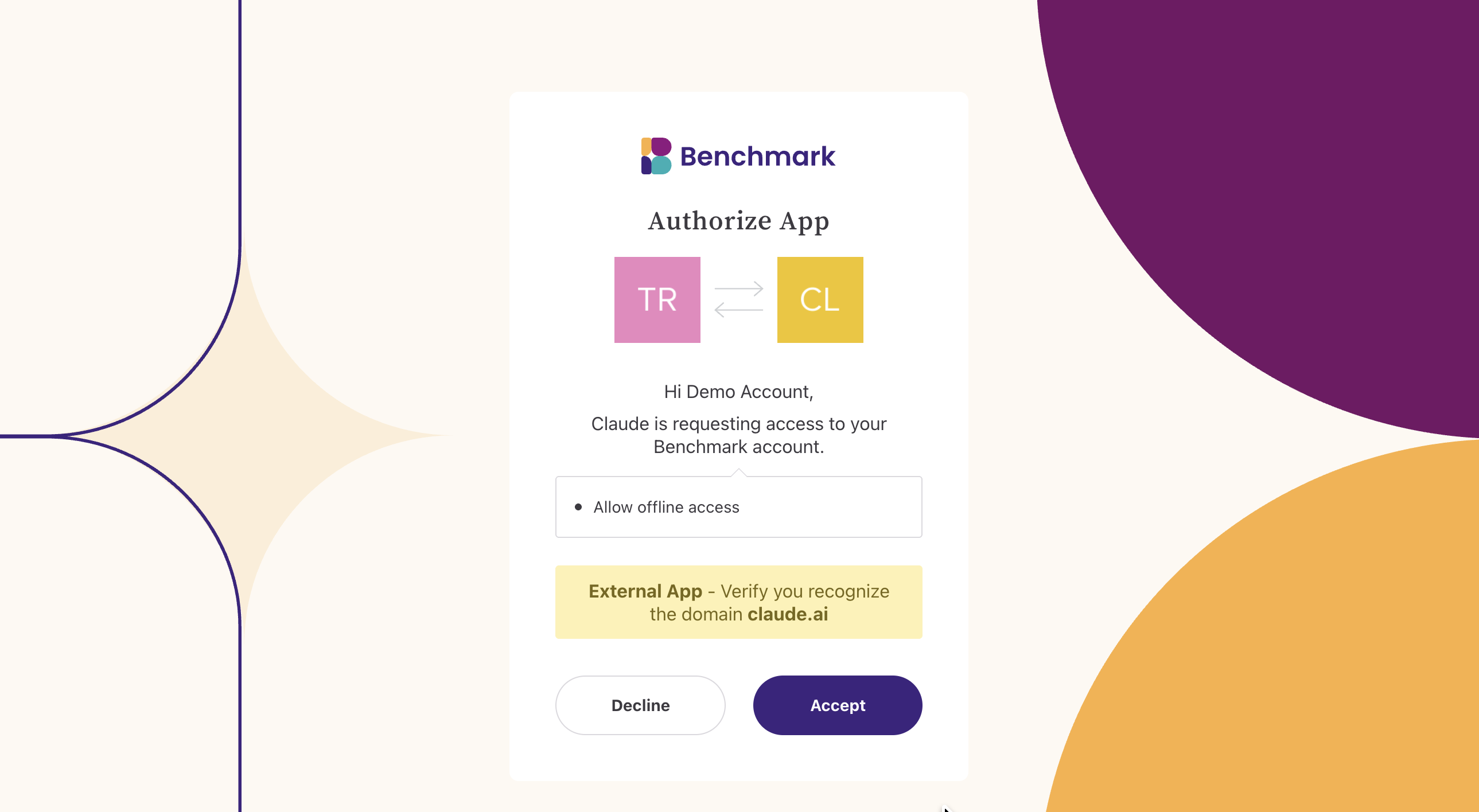
A browser window opens. Sign in with your Benchmark login.
-
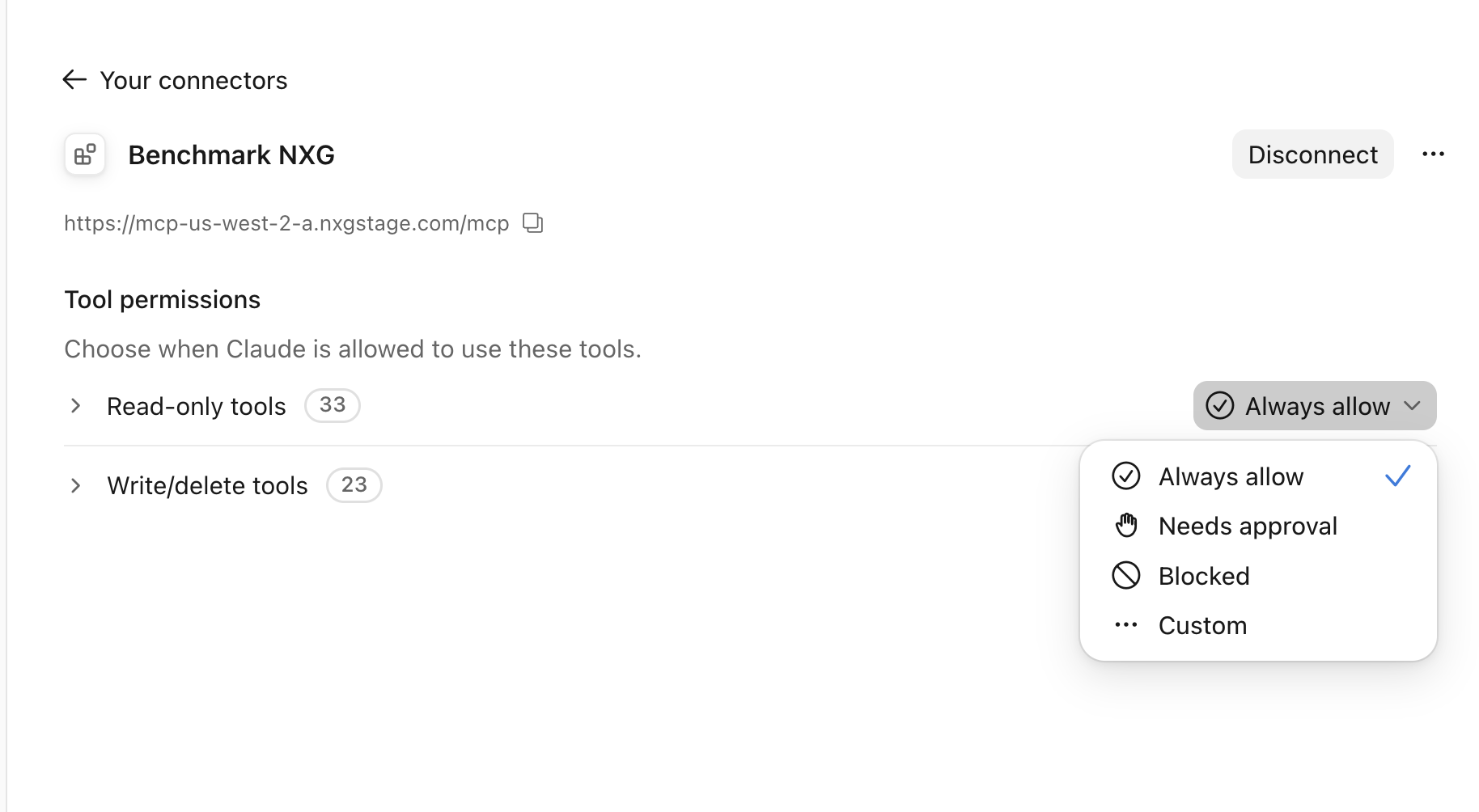
Review the permissions and approve access by clicking the checkmark option. You can also click the drop-down and select Always Allow.
- Return to Claude. The connector now shows as Connected.
Step 3 (optional): Choose what Claude is allowed to do
In the connector's settings, you can set each tool to run automatically, ask for your approval first, or be blocked.
For example, you might let Claude read reports freely but require approval before it deletes or unsubscribes contacts.

Using Benchmark Email in Claude
Start a new chat and ask for what you need in plain language.
Tip: To check your setup, start by asking Claude, "Are you connected to my Benchmark account?" Claude replies with the Benchmark login and account it's using.
Here are a few more prompts to try:
- "How did my last three campaigns perform? Which had the best click rate?"
- "Import the attached .csv into Benchmark and add everyone to a new list called Spring Leads."
- "Design a fun Halloween promotion email for my bakery, then save it to Benchmark as a draft."
- "How many active contacts do I have, and how many unsubscribed in the last 30 days?"
- "Unsubscribe jane@example.com."
Claude shows you each action it takes. For changes that can't be undone, such as deleting contacts or lists, starting an import, or unsubscribing contacts, Claude should confirm with you before it acts. Always review its work before you rely on it.
When Claude saves an email draft, open it in Benchmark from your Emails dashboard to preview it, choose your recipients, send a test, and send or schedule it. The draft opens in the editor it was created for (see Creating Emails).
[SCREENSHOT: Claude-created draft in the Benchmark Emails dashboard]
Creating Emails
Claude can create an email for either of Benchmark's editors. Tell Claude which one you want:
- Drag-and-drop editor: Choose this if you want to make your own changes later in Benchmark, like updating text or swapping images, without touching any code. For example: "Create this email for the drag-and-drop editor."
- HTML Email Editor: Choose this if you want a fully custom design and plan to send it as is, or ask Claude for any changes. Editing it yourself requires HTML knowledge. For example: "Create this as a custom HTML email."
You can't switch an email to the other editor later, but you can ask Claude to recreate it.
Using Images in Your Emails
Claude can't upload images to Benchmark yet. To include images in an email Claude creates, use one of these options:
- Upload your images to Benchmark first: Add them to your Image Gallery, then ask Claude to use them in your email.
- Import a design from another tool: If you designed your email in a tool like Canva or Stripo, export it as a Zip file and import it in the HTML Email Editor. Benchmark adds the images for you. You can then ask Claude to make changes to the email.
We plan to make it easier to add images through Claude soon.
Current Limitations
Some tasks aren't available through Claude yet. Use the Benchmark app for these:
- Sending: Claude can't send, schedule, or send test emails.
- Images: Claude can't upload images. See Using Images in Your Emails.
- Signing up: You can't create a Benchmark account through Claude.
- Private domains: Adding and verifying a private domain must be done in Benchmark. Claude can check your domain status.
- Other features: Signup forms, creating templates, Brand Kit, user management, and billing.
- Large imports: Each import can include up to 6,500 contacts. For larger files, Claude can split them into several imports.
- ChatGPT: Support for ChatGPT is coming soon.
Frequently Asked Questions
Does it cost anything to use?
No. The Benchmark Email connector is included at no extra cost with all Benchmark plans, both Free and paid. Your use of Claude is subject to your Claude plan and its usage limits.
Can Claude send emails to my contacts without me knowing?
No. Claude can only create drafts. You must send or schedule every email from Benchmark yourself.
What can Claude see and do in my account?
Claude works with your account data, such as contacts, lists, campaigns, and reports, only when you ask it to. You control what Claude is allowed to do with the connector's tool permissions in Claude: set each action to run automatically, ask for your approval first, or be blocked. For example, let Claude read reports freely but require approval before it deletes or unsubscribes contacts.
I have more than one Benchmark account. Which one does Claude use?
Claude uses the account you signed in to when you connected. To check, ask Claude, "Which Benchmark account are you connected to?"
Claude says it can't find Benchmark tools. What should I do?
First, check that the Benchmark Email connector shows as Connected in Customize > Connectors. Then make sure it's turned on for your chat: in the message box, click + > Connectors and turn on Benchmark Email. If you just added the connector, start a new chat or refresh the app.
How do I disconnect Benchmark from Claude?
In Claude, go to Customize > Connectors, open the Benchmark Email connector, and choose Disconnect.
Claude made a mistake. What should I do?
AI can make mistakes, so review drafts, imports, and changes before you rely on them. Most changes, like email drafts and list names, can be edited in Benchmark. Contact Benchmark Support if you need help.