
Zapier Integration
With Zapier, you can connect Benchmark Email to thousands of other applications. The Zapier integration makes it easy to automate repetitive workflows, helping ensure your list of contacts remains accurate and up to date with minimal manual effort.
Topics Covered In This Article
- What You Can Do with the Benchmark Email + Zapier Integration
- Connect Benchmark Email to Zapier
- Frequently Asked Questions
BEFORE GETTING STARTED
During this first release in June 2026, the Zapier button will not be available in your Benchmark account. As a result, the integration process will begin inside Zapier, and you will connect by creating an API key in your Benchmark account.
To connect to Benchmark to another app through Zapier, you'll need:
- Benchmark Email account
- A Benchmark Email API Key
- You can create one in your account under Integrations> API Keys.
- A Benchmark Email Base URL
- Found alongside your API Key under Integrations> API Keys.
- Zapier account
- Zapier offers a free plan with some limitations. A paid plan may be needed depending on how many Zaps you run.
- Task limits apply: each action a Zap performs counts as a "task" toward your Zapier plan's monthly limit. Keep this in mind if you're importing large lists.
- Zapier is separate from Benchmark Email — you'll manage your Zaps directly in Zapier, not inside your Benchmark Email account.
- More triggers are coming: future updates will add triggers like Contact Created, Email Opened, and Email Clicked.
What You Can Do with the Benchmark Email + Zapier Integration
The integration supports the following:
| Triggers (events in Benchmark Email that start a Zap) | Actions (things Zapier can do in Benchmark Email): |
|---|---|
| Contact Unsubscribed | Create or Update a Contact |
| Email Bounced | Find a Contact, List, or Tag |
|
|
Unsubscribe a Contact |
|
|
Create a List or Tag |
|
|
Add or Remove a Contact from a List |
Connect Benchmark Email to Zapier
Step 1
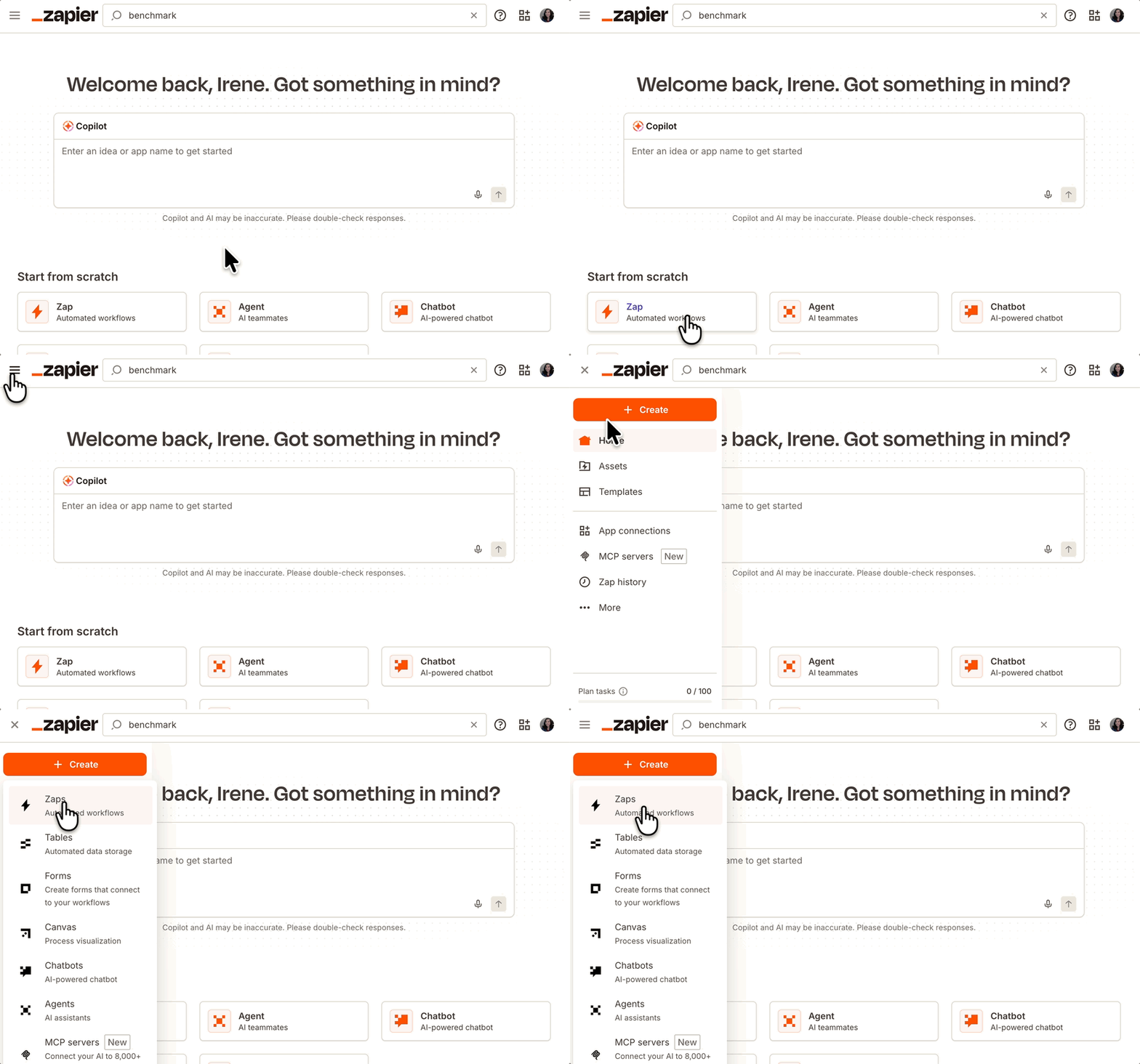
- Log in to your Zapier account. If you don't have one, you can create one here.
-
Click Create and then select Zap (Automated Workflows).
Step 2 - Set your Trigger
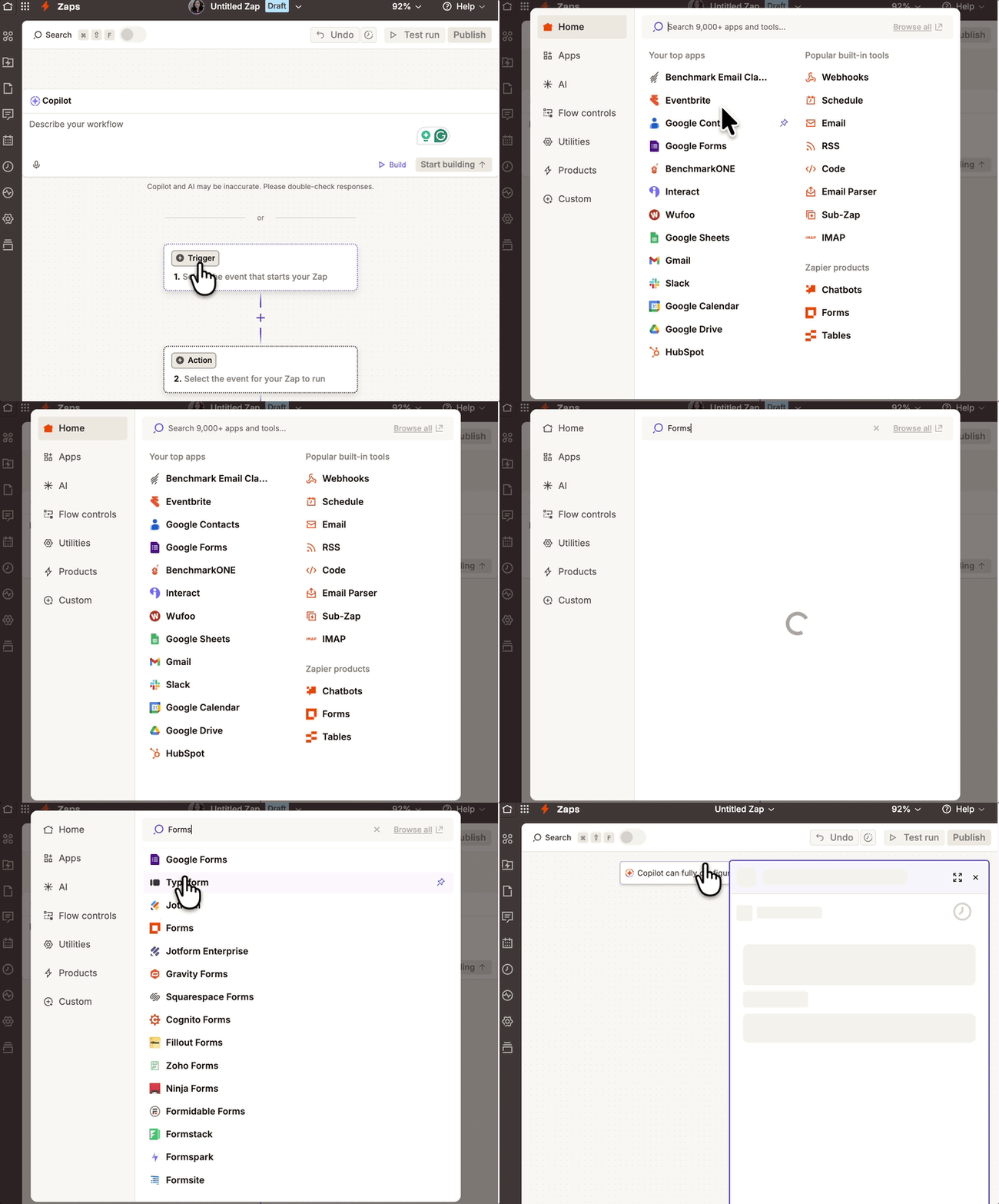
- Click on the Trigger section and search for your application.
-
For this example, we are using Google Forms.
-
-
Select your Trigger Event.
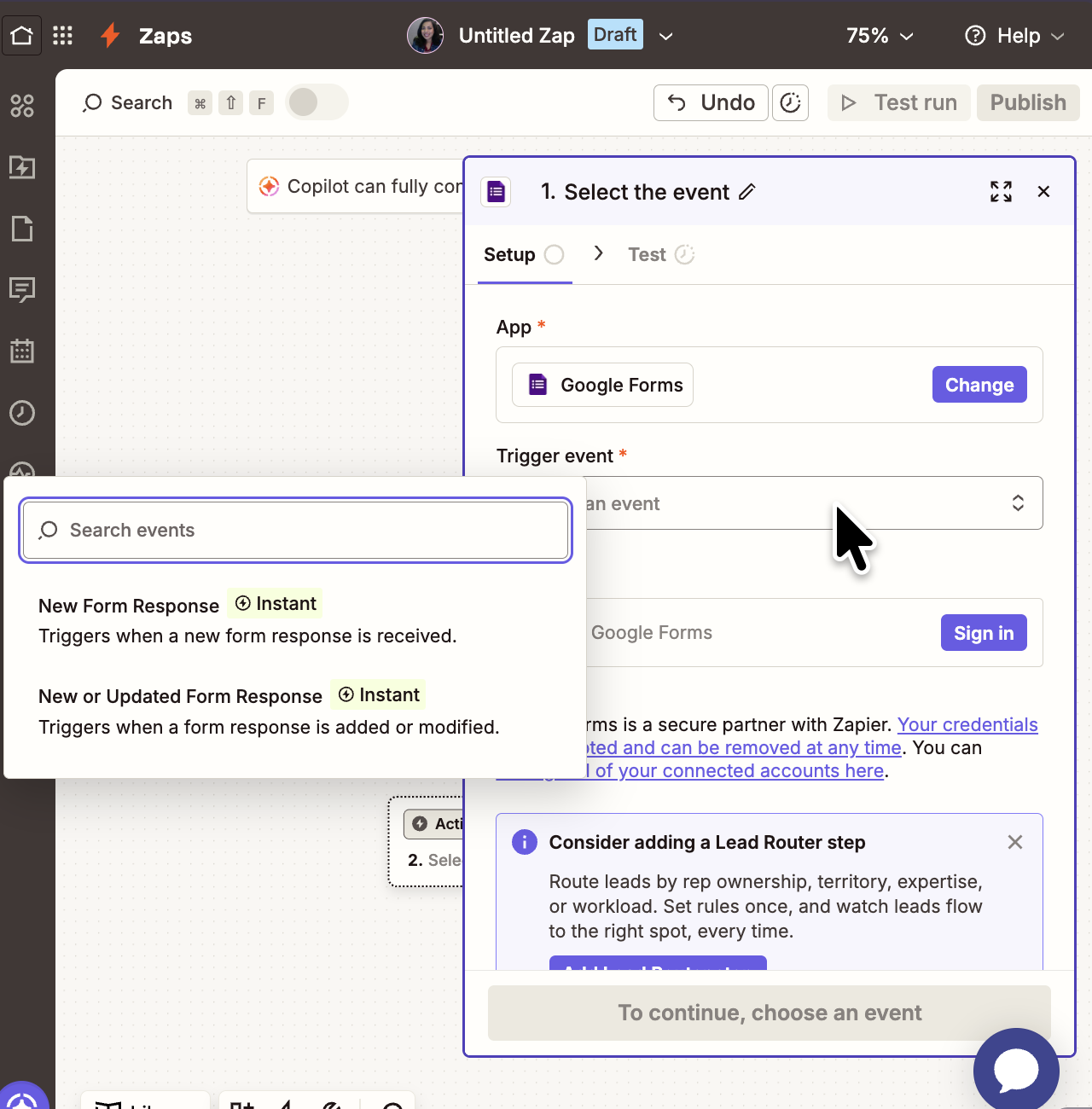
- Sign in to your application.
- After signing in, select Continue.
Step 3 Set Your Action
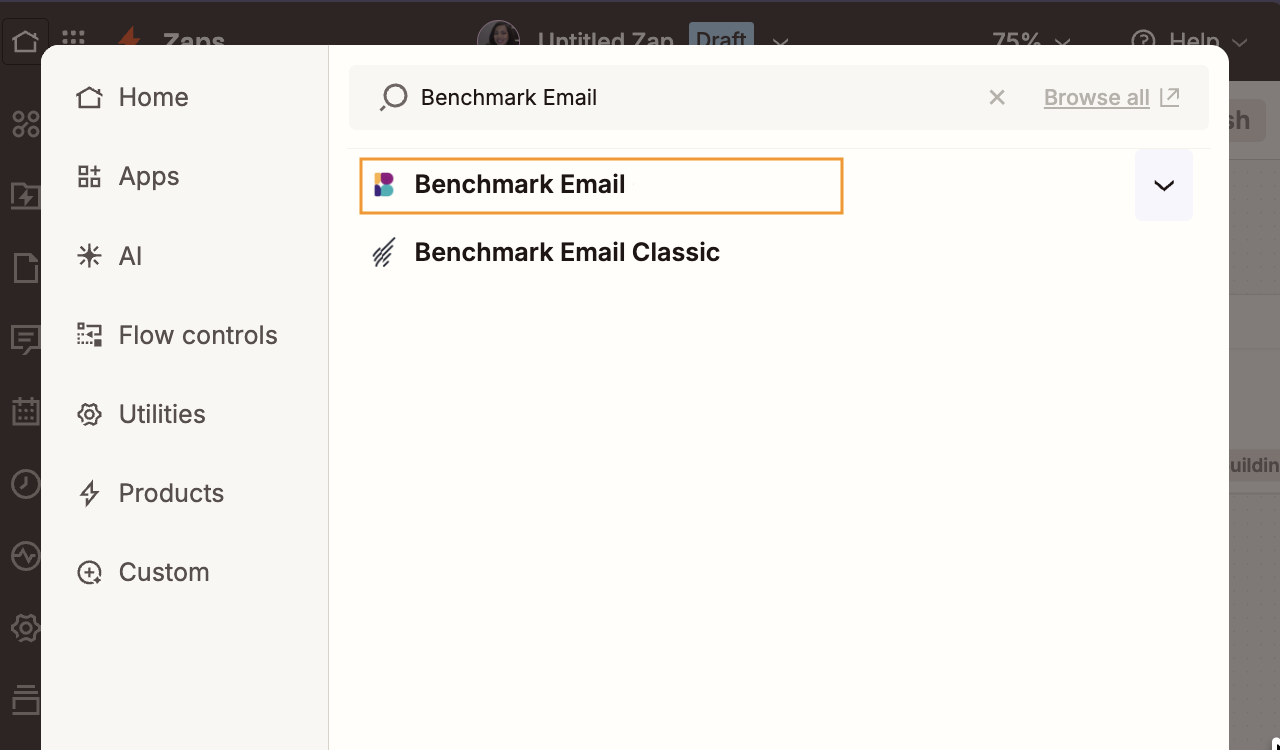
Search for Benchmark Email.
-
Click on the Action step, and search for Benchmark Email. Make sure not to select Benchmark Email Classic.
-
Choose your Action Event, for example, Create a Contact.
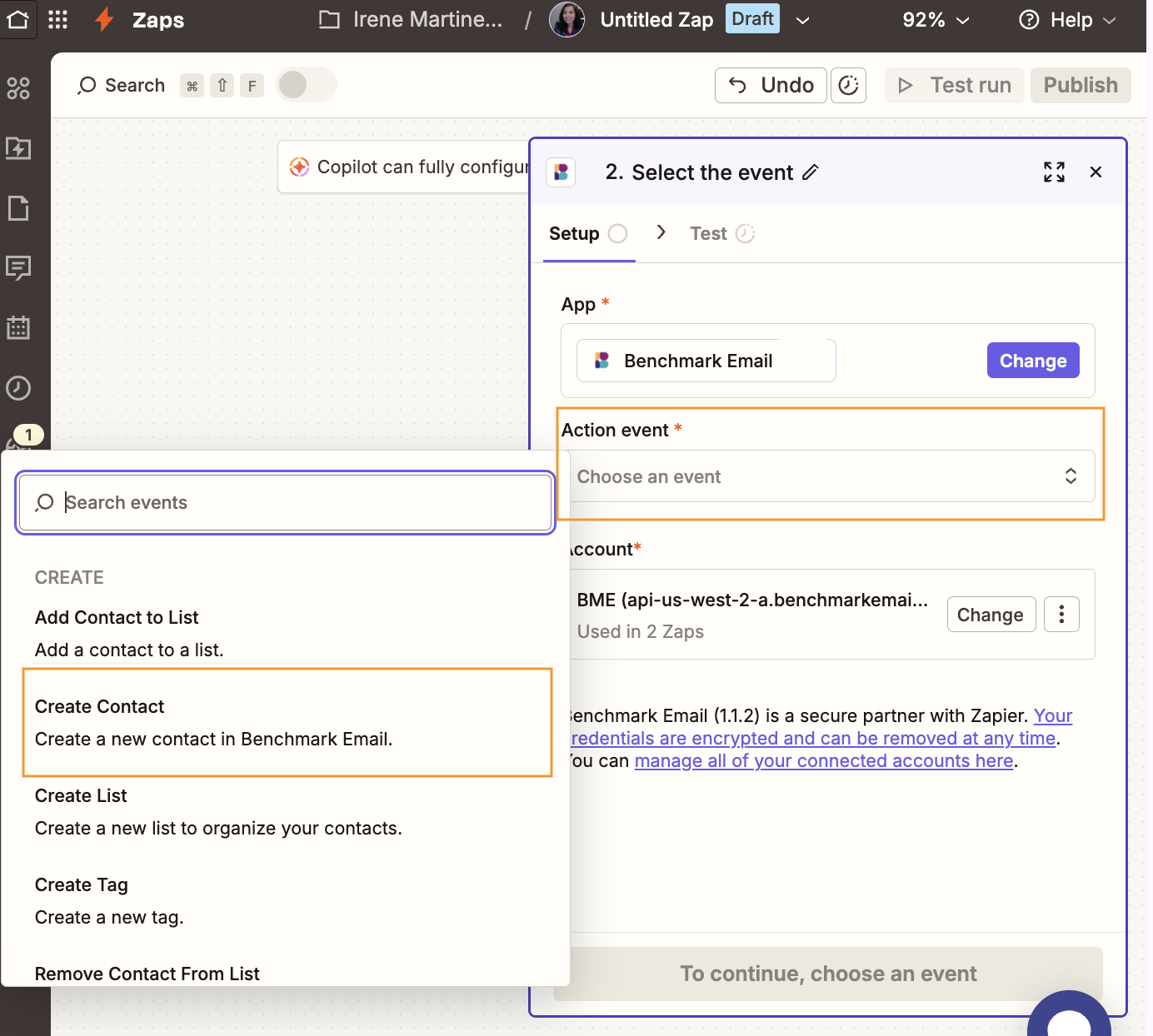
- Next, click on Account, and connect your Benchmark Email account.
-
The first time you connect, Zapier will ask for your API Key and Base URL from your Benchmark Email account. These can be created in your Benchmark Email account, Integrations>API Keys.
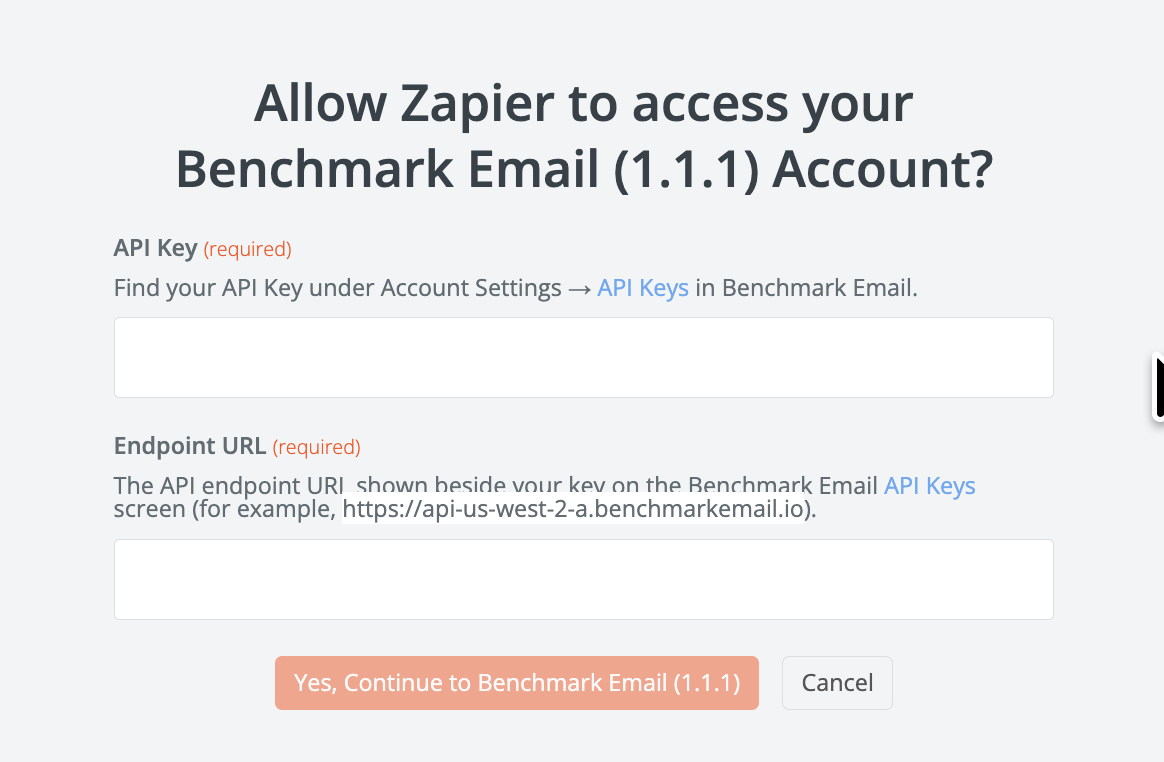
-
- Once those are set up, select Yes, Continue to Benchmark Email.
Step 4 Configure the Zap
These steps map each field coming in from the Trigger application into Benchmark. Review each field and select what you want added in Benchmark.
- It is important that you map the email address field correctly.
- Fields not needed can be ignored.
- When completed, select Continue and review the fields.
-
Here you can Test the step or Skip.
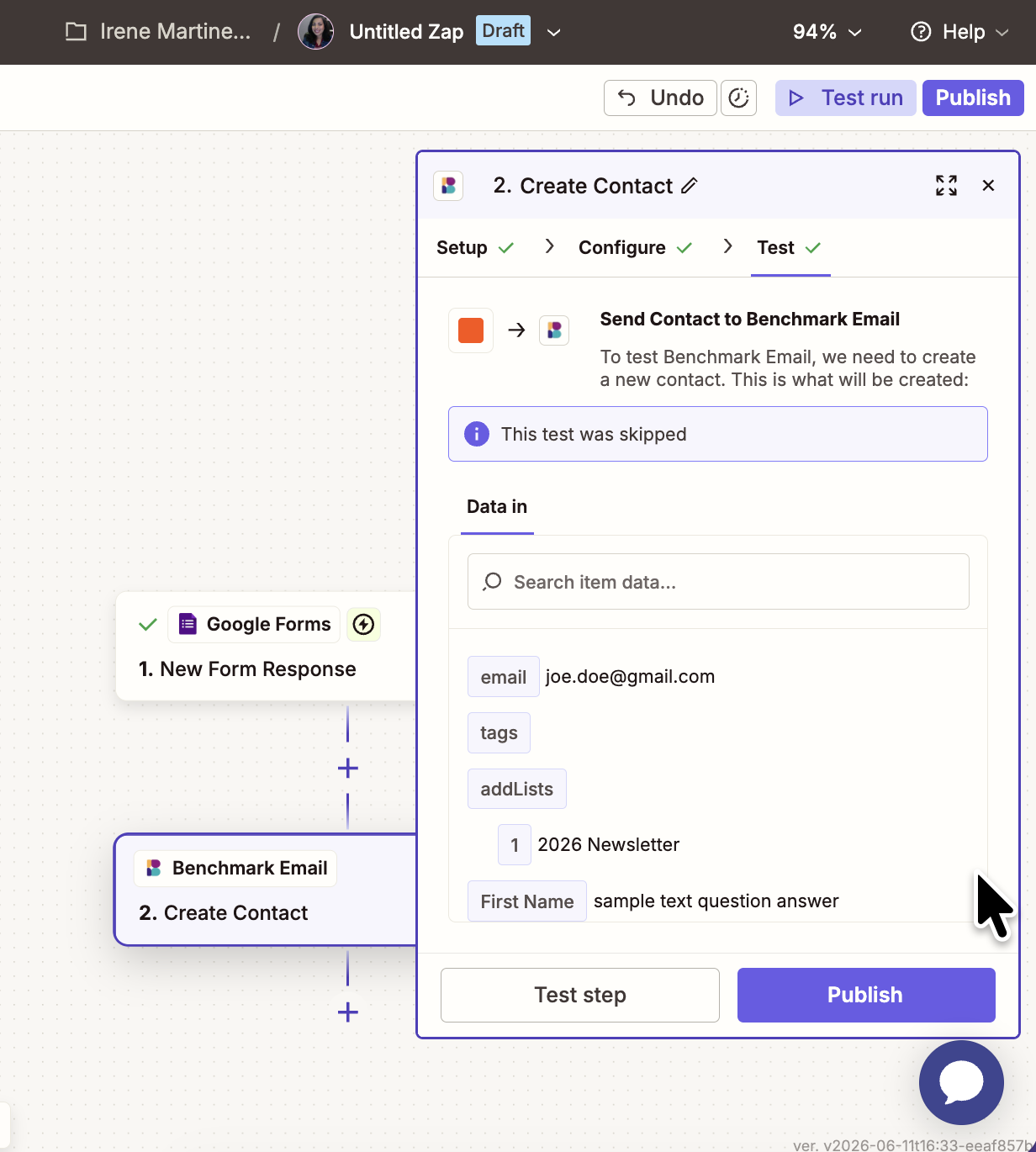
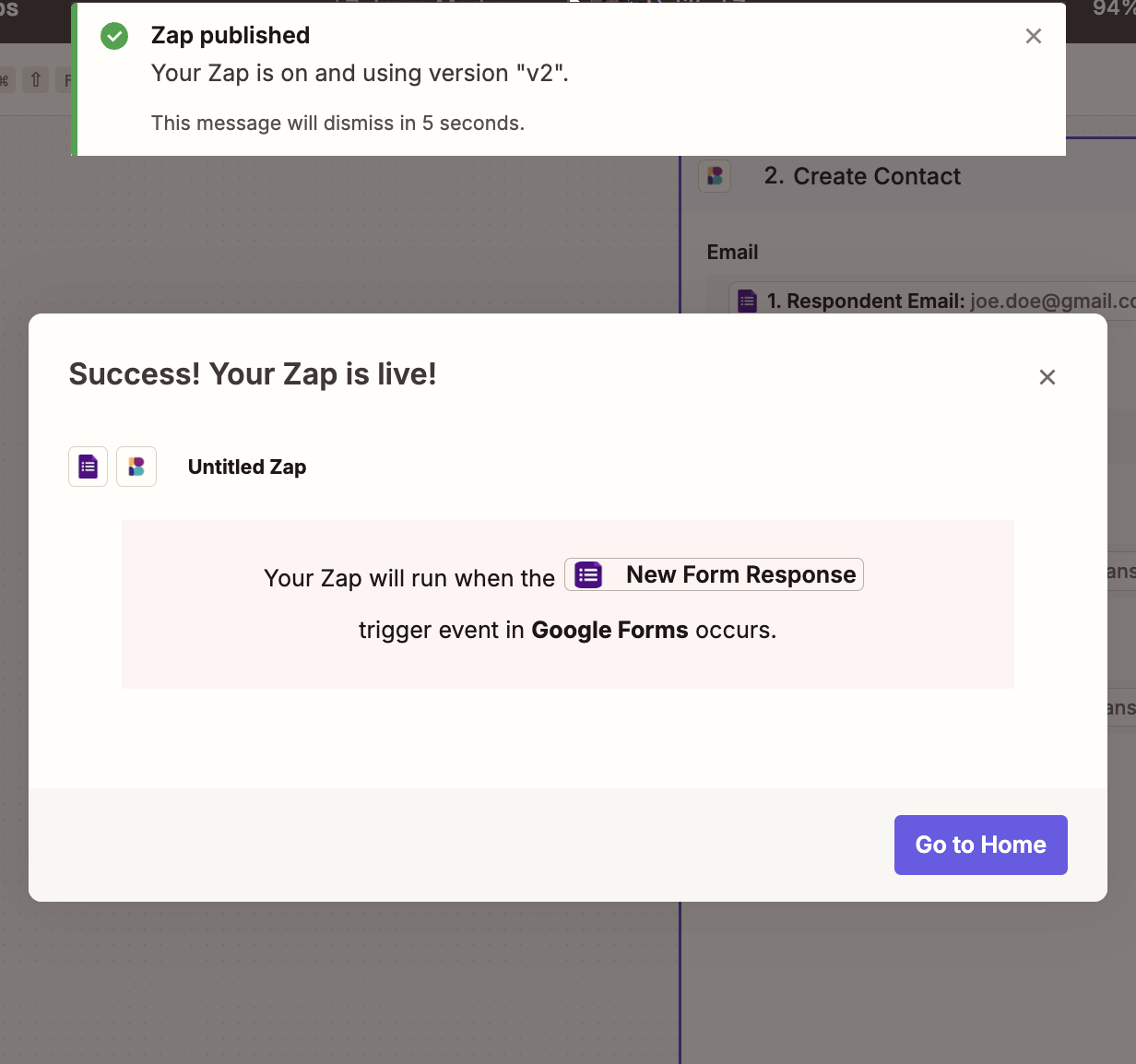
- If all looks good, select Publish.
Frequently Asked Questions
Why isn't my Zap passing contacts into Benchmark Email? Confirm that the email address field from your Trigger app is mapped to the Email field in the Benchmark Email action step. This is the only required field — unmapped or missing email addresses will cause the Zap to fail.
How do I find my API Key and Base URL? Log in to your Benchmark Email account and go to Integrations> API Keys. Create a new key if one doesn't exist. The Base URL is displayed alongside the key.
My Zap ran but no contact appeared in Benchmark. What happened? Check the Zap history inside Zapier for error details. Common causes include an already-existing contact (if duplicates are filtered), an invalid email format, or a list that doesn't exist yet in Benchmark Email.
Will my Zaps keep running if I regenerate my API key? No. If you delete or regenerate your API key, you'll need to reconnect your Benchmark Email account inside Zapier using the new key.
Does each Zap action count against my Zapier plan? Yes. Every action a Zap performs counts as one task toward your monthly Zapier plan limit. If you're syncing large contact lists, consider your plan's task allowance before setting up bulk workflows.
Who do I contact if my Zap isn't working? For issues with your Benchmark Email account or contacts, contact Benchmark Email support. For issues with Zapier itself — such as Zap errors, task limits, or billing — visit Zapier's support center.