
Email Block Differences: Benchmark Classic vs. New Benchmark
When you import an email built with Benchmark Classic's drag-and-drop editor into New Benchmark, some block options and settings don't carry over exactly the same way. This article lists what changes for each block type, plus a few import behaviors that apply across your whole email, so you know what to check afterward.
Topics Covered in This Article
Before you import an email template:
- This applies whenever an email created in Benchmark Classic's editor is imported to New Benchmark's editor.
- Some block settings will be lost or altered in the process. Always review the imported email before sending.
- For help migrating your contacts and lists, see the related article on moving from Benchmark Classic to New Benchmark.
How to Import Email Templates from Benchmark Classic
- Log in to your new Benchmark account.
- From the home dashboard or Emails page, select Create New Email.

-
From the template options, select My Emails.
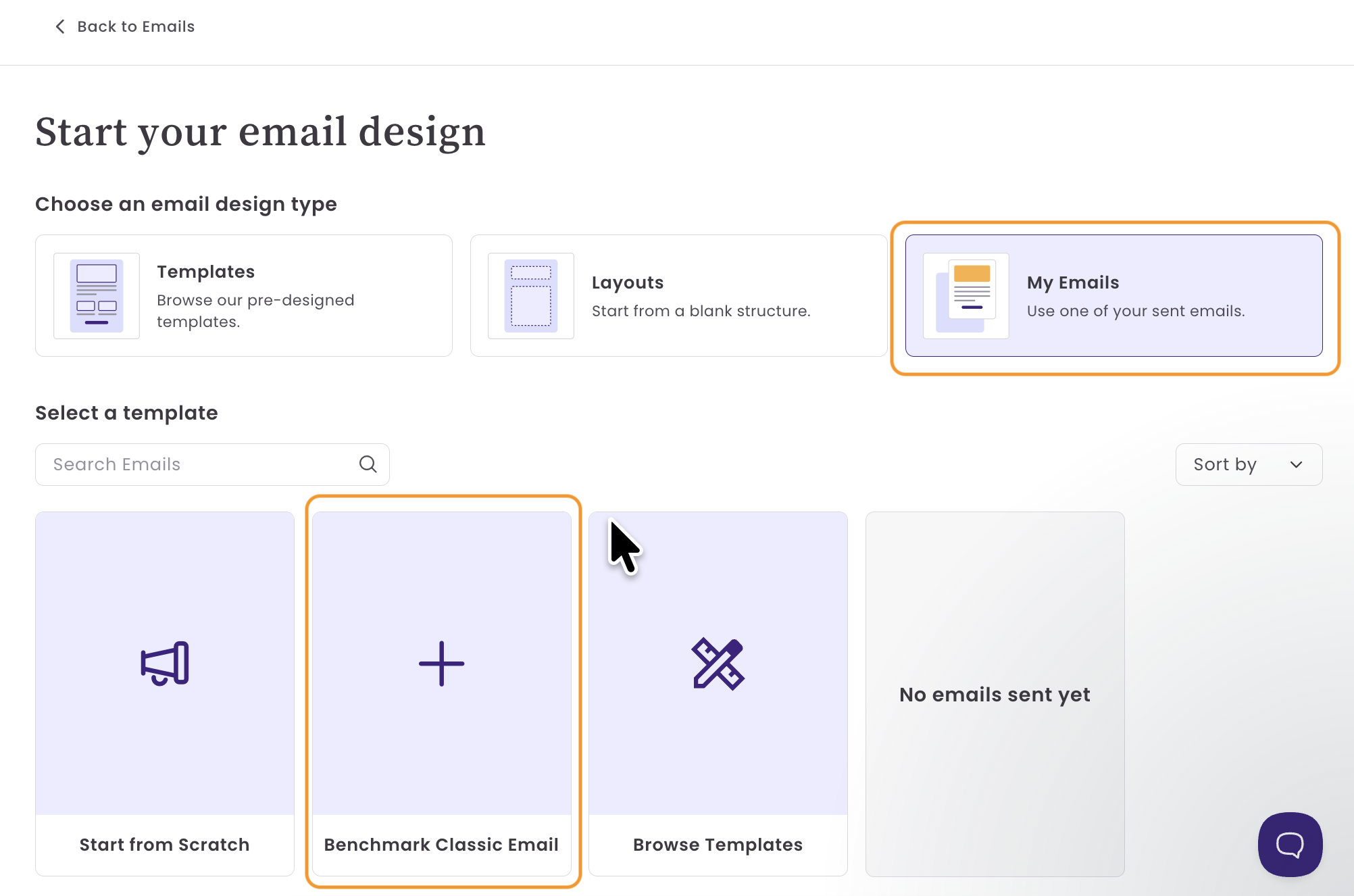
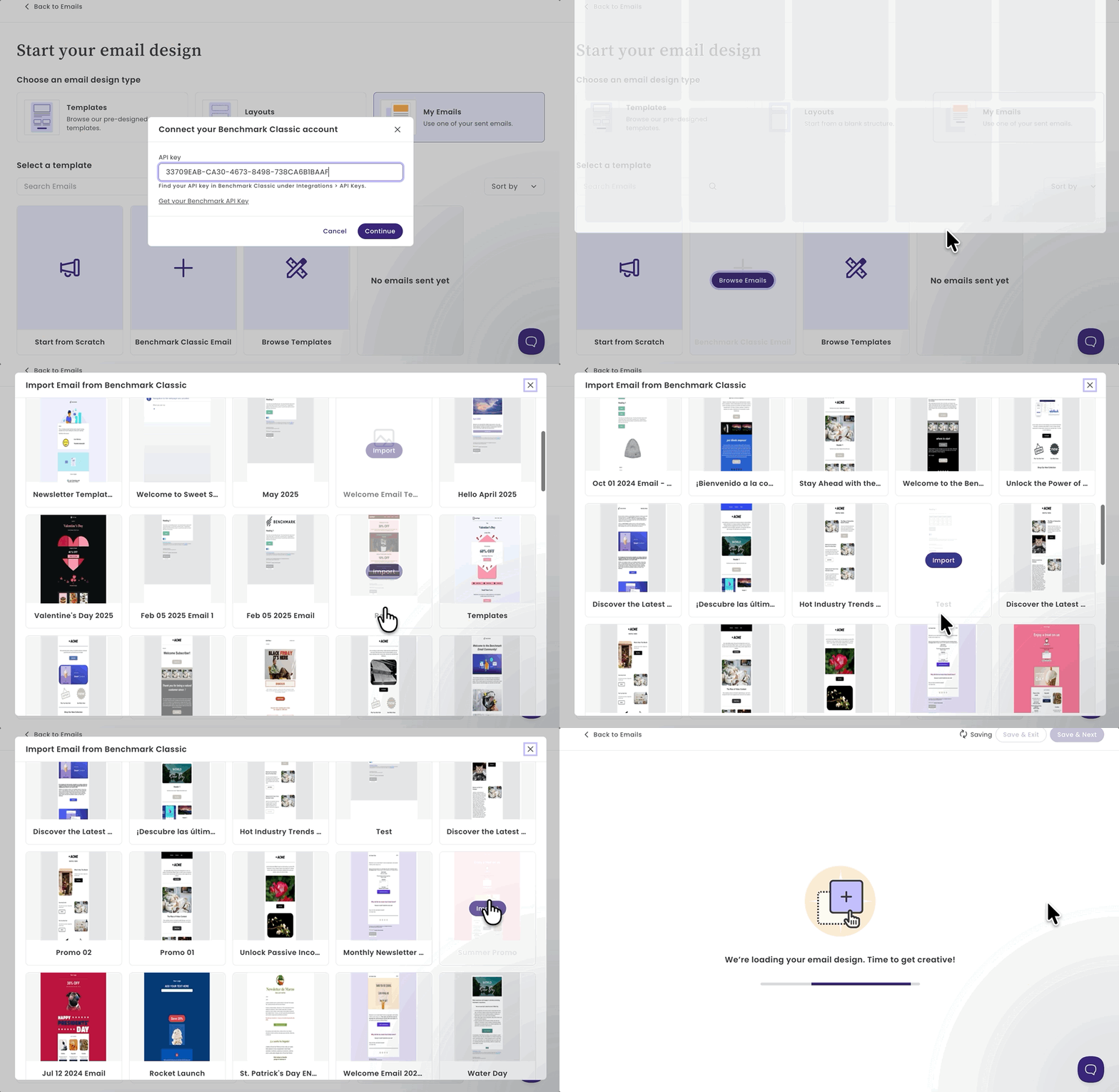
- Enter your Benchmark Classic account's API Key. The API Key can be found on the Integrations page here.
- Next, you will see your Benchmark Classic templates, where you can select a template to import.
-
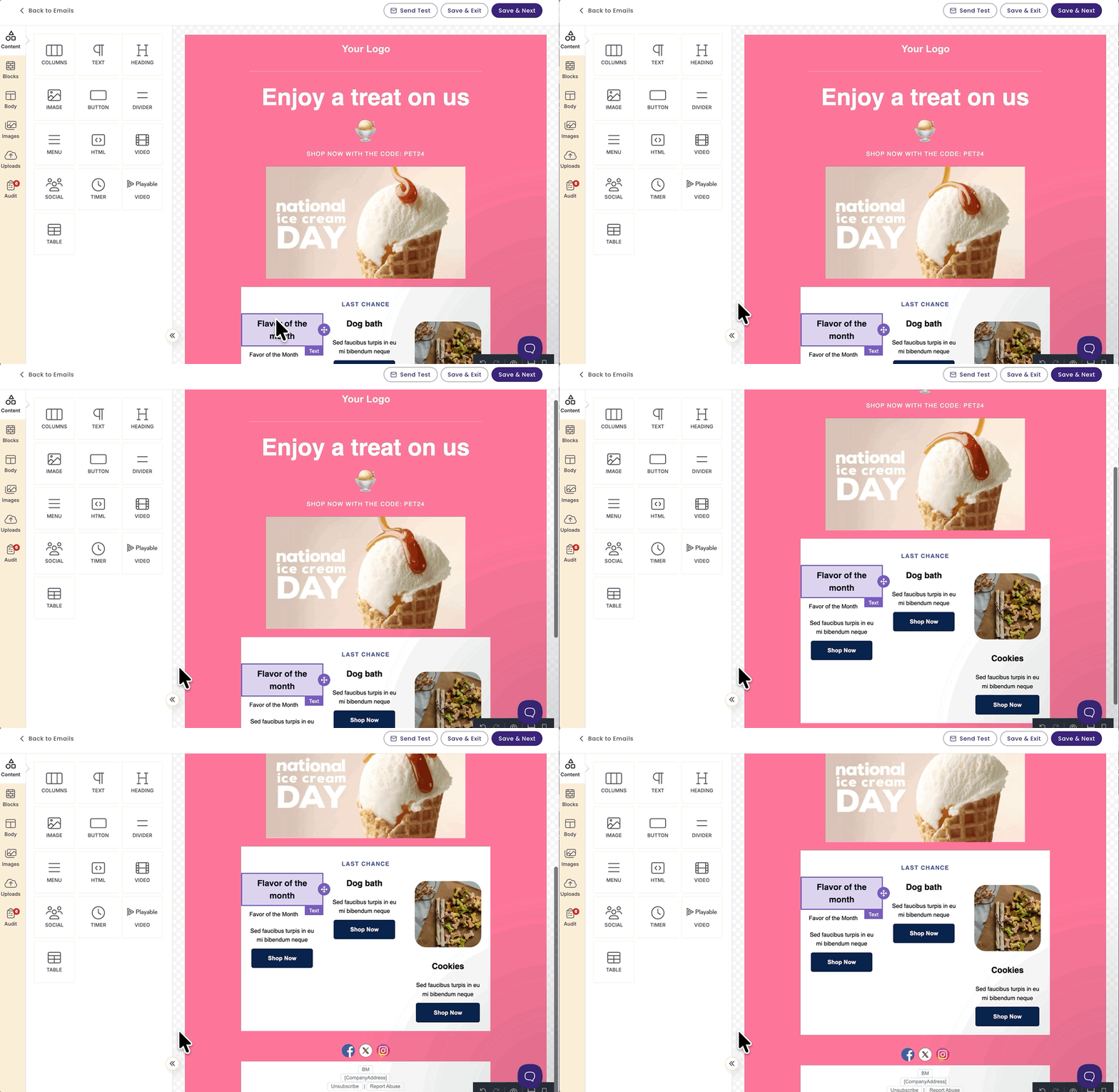
Once selected, the email template will be loaded into the new Benchmark Editor.
-
You can now continue editing your email.
-
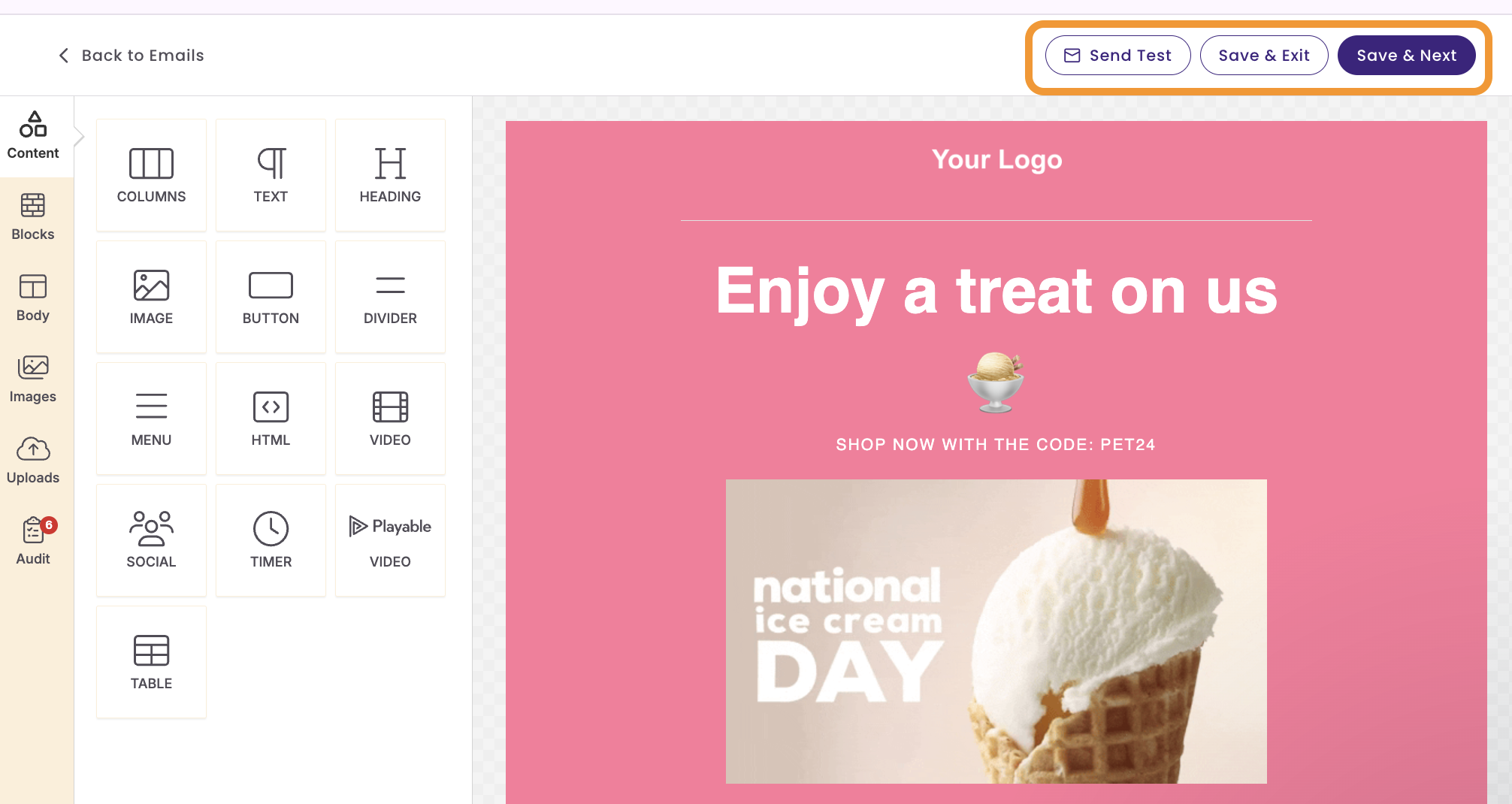
When done, you can send yourself a Test Email, click Save and Next, or Save and Exit,
What Happens During the Template Import?
Benchmark Classic and New Benchmark use different internal editors, so not all block options have direct counterparts. When an email template is imported, the New Benchmark tries to replicate the original design as closely as possible, but some settings such as specific border, background, or mobile styles may be omitted because there's no equivalent option. The following sections detail what to expect for each block type.
Block-by-Block Differences
Image
- "Border Radius" is not supported.
- Border options on the image itself (not its surrounding container) are not supported.
Text
- "Background Image" is not supported.
Image Groups
This block type is hidden in New Benchmark's blocks panel, so existing Image Groups will convert, but you can't add a new one.
- Image “Border Radius” is not supported.
- Image “Horizontal Alignment” is not supported.
- Image “Vertical Alignment” is not supported.
-
Image width may become fluid (resizes with the screen) instead of fixed. Benchmark Classic uses a fixed email width, while New Benchmark allows the width to be adjusted, so sizing may look different from what it did in Classic.

Image Card
Converts to New Benchmark's “Image Caption” block, which is also hidden in the blocks panel.
- Image “Border Radius” is not supported.
- “Mobile Styling” options are not supported.
- Mobile CSS is not supported.
Boxed Text
Converts using New Benchmark's standard Text block.
- Two-column boxed text won't stack on mobile, since it now uses the standard Text block instead of a dedicated boxed-text layout.
Button
- Anchor links can't be converted because Benchmark Classic and New Benchmark handle anchors differently.
Divider
- "Background color" may be missing when the divider sits in a multi-column section.
Spacer
- "Background color" may be missing when the spacer sits in a multi-column section.
Right/Left/Bottom Text
Converts to New Benchmark's “Image Caption” block, which is hidden in the blocks panel.
- Image “Border Radius” is not supported.
- “Mobile Styling” options are not supported.
- Mobile CSS is not supported.
Social Follow
- "Website" and "Bluesky" icon options aren’t available. New Benchmark shows a placeholder icon in their place.
- Per-icon styling (color, border, border radius) isn't converted. Icons appear in New Benchmark's default style, and any style changes you make apply to all icons at once, not individually.
- Most formatting and style options from Benchmark Classic aren't available. Styling must be set through New Benchmark's Social block options.
- Text labels shown under each icon aren't supported.
Social Share
- Omitted entirely. New Benchmark doesn't yet generate a web version of the email, which social sharing links depend on. Benchmark Classic auto-creates that web version and links to it — without it, share links wouldn't work.
Video
- Only YouTube and Vimeo videos are supported (Wistia isn't).
- "Border" is not supported.
- "Background color" may be missing in a multi-column section.
Navigation Bar
Converts using New Benchmark's Menu block, which doesn't support:
- Images used as links.
- The “Layout” option (aligning a single link to the left or right).
- Individual link styles — only the first link's style is applied to the rest.
- Mobile styling options (links won't stack on mobile).
Ecommerce
- Converts into separate default blocks: Image, Text, and Button.
- Container border and padding aren't converted because New Benchmark handles them differently than Benchmark Classic.
Shopify
- Converts the same way as Ecommerce blocks, since they share the same underlying structure.
Permission Reminder
- Omitted entirely.
Template Import Behaviors
These behaviors aren't tied to a single block type — they apply across the entire email.
Individual block background color
Benchmark Classic lets most blocks have their own background color. New Benchmark doesn't support color at the individual block level, so during the template import, we use the first block's background color in a section (or the first block's background color in a column for multi-column sections) and apply it to the entire row instead.
Merge tags
Not imported for now; instead, they'll appear as plain text after the template import. If your merge tags match ones already set up on your account, contact support to see if they can be mapped for you.
Anchor links and sections
Benchmark Classic creates anchors by inserting invisible text into a text block. New Benchmark links to a block's section name instead. Because these methods aren't compatible, anchor links can't be reliably converted and are skipped entirely.
Border styles
New Benchmark doesn't support every border style. The five least common styles will still display correctly in your converted email, but won't appear as selectable options if you edit them later.
Global styles
Email-wide border settings aren't converted, since global border options aren't supported in New Benchmark.
Frequently Asked Questions
Why don’t some of my blocks look the same after switching to New Benchmark?
New Benchmark's editor is built on different underlying technology than Benchmark Classic's drag-and-drop editor, so not every option has a direct equivalent. Review your converted email before sending to catch any differences, such as missing border radii or background colors.
Why can’t I find the Image Group or Image Card block in New Benchmark?
These block types are hidden in New Benchmark's blocks panel because they don't have a direct match. Emails that already use them still convert — Image Groups keep their layout, and Image Cards convert to New Benchmark's Image Caption block — but you can't add new ones from scratch.
What happens to my email’s anchor links?
Email anchor links are not imported during the template import. Benchmark Classic anchors rely on invisible text markers, while New Benchmark links to section names. The two methods aren't compatible, so anchor links are skipped during the import.
Why did my Social Share block disappear?
The new Benchmark doesn't yet generate a web version of your email, which social sharing depends on. Until that's supported, Social Share blocks are omitted during template import.
Will my merge tags still work?
Not automatically. They'll show as plain text after the template import. If your merge tags match ones already set up on your account, contact support to see if they can be mapped for you.