
Test Email and Preview Options
Before sending your email to all of your contacts, use the Preview Options in the email builder or send a Test Email to verify how your email appears in the inbox. Using both options will help you identify and resolve any potential display issues.
BEFORE GETTING STARTED
- If you have not yet verified your domain, test emails will be sent from
testemails.nxg.benchmarkemail.com. After your domain is verified, test emails will use your verified domain. - You may send a test email to up to five recipients at a time.
- Email links in test emails expire after 24 hours.
- Test emails can only be sent to verified email addresses.
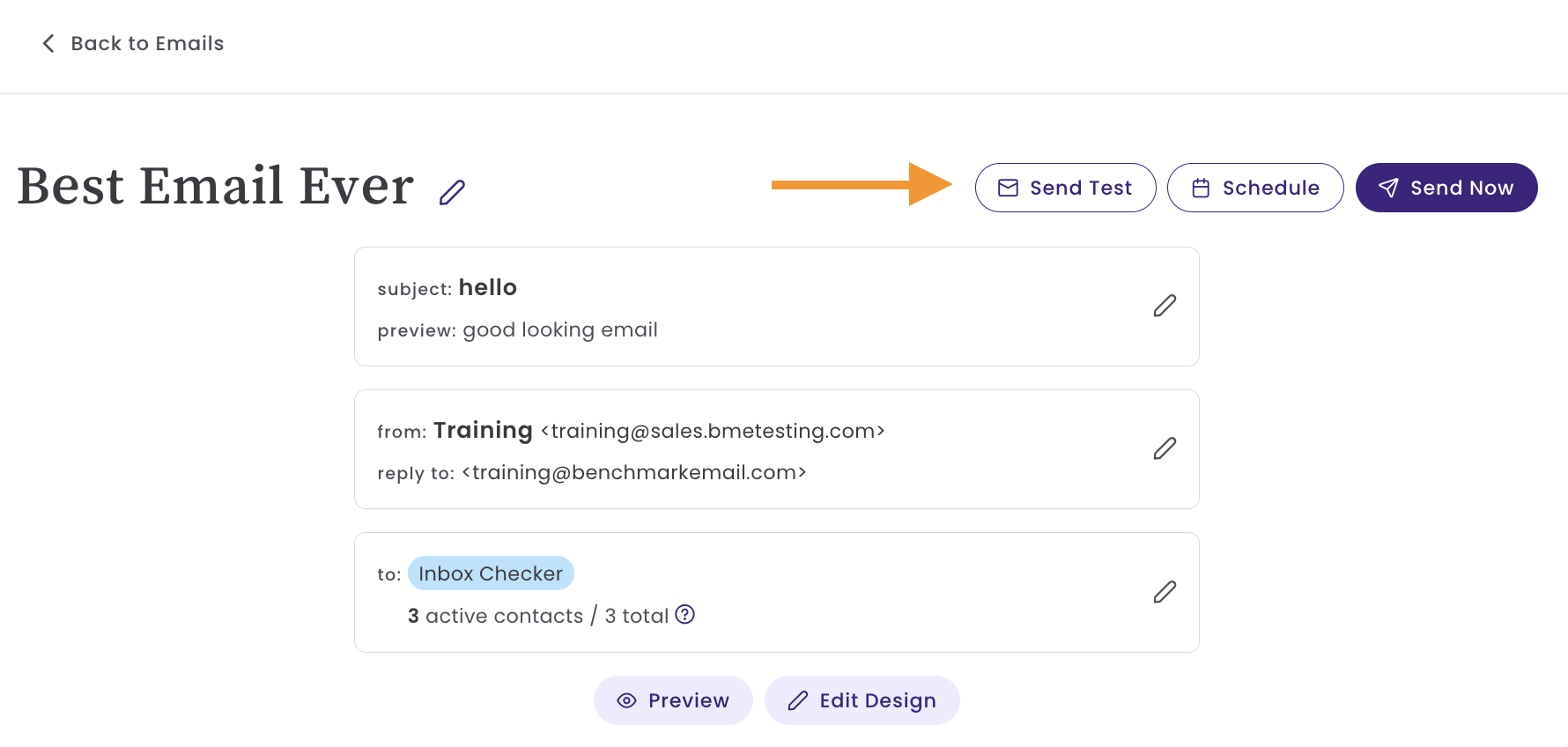
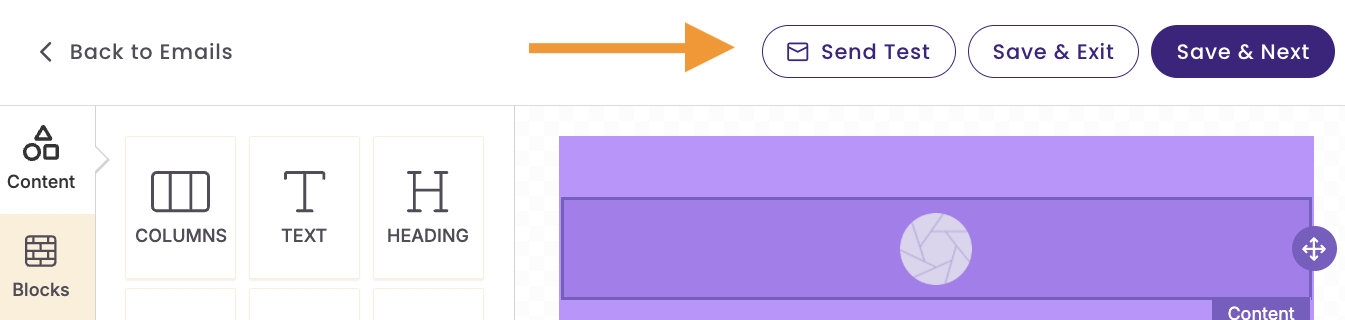
- The Test Email option is available on the Email checklist page and in the Email editor. After you schedule and send an email, the “Test Email” option is no longer available.
- Do not use the Test Email feature to measure your email deliverability. Instead, schedule and send the email to yourself using the Schedule options.
Important
Before sending a test email, replace all placeholder content with your final text, links, images, and personalization. Leaving the default content can cause test emails to land in spam or appear incorrectly, such as missing images, even if they reach the inbox.
Test Email
Test emails can only be sent to verified email addresses within the same account. To ensure deliverability and prevent misuse, testing is limited to emails you’ve already verified, including Reply-to addresses and other registered users.
To add more test emails, include them as reply-to addresses or as users.
To send a test email
Go to the Emails dashboard and click on the email name or select Details.
Email Checklist
From Email Builder
Click Send Test and select a verified email address. You may select up to five recipients, and any email links included in the test email will expire after 24 hours.
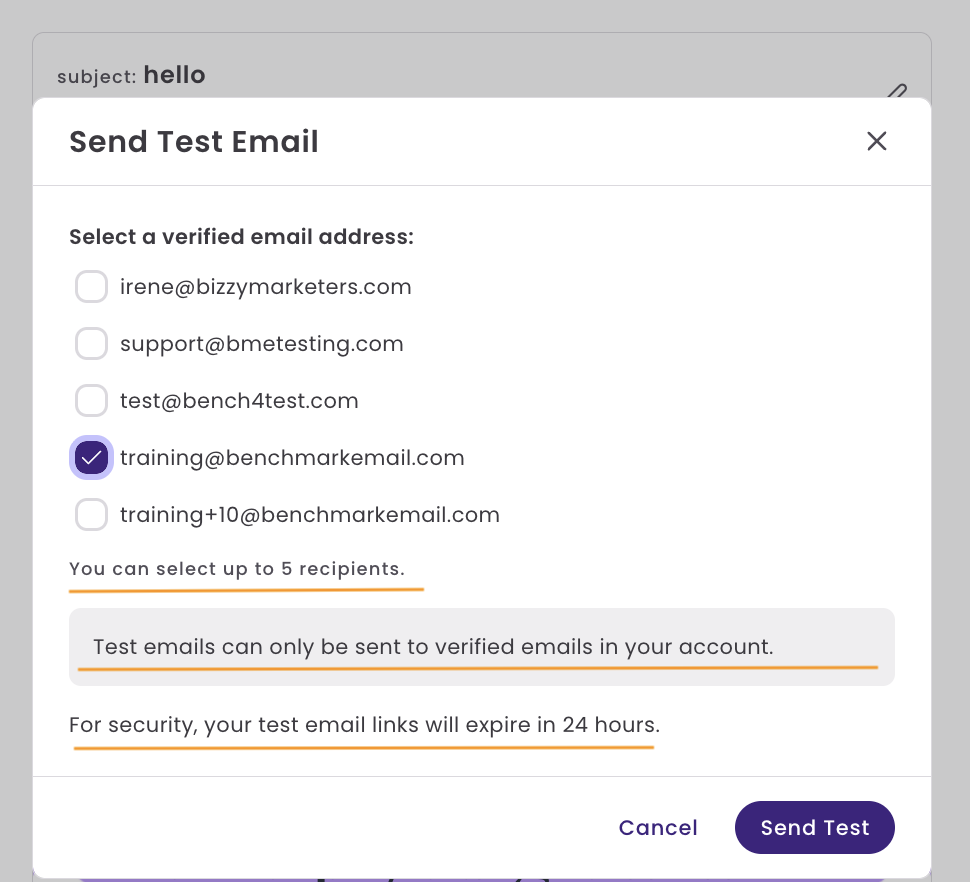
To add additional verified email addresses, include them as reply-to addresses or add them as users within the account.
After sending your test email
The test email will have [Test] at the beginning of the subject line, and the From details will reflect what was assigned in the email checklist.
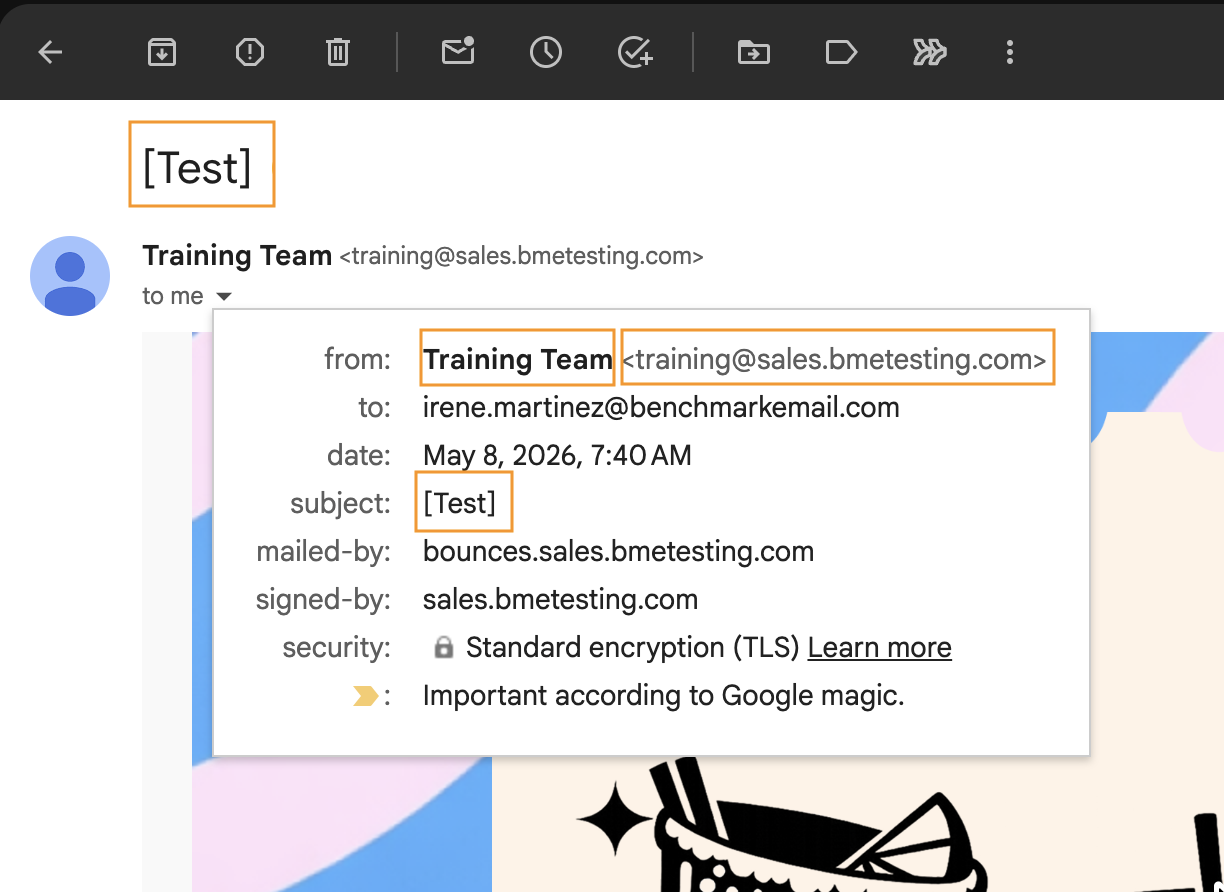
If no “From Details" are assigned in the email checklist, the “From” email used in the inbox for your test email will be your account’s verified email address, along with the first and last name.
Preview Options
The Preview Option is located at the bottom right of the email builder.
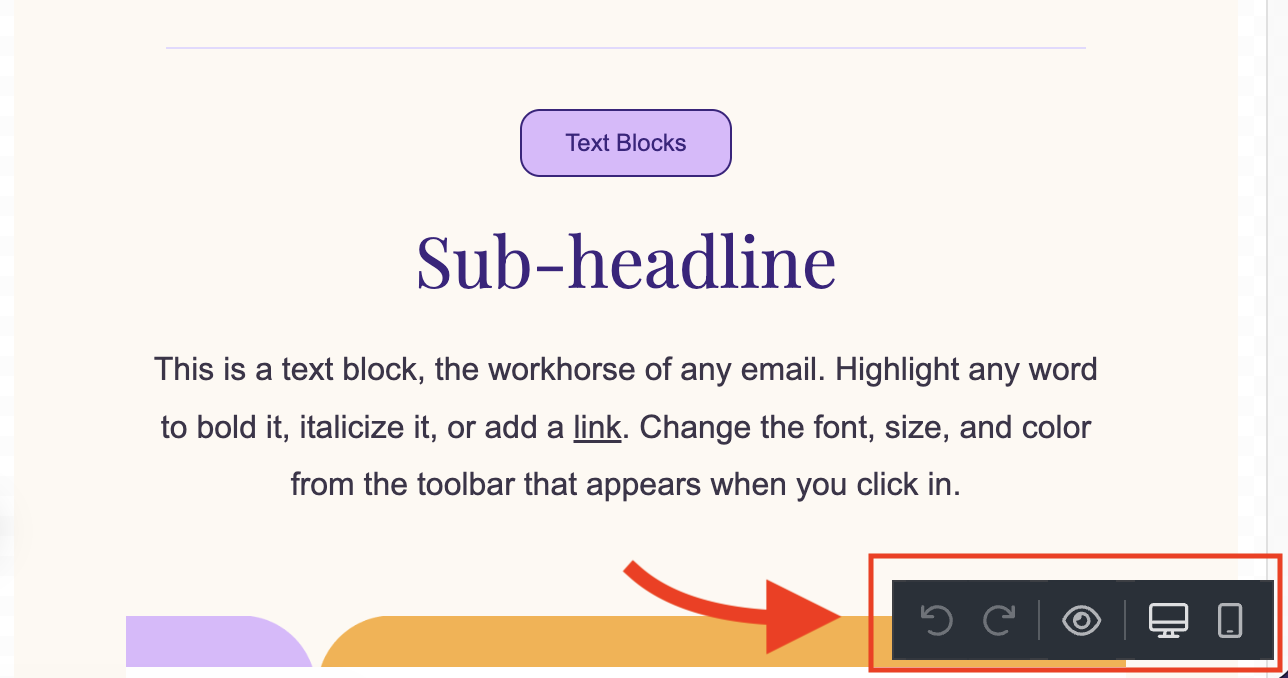
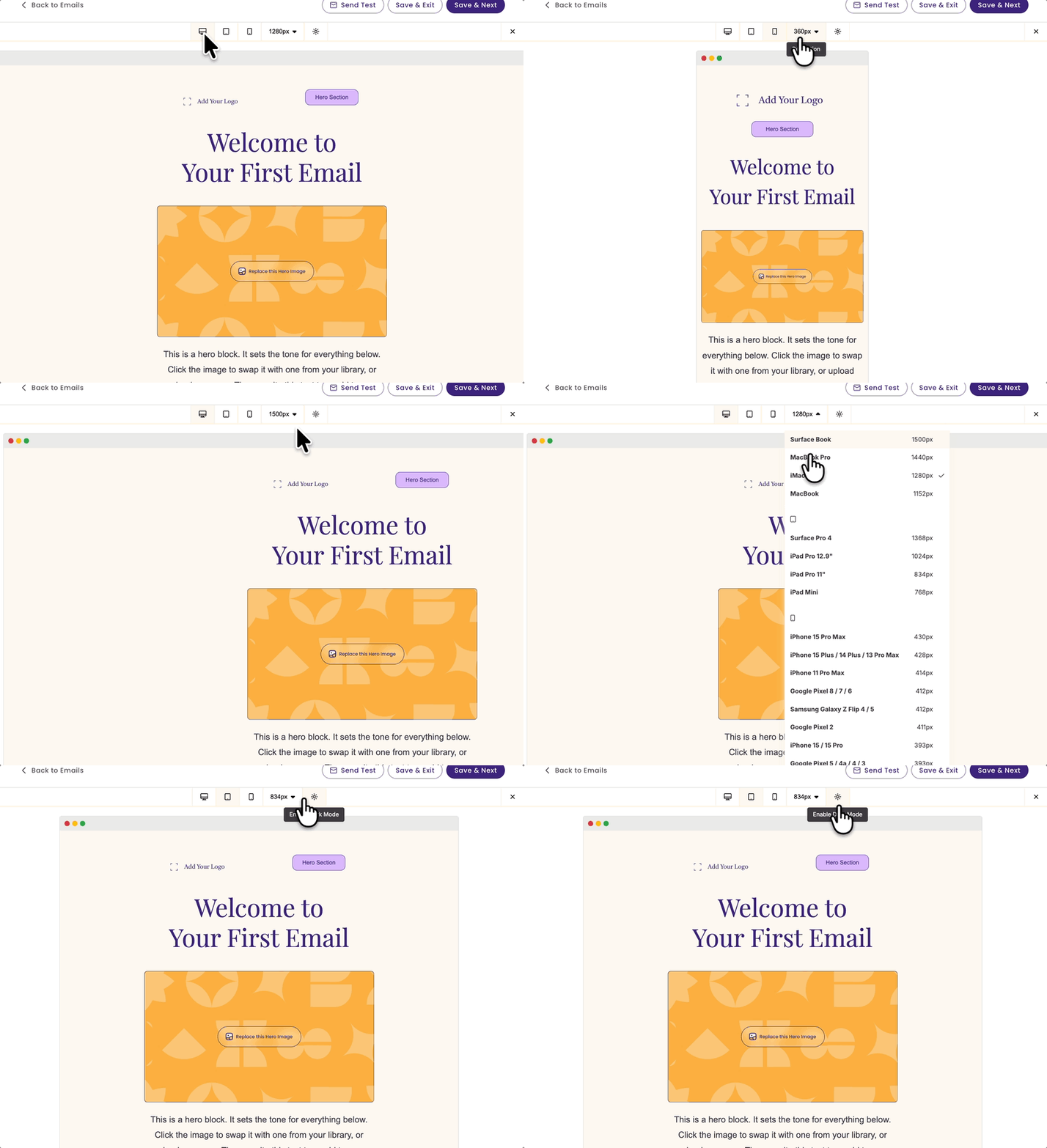
The Preview options let you see how your email will appear on various screens. This is a valuable first step in testing how your email will appear in your contact's inbox.
Available options include Desktop, Tablet, Mobile, various resolutions, and dark and light modes.
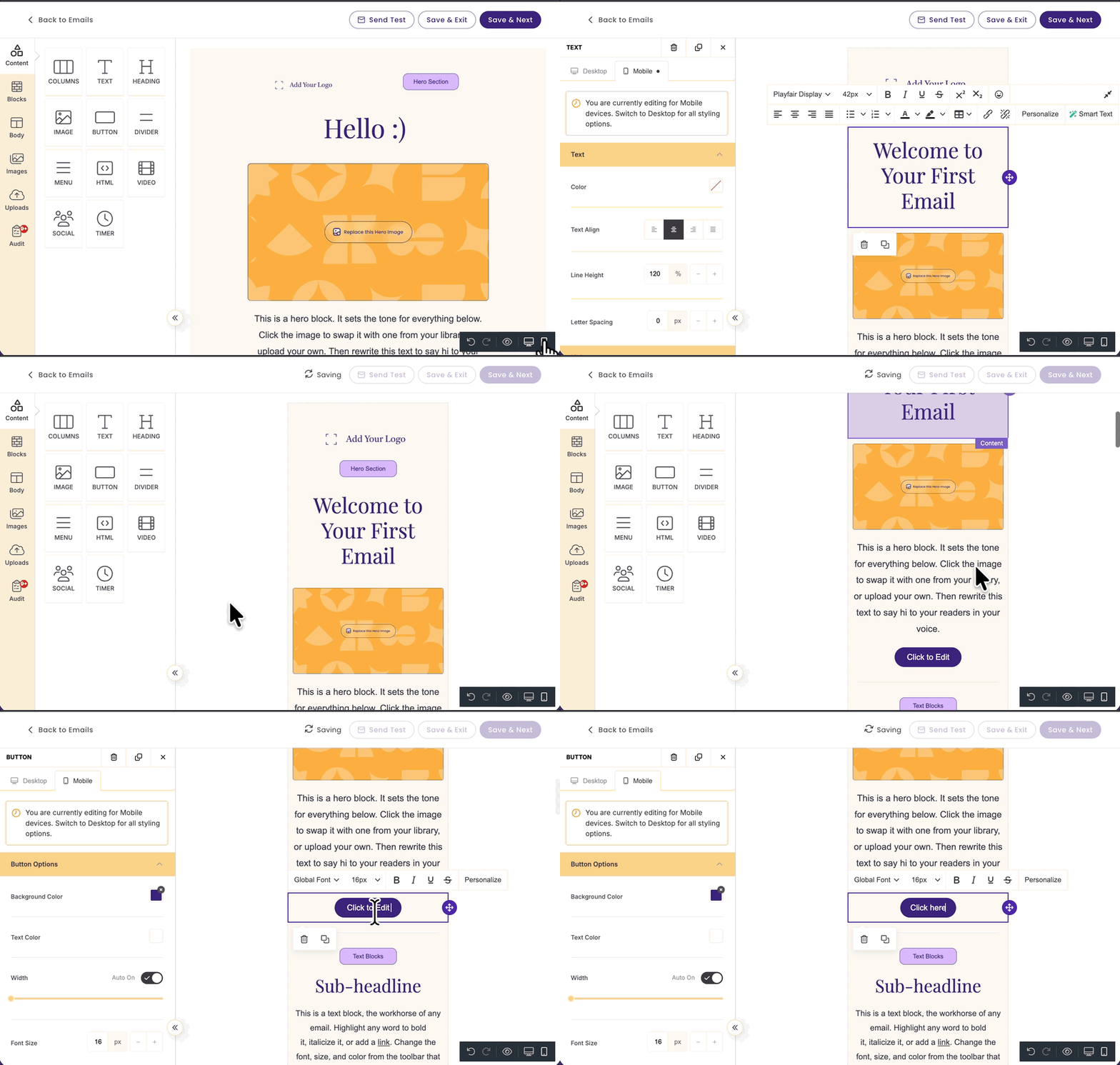
Did you know you can also edit your email in mobile view mode?
To edit in Mobile mode, click on the Mobile Icon in the Preview section on the bottom right of the editor.

TIP Customize your email design for recipients who primarily open their emails on mobile devices.
Suggestions and Best Practices
Test Email Checklist
Before opening the email
|
Subject Line & Preview Text |
Sender Information |
|---|---|
|
|
After opening the email
Make sure the first fold of your email immediately tells readers what it's about. Many recipients may lose interest if the content is too long. In some emails, less is more.
|
Email Copy |
Links & Buttons |
|---|---|
| Email content matches your branding | All links open the correct pages |
| Images display correctly | Buttons function properly |
| Dates, pricing, promo codes, and details are accurate | Social media links are updated and working |
| All text has been proofread for spelling and grammar | Unsubscribe link is present and functional (added automatically to all emails) |
| Alt text has been added to images |
|
| Personalization displays correctly (Example: First Name) |
|
Rendering Across Inbox Providers
| Test your email using different inbox providers | Look for the following inconsistencies |
|---|---|
|
|
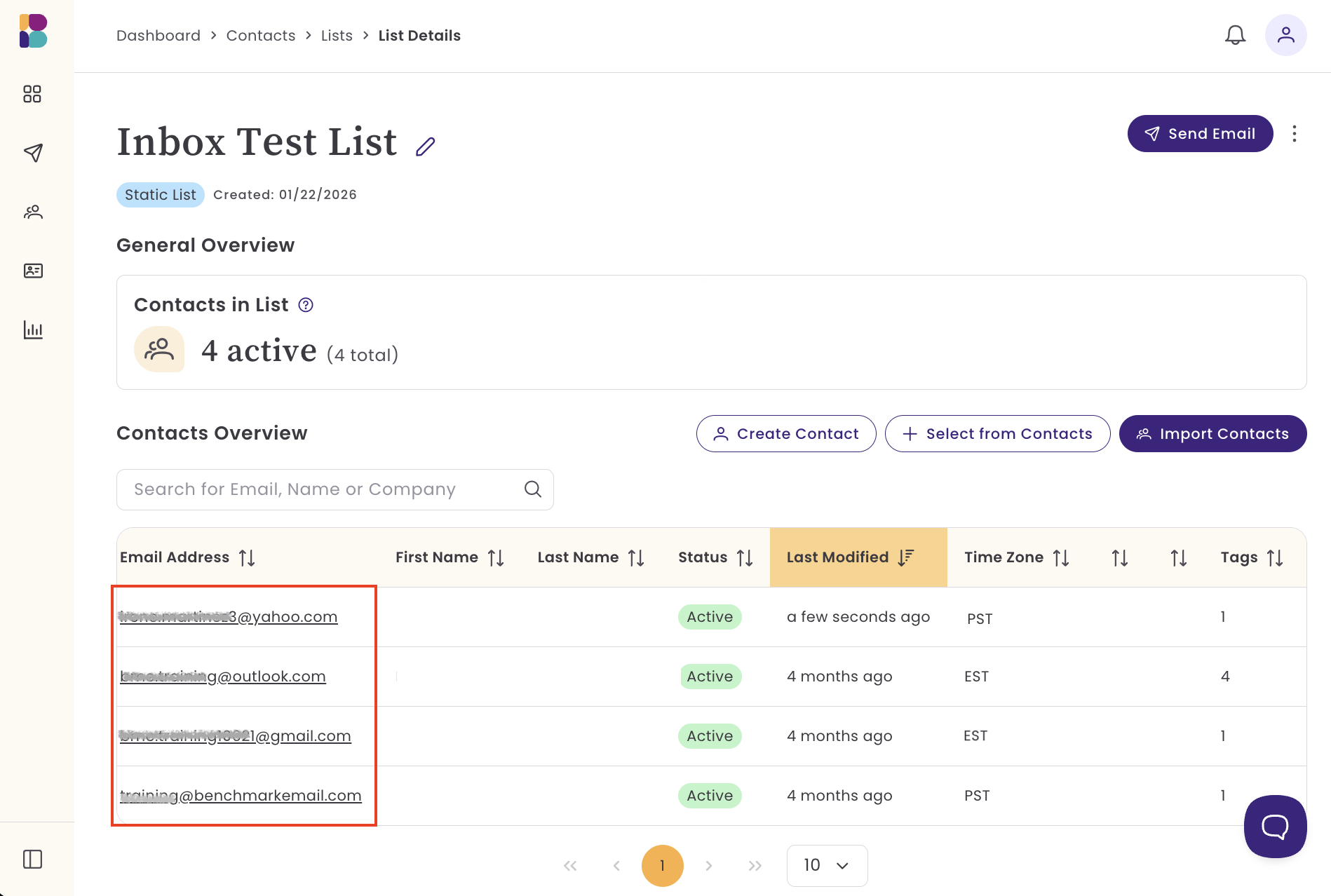
For more accurate testing, we recommend creating a small internal testing contact list with email addresses from multiple inbox providers, like gmail.com, yahoo.com, oultlook.com, and even your own personal custom domain. Having this internal testing list will help you compare how each inbox provider displays the email, whether images load properly, how the inbox is placed, and more!
Inbox Placement
Email placement cannot be guaranteed and is solely determined by the inbox. Inbox providers use their own algorithms to determine whether an email lands in a primary folder or in a promotions folder.
Placement is influenced by many factors, including contact engagement, sender reputation, domain verification, email content, and the recipient’s past behavior.