
Attach Files to Your Emails
You can attach files in your emails by adding them as clickable links, giving your contacts a convenient way to download the files they need. Instead of attaching files the traditional way, you link the file to text, an image, or a button in your email. When recipients click it, the file downloads automatically.
Sharing files through links is a preferred approach in email marketing because traditional attachments can raise security concerns, increase email size, and make messages more likely to be flagged by spam filters.
Topics Covered in This Article
Before Getting Started
- Plan: The Attach Files feature is only available on paid plans.
- File types: PDF, DOCX, PPTX, CSV, and TXT.
- File size: Up to 10 MB per file.
- Security check: Every uploaded file is checked automatically. You can send your email once the check finishes.
- Test email: Send yourself a test email to see how the file link downloads.
- It's a link, not an attachment. Your contacts won't see a paperclip icon. They click your text, button, or image to download the file.
- Some contacts won't click. Cautious readers may hesitate to download files. Tell them what the file is and why it's useful, right next to the link.
- The link depends on your account. If you delete the file or lose access to the Attach Files feature, the link stops working, even in emails you've already sent.
Attaching a File to Your Email
You can attach a file to your email in three different ways. Select an option below to learn how:
Attaching a file to text
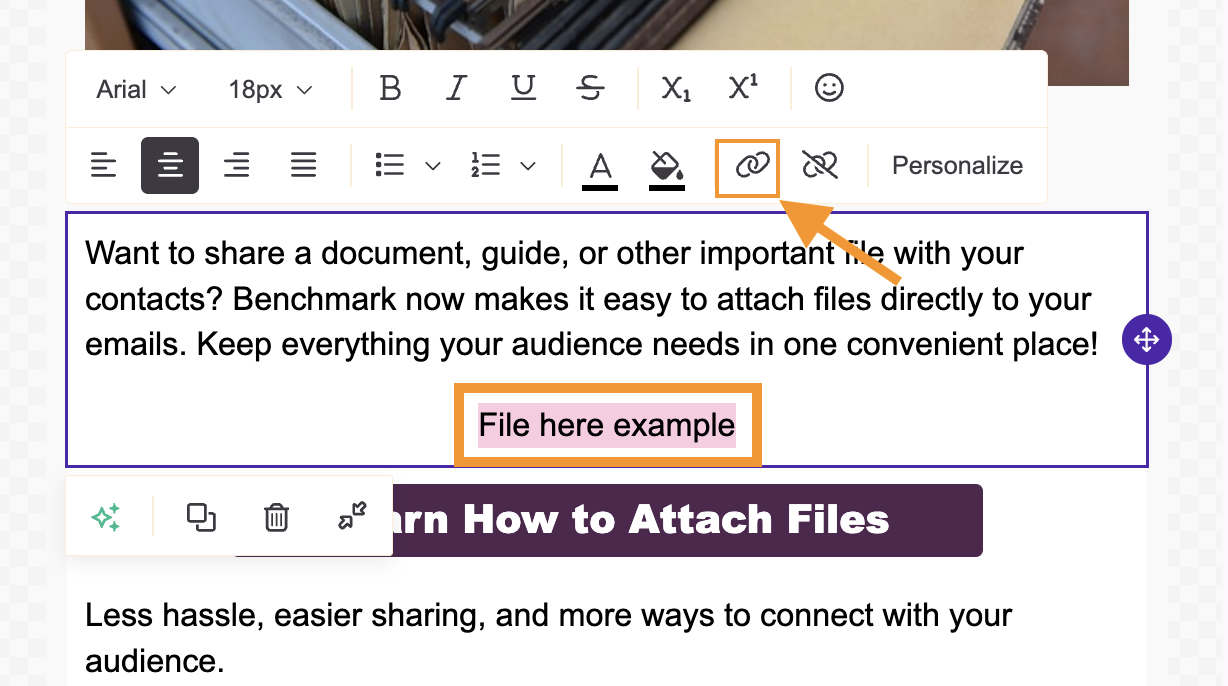
Highlight the text and then click the link option in the menu bar.
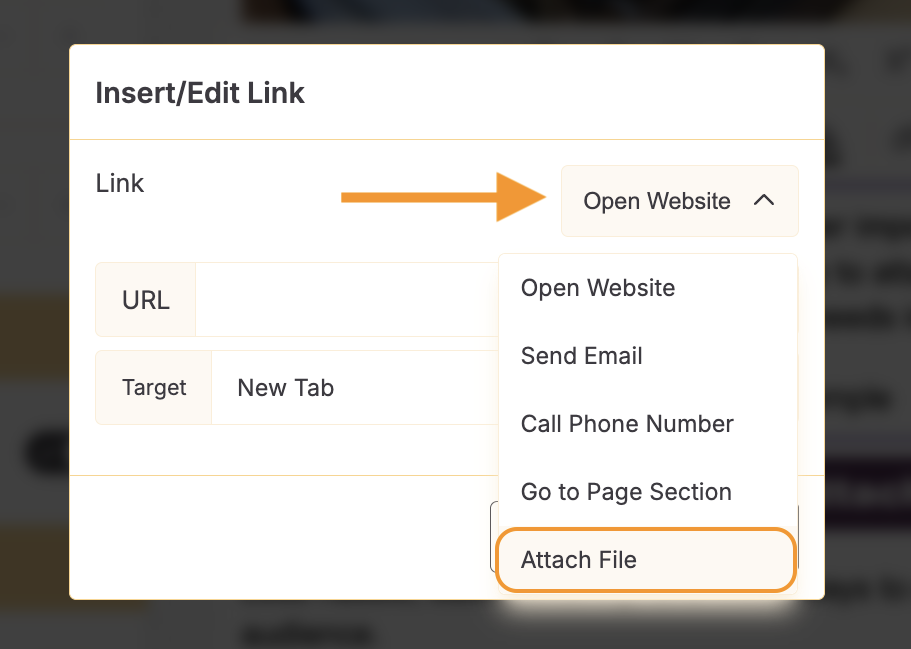
Click on the Link Type and select Attach File.
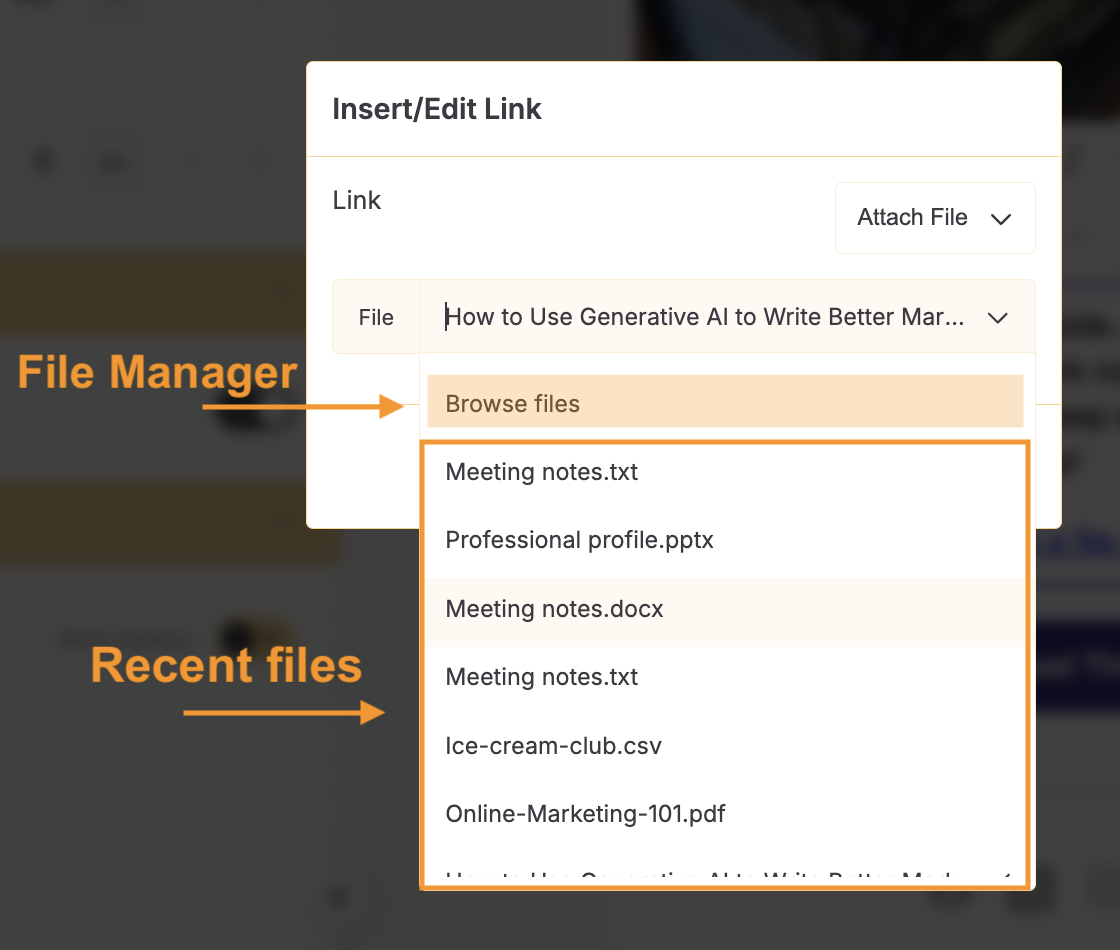
In the File field, select one of your recent files from the list, or click Browse files to open the File Manager.
In the File Manager, find your file. The newest files appear first; you can search by file name, select your file, then click Attach File.
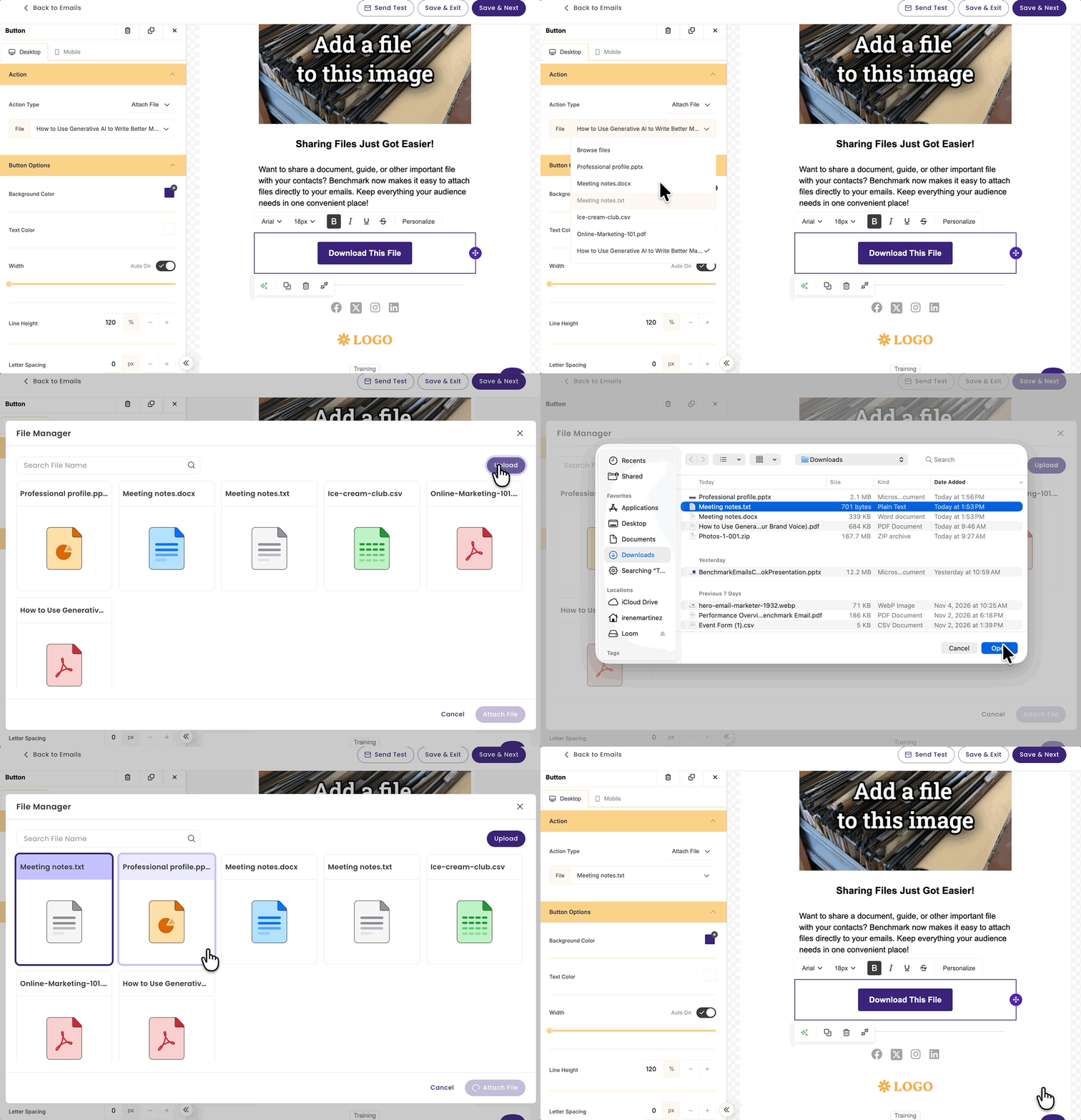
To add a file you haven't uploaded yet, click Upload in the File Manager and choose it from your computer.
Attaching files to buttons
Click your button; the link options will appear in the left menu.
Select Action Type, and choose Attach File.
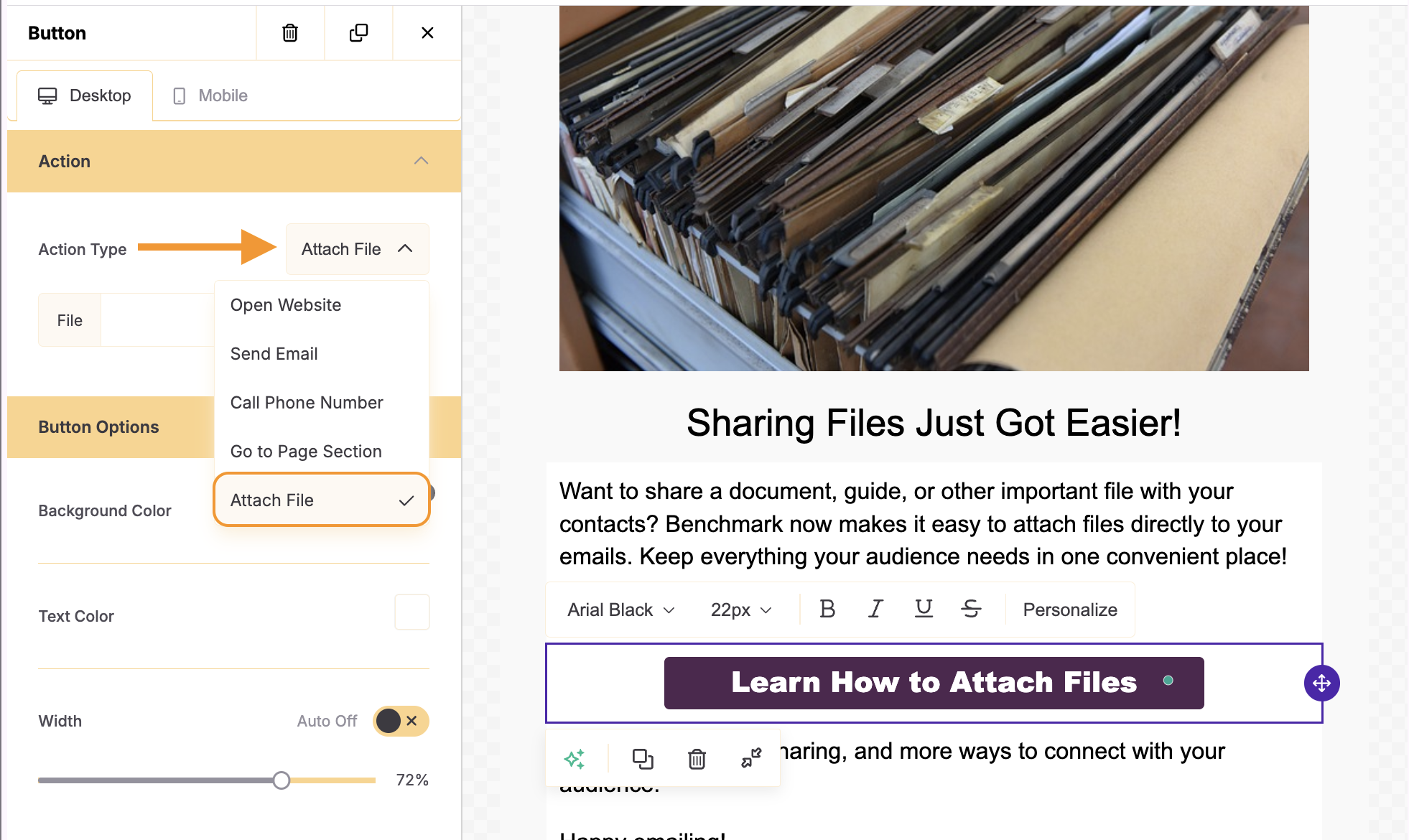
In the File field, pick one of your recent files from the list, or click Browse files to open the File Manager.
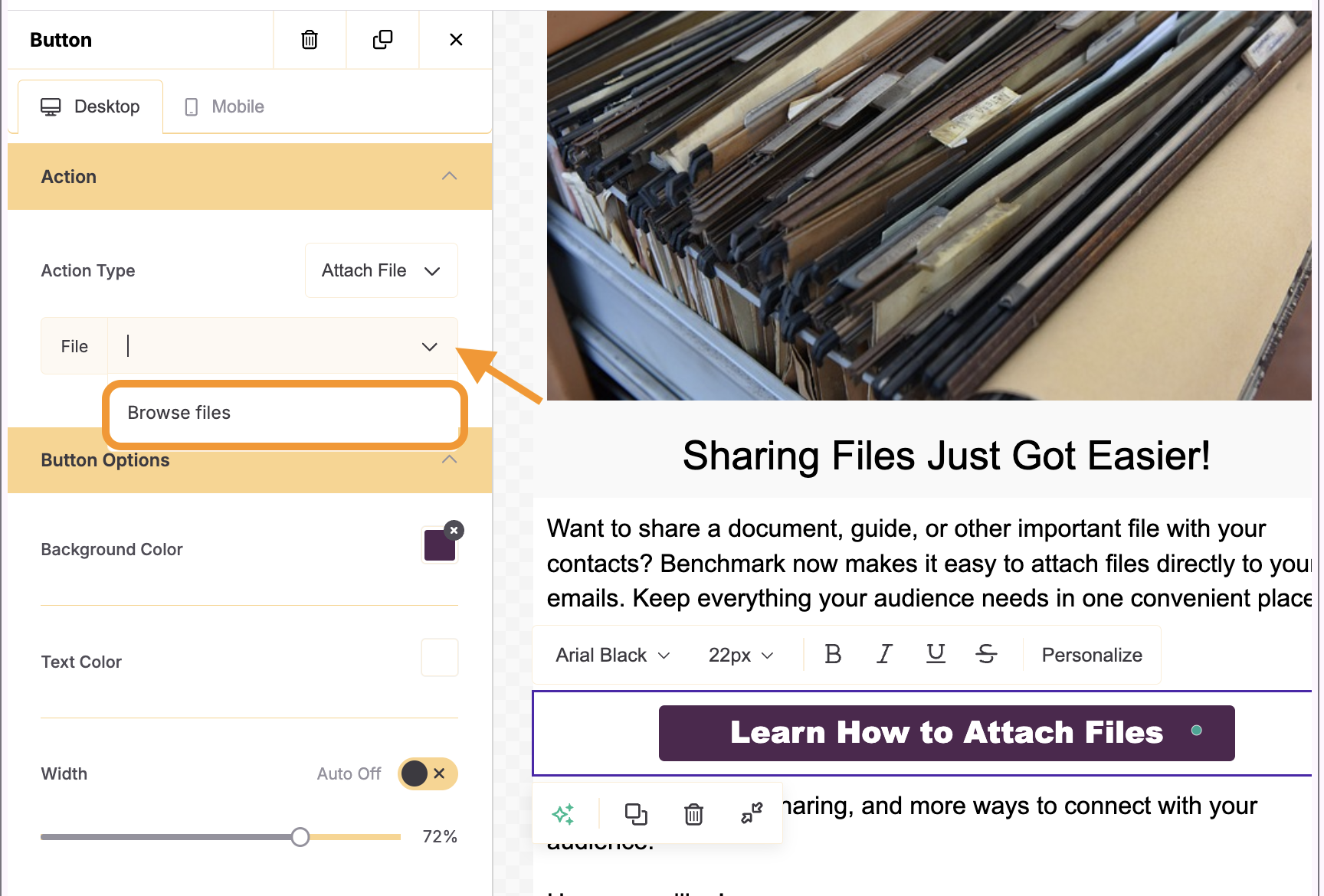
In the File Manager, find your file. The newest files appear first; you can search by file name, select your file, then click Attach File.
To add a file you haven't uploaded yet, click Upload in the File Manager and choose it from your computer.
Attaching files to an Image
To add a file to an image, follow the steps below.
- Click on your image to open the Image menu on the left panel.
- Scroll down to the Action section, click the Link type, and choose Attach File.
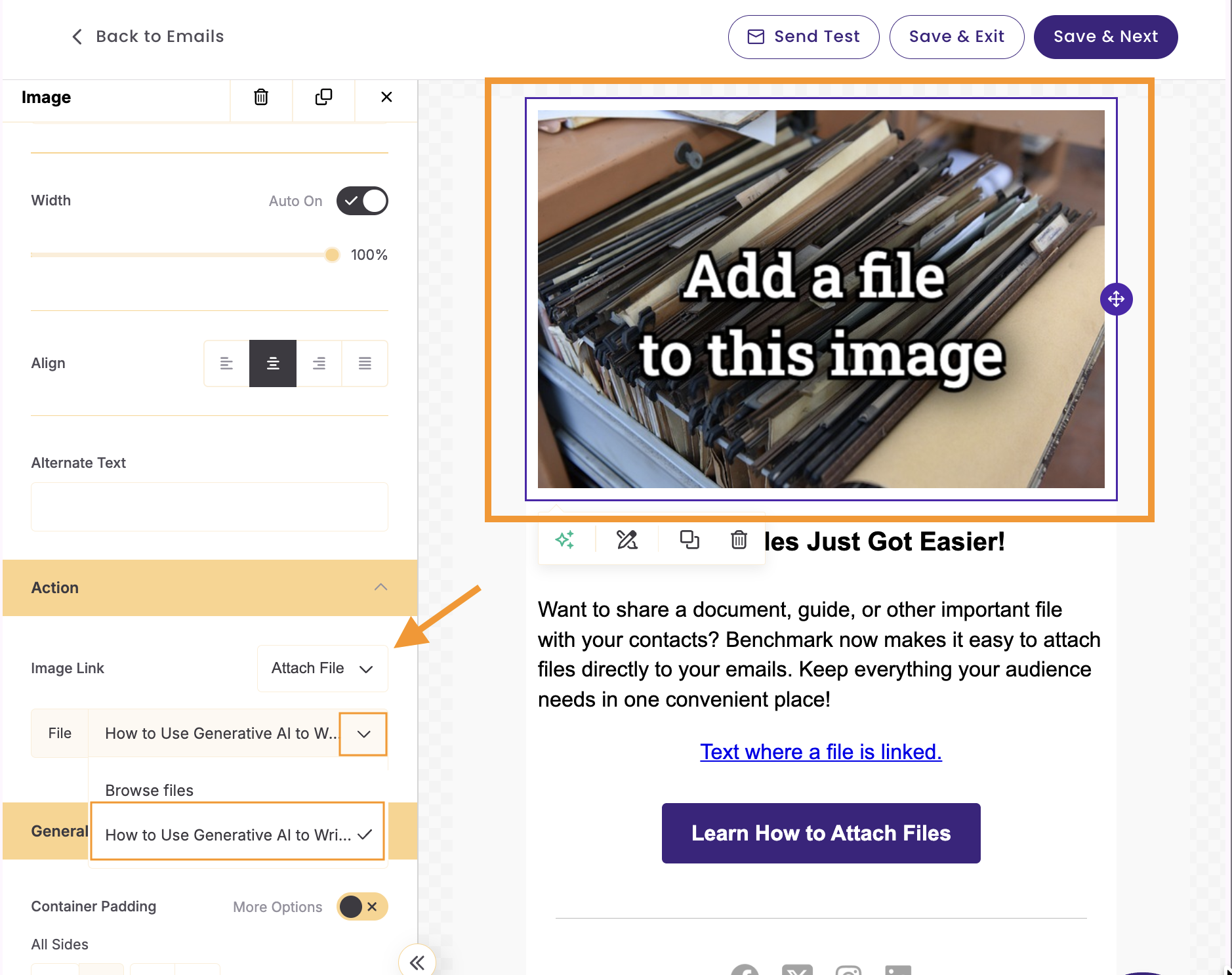
In the File Manager, find your file. The newest files appear first; you can search by file name, select your file, then click Attach File.
To add a file you haven't uploaded yet, click Upload in the File Manager and choose it from your computer.
Tip
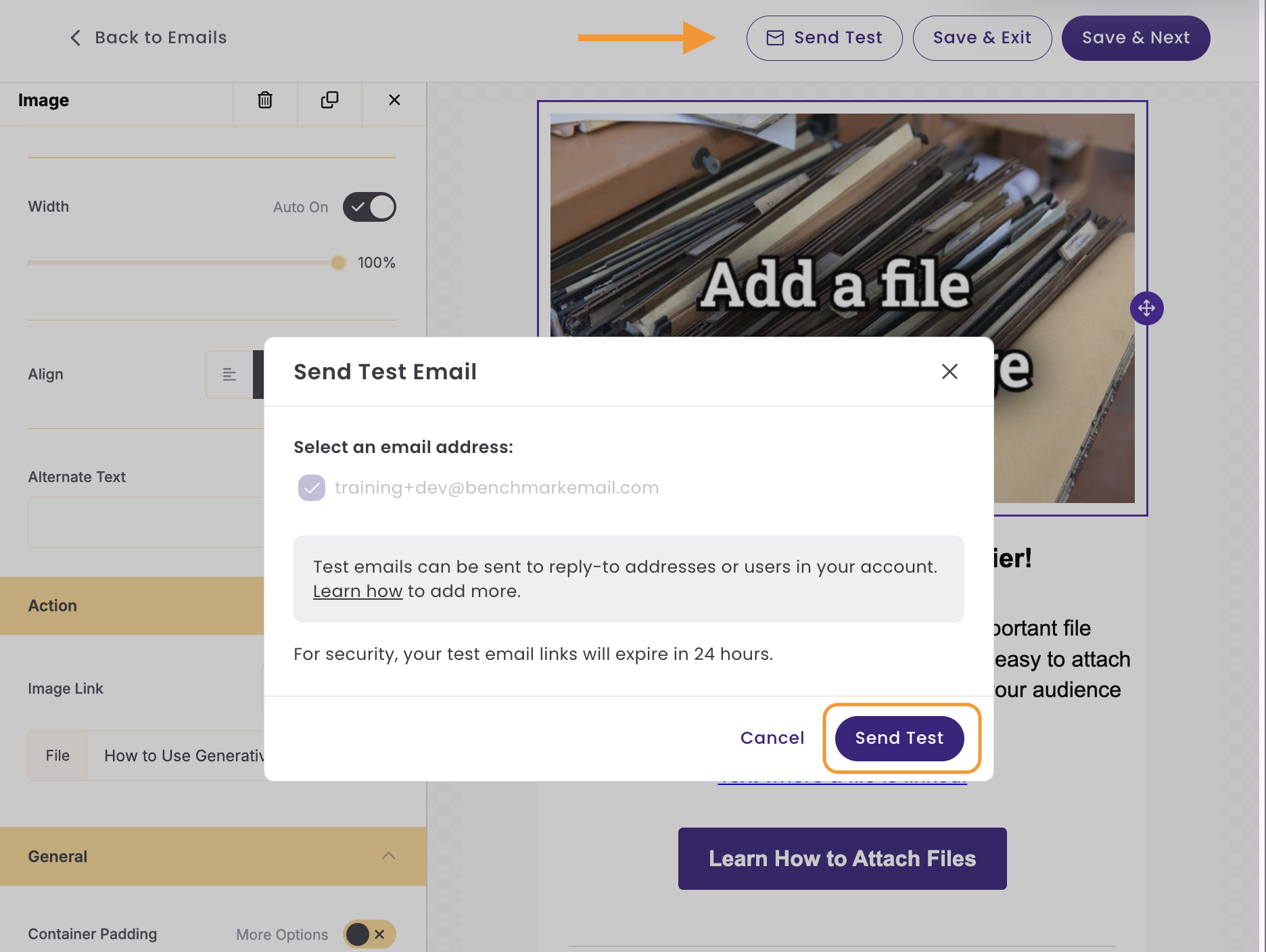
Send yourself a test email, then click the link to preview how the file downloads.
Supported File Types
- Maximum size: 10 MB per file.
- If your file is larger than 10 MB, save or export a smaller version. Use a Web or Reduced Size option in your design tool to cut the file size without noticeably affecting on-screen quality.
- Supported types
- DOCX (Word)
- PPTX (PowerPoint)
- CSV
- TXT.
If your file type is unsupported, try your computer's built-in export or save options to convert the file to a supported format, such as PDF.
If your upload fails, you'll see an error message that will explain the reason so you can take the necessary steps and try again.
Frequently Asked Questions
Can I attach Word and Excel files?
Word files are supported as DOCX. Excel files aren't supported directly, so save your spreadsheet as CSV and attach that instead.
Can I send a different file to each recipient?
No. Everyone who receives the email gets the same file.
Why can't I send my email yet?
If you attached a file moments ago, it may still be going through its automatic check. Wait a moment and try again.