
View Email In Browser Link
Each email you send from Benchmark Email includes a web version: a copy of your email that opens in any browser, similar to a landing page. Your recipients can access it via the View in Browser link located in the footer, and you can also copy the link to share your email on social media, your website, or any other place where you want people to view it.
Topics Covered In This Article
BEFORE GETTING STARTED
- The View in Browser link will only appear in new email templates.
- Manage the link's text in the Footer Settings page.
- You can not alter the link's URL.
How the View in Browser link works
The View in Browser link appears in your email footer by default. When a recipient clicks the link, your email opens as a web page in their browser. This helps when an email doesn't display correctly in a recipient's inbox, for example, when their email app blocks images or changes your layout.

Edit or disable the View in Browser link
You can manage the link's text or disable the link in your Account's Settings>Footer. To modify your View in Browser link, click on the Edit option.

Then select Display Options.
- To disable it, check off the " Include View Browser" link.
- To change the text, delete the existing text and replace it with new text.

Additionally, when you double-click the footer in your email template, a pop-up will appear with the Footer settings. Select Display options to see link options.

Get a shareable link to a sent email
A shareable link is available once your email has been sent. You can copy it from two places.
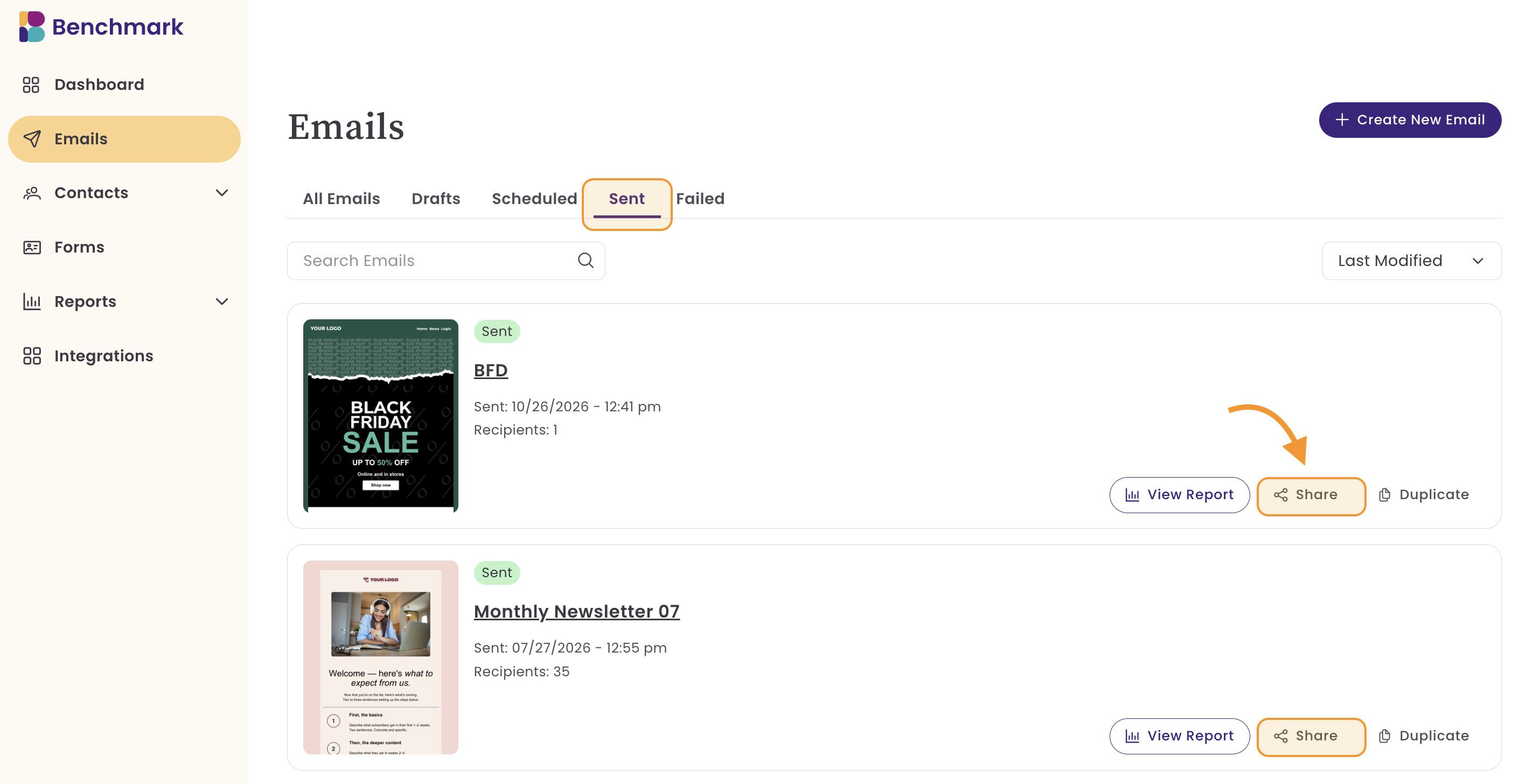
From the email dashboard
- Go to Emails and select Sent.
- Find your email.
-
Select the Share option.
-
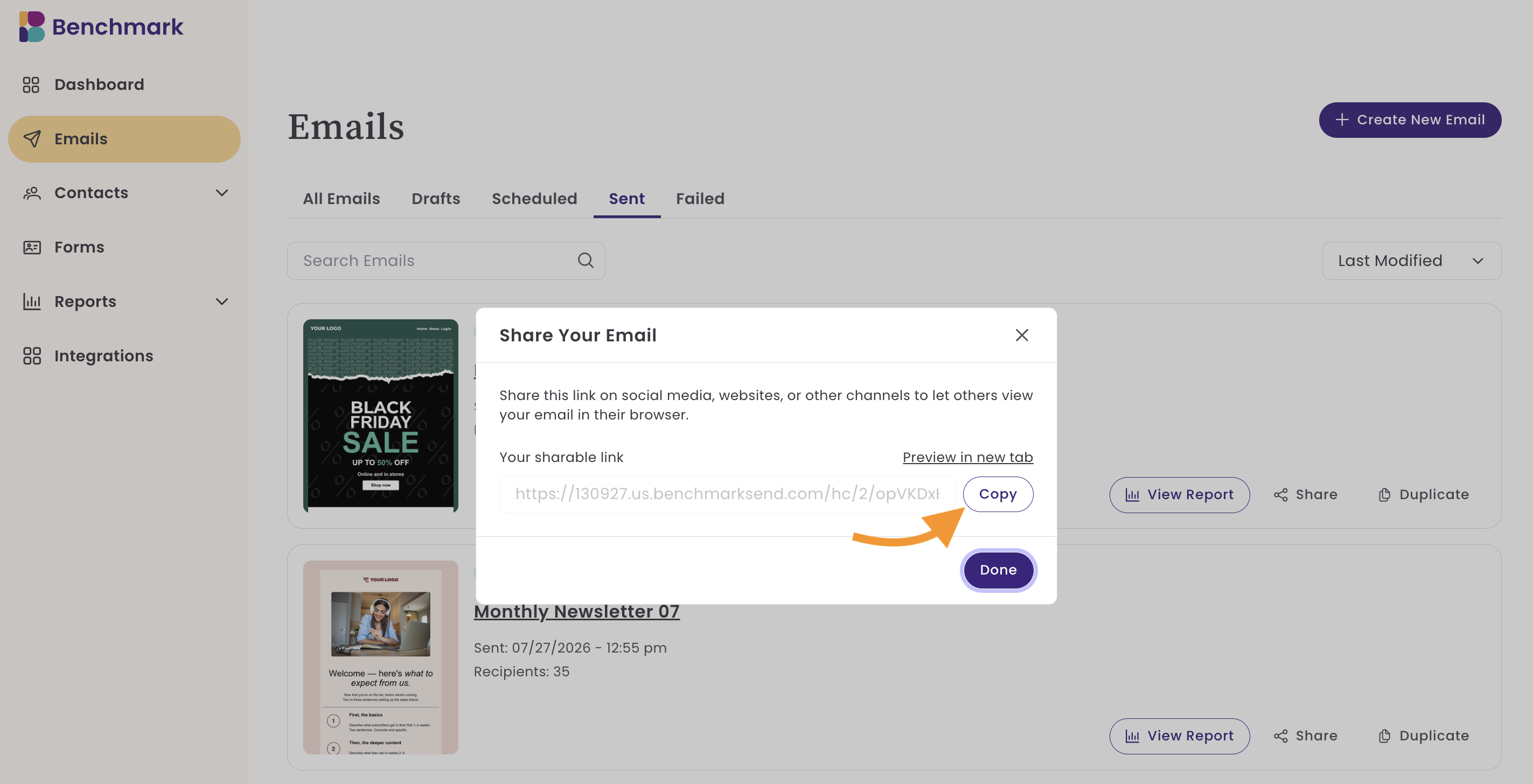
Copy the link.
From the email report
- Open the report for the email you sent.
-
Open the More menu and select Copy Email Link.
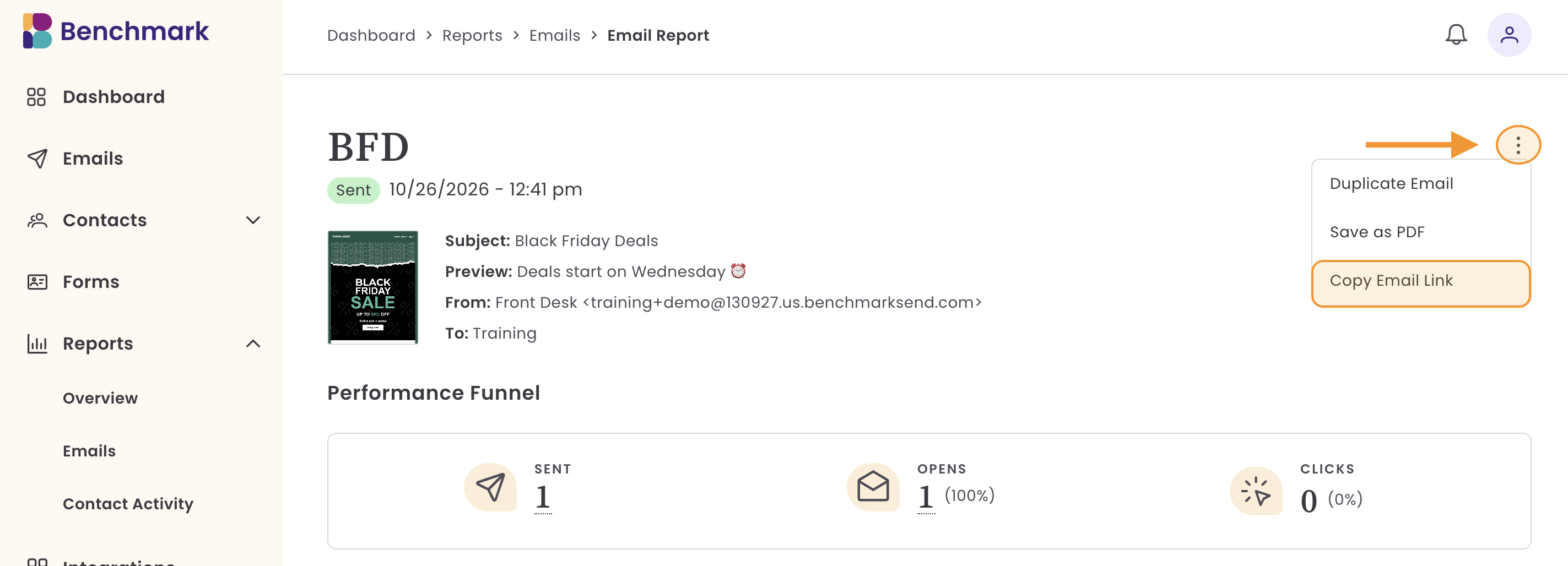
- The link is copied to your clipboard.
Where to share your link
Paste the link anywhere you want people to see your email:
- Social media posts

- Your website or blog
- Messages to your or customers
Sharing a sent newsletter on social media is an easy way to reach people who aren't on your list yet.
How personalized content appears in the web version
The web version isn't tied to a single recipient, so any merge tags in your email show the fallback values you've set instead of a contact's details.
For example, if your email starts with a first name merge tag and the fallback value is "there," the web version reads Hi there.

Before you send, check that every merge tag in your email has a fallback value, so your web version reads naturally.
Frequently asked questions
Is the View in Browser link added to every email?
Yes. The link is added to your email footer by default. You can change its text or turn it off in Footer Settings under Display Options.
Can I get a shareable link before I send my email?
No. The shareable link is available after your email is sent.
Who can see the web version of my email?
Anyone who has the link can open it in a browser.
Will the web version show my contacts' names or other personal details?
No. Merge tags in the web version show your fallback values instead of individual contact details.