
Playable Video Integration
With the Playable integration, you can add a video directly to your email so it plays right in your contacts' inboxes. No clicking through to an external page required. With Benchmark's built-in Playable block, the whole process takes just a few steps inside the email builder.
Topics Covered in This Article
BEFORE GETTING STARTED
To successfully use this integration, you will need:
- An active Playable account with at least one video uploaded to your library (get started with Playable)
- An active Benchmark Email account
Video Audio is available exclusively to Playable accounts on the Enterprise plan. Learn more.
Video looping is set by Playable; to change it, you'll need to do so in Playable.
The video URL can be configured in Playable. If a different URL is set in the email builder, it will be ignored. Instead, the click will always direct the contact to the URL configured in Playable.
What Is Playable?
Playable is a video-in-email platform that optimizes your video for every email client and device. When a recipient opens your email, the video plays instantly — no buffering, no redirects. To learn more about Playable and how to manage your video library, visit the Playable Help Center.
Step-by-step Integration Setup
Step 1 — Drag the Playable Video Block into Your Email
- Open or create a new email.
- In the Email builder, click and drag the Playable Video block to your email template.
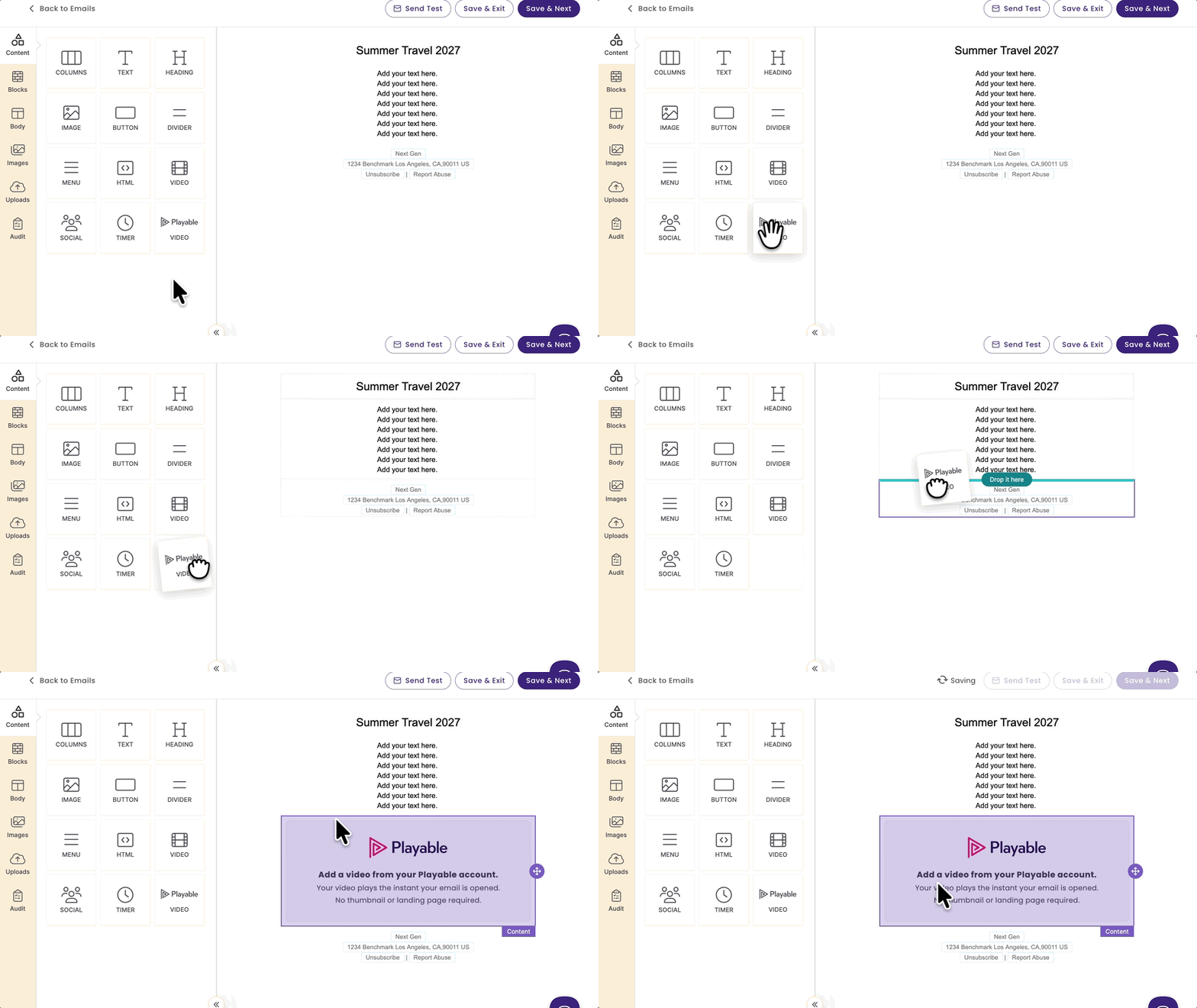
Once placed, the block will display a placeholder in your email preview indicating that a video from your Playable account needs to be selected.
Step 2 — Click the Block and Select Your Video
- Click on the Playable Video block within the email builder to select it.
- In the left panel, click the Select Video button.

Step 3 — Sign In to Playable
A Sign in to Playable window will appear. Enter your Playable username and password, then click Sign In.

This connects Benchmark Email to your Playable account, allowing you to browse your video library directly in the builder. If you don't have a Playable account yet, click Sign up in the login window.
Step 4 — Select a Video from Your Library
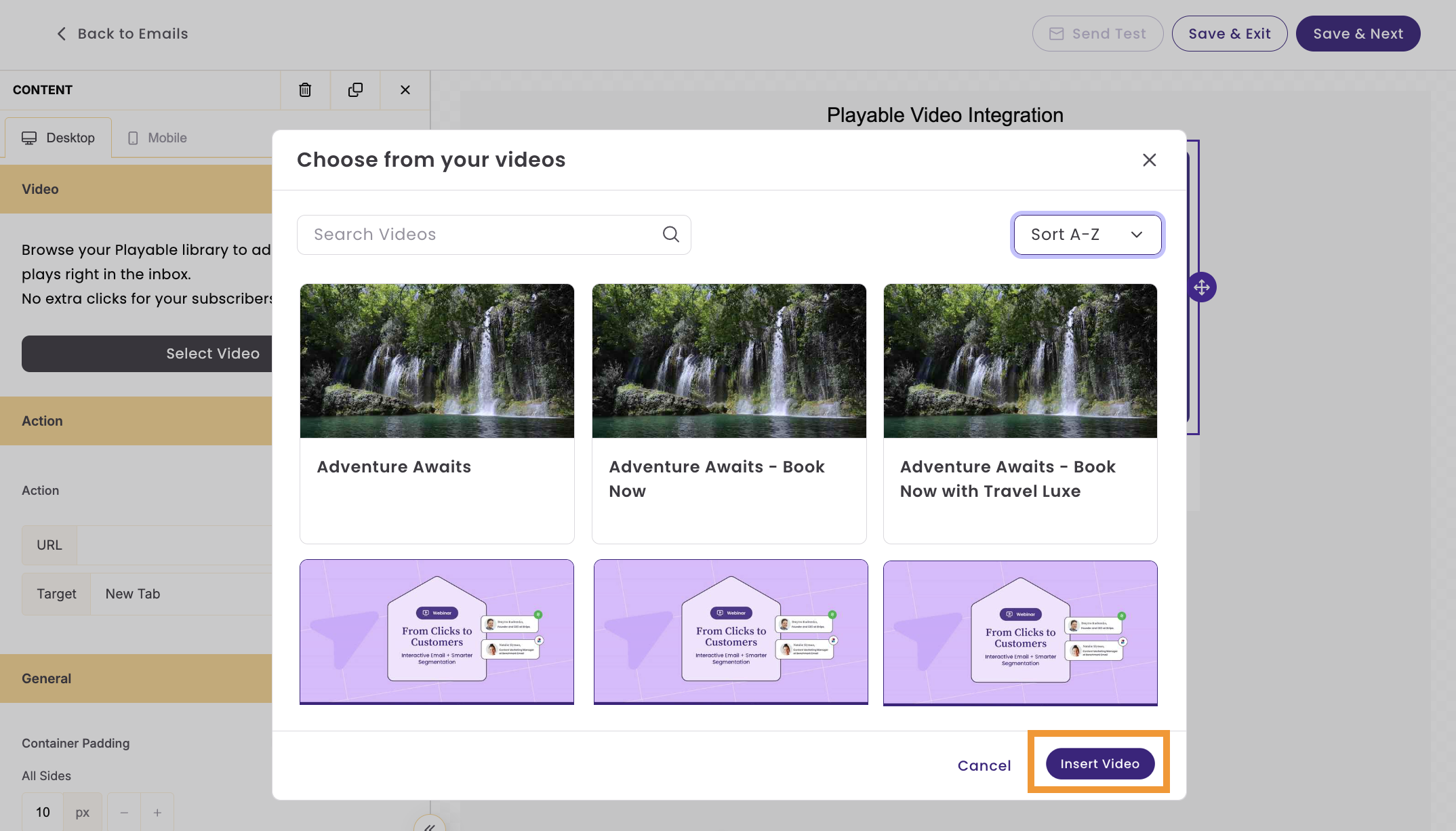
In the pop-up screen, you will see the videos in your Playable library. Click the video you want to use to select it, then click Insert Video.
Here you can:
- Use the Search Videos bar to find a specific video by name
- Use the Sort dropdown to reorder your library
Video URL
Specific Playable plans allow you to add a link to your video. For free plans, by default, Playable videos link to the Playable site.
The video URL can be configured in Playable. If a different URL is set in the email builder, it will be ignored. Instead, the click will always direct the contact to the URL configured in Playable.
Step 5 Test Email
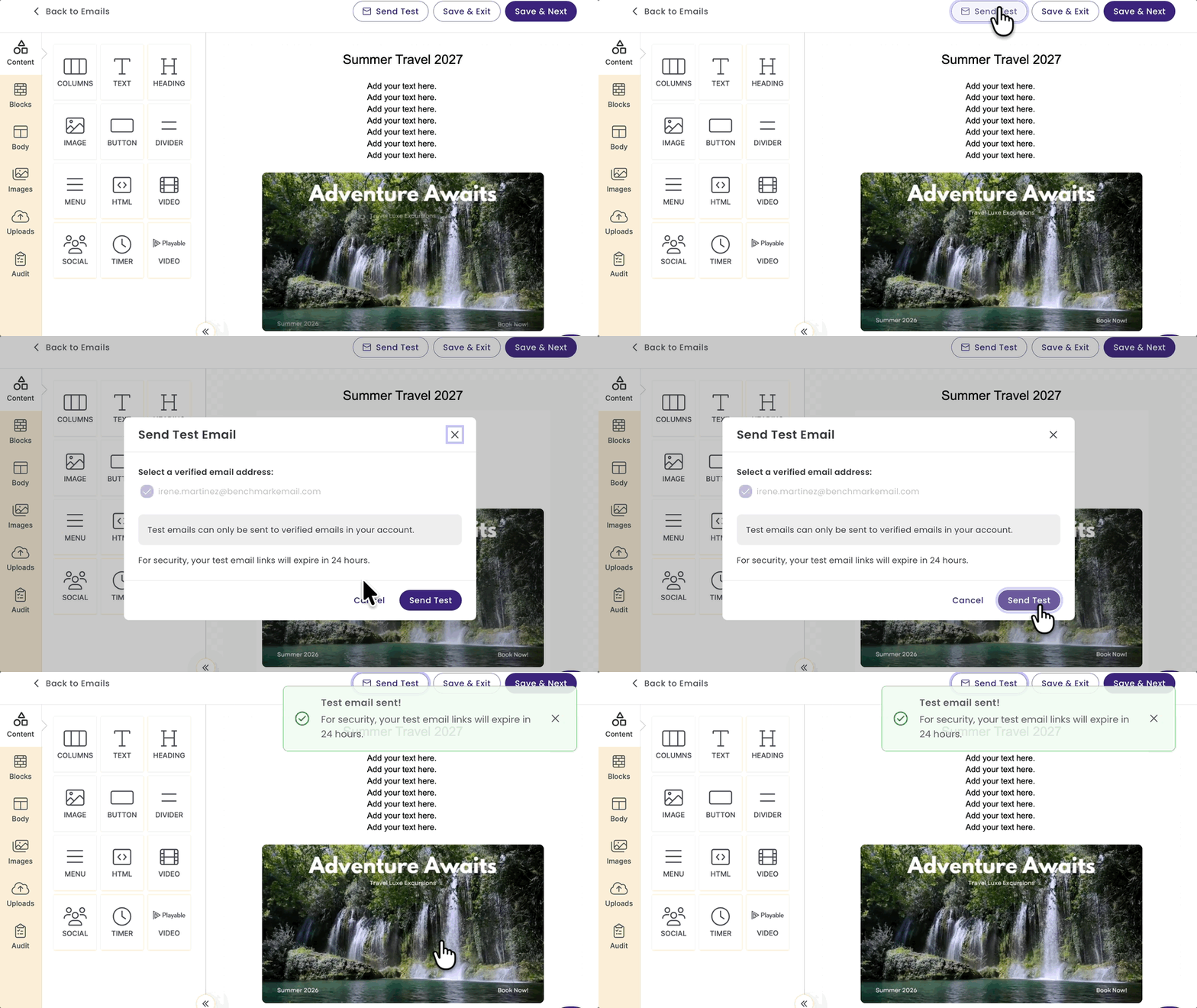
Before sending to your contacts, send yourself a test email to confirm the video appears correctly. The video will begin playing within the email builder.
Frequently Asked Questions
How do I measure video performance?
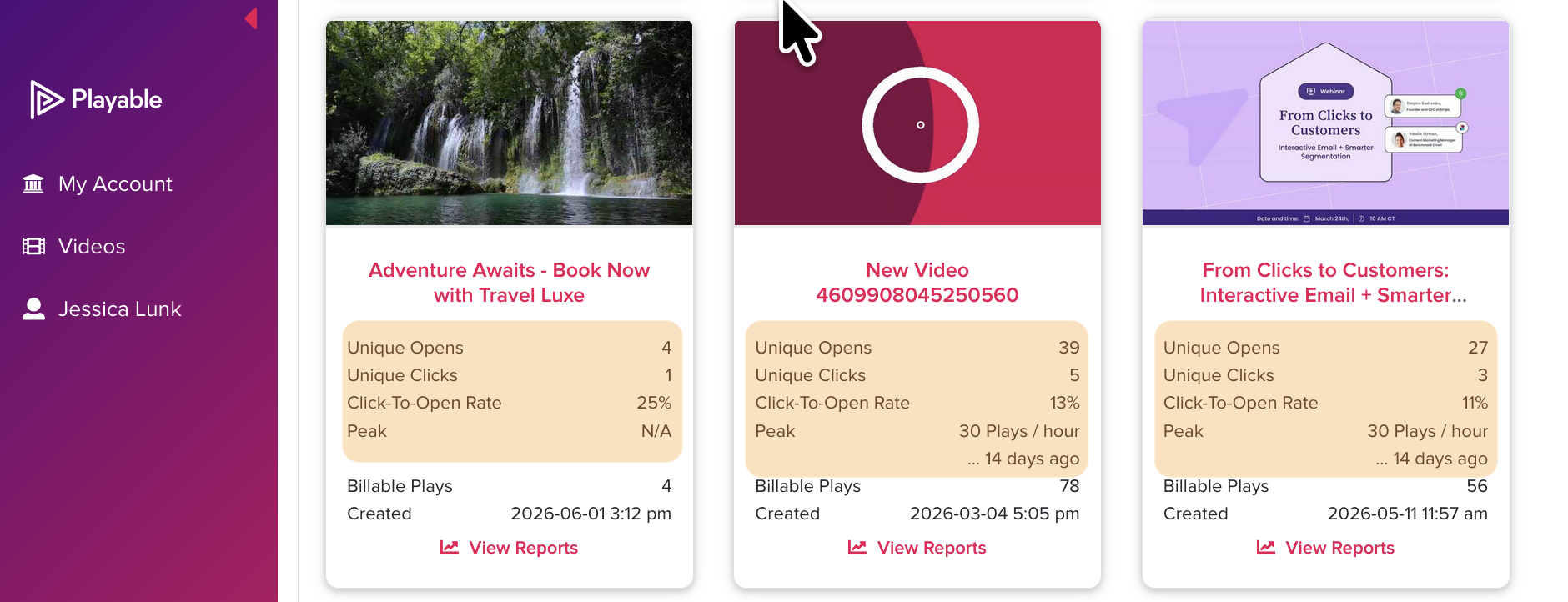
Playable provides engagement analytics for your videos. Log in to your Playable account to view playback and engagement data.
In Benchmark, the email reports will display which videos were clicked. The Video URL is assigned in Playble. You can click on the total number to see which contacts clicked on the URL.
