
Form Pages Overview and Setup
Form Pages are standalone forms hosted by Benchmark Email that can be shared using a unique URL. They are ideal for collecting contacts through social media, email, messaging apps, or other channels without needing to embed the form's code on a website.
BEFORE GETTING STARTED
- All form pages go through a review vetting process. If your page is rejected, ensure your content complies with our accepted policies.
- Updates to previously published forms should appear within seconds; however, they may take a few minutes depending on the form approval process.
Create and Design your Form
Step 1: Design Your Form
- Go to Forms and click Create New Form.
-
Select your form type: Form Pages and select your form template.
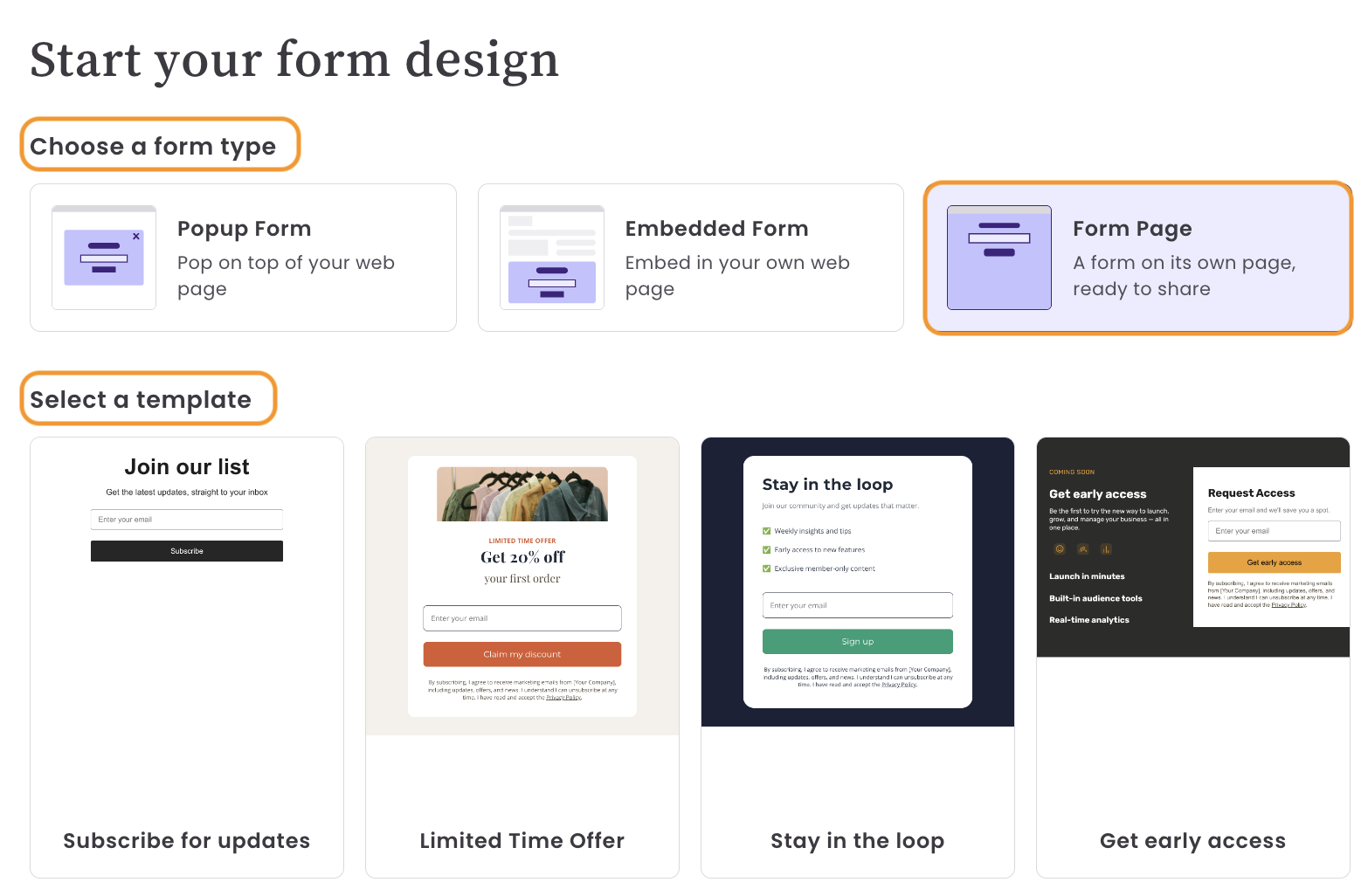
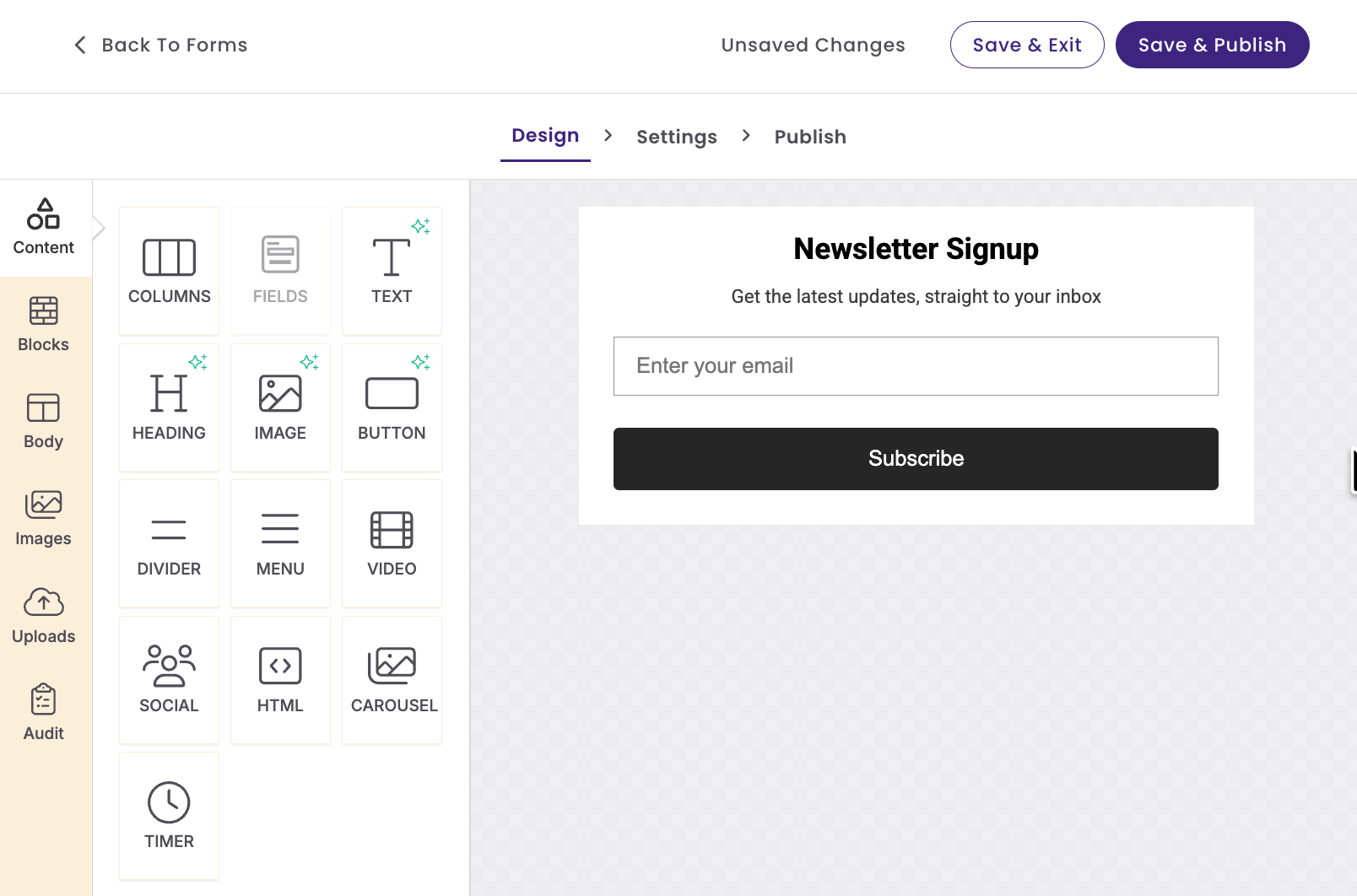
The editor works similarly to the email builder. You can add and edit content blocks such as text and images. To edit the predefined text, click on the block, and its settings will open in the left menu.
Form Fields
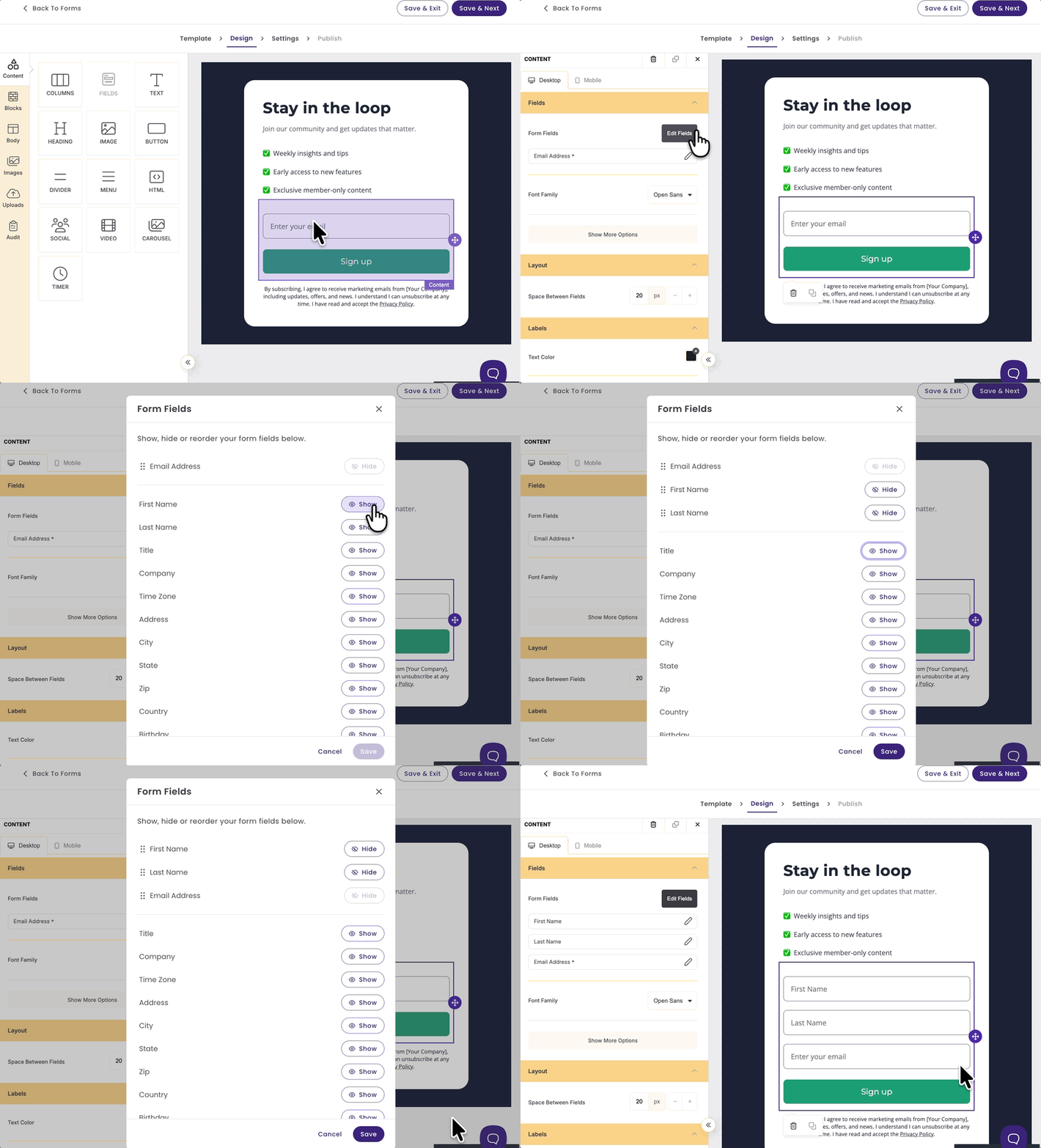
The form will automatically include the Email Address field.
To add more fields:
Click on the email address field within the form, and the Fields menu will open on the left, where you can select Edit Fields and then choose Show next to the field you want to add. If you'd like to add more fields, click Manage Fields. This will take you to Account Settings > Contact Fields. Once done, return to the Form.
Organize Fields
You can arrange the fields by clicking the left edge of a field name and dragging it to the desired position.
When done, click Save!
Step 2: Form Settings
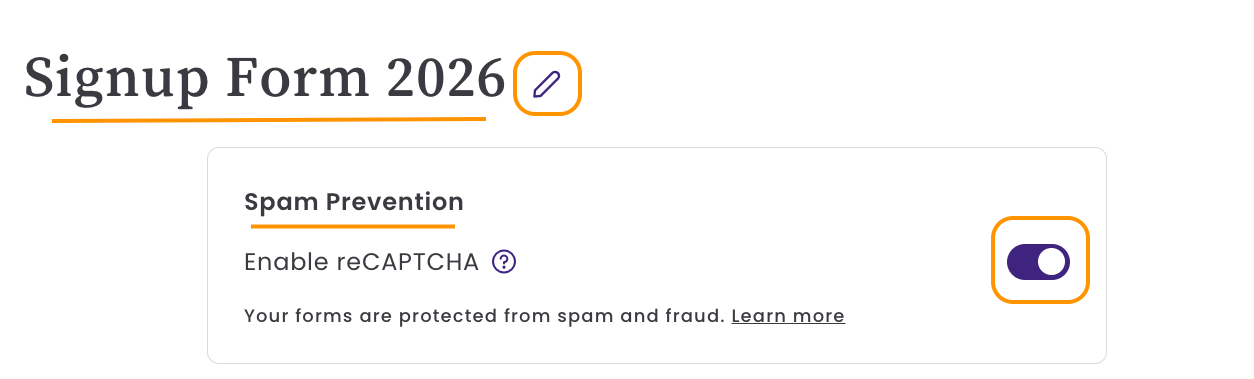
In Forms Settings, you can manage your form’s name, enable or disable Spam Prevention, assign lists or tags, set the form’s language, and edit the Success message.
Form name
This name is internal.
Spam Prevention using reCAPTCHA
By default, reCAPTCHA is enabled for all new forms. reCAPTCHA helps prevent bot signups, learn more.
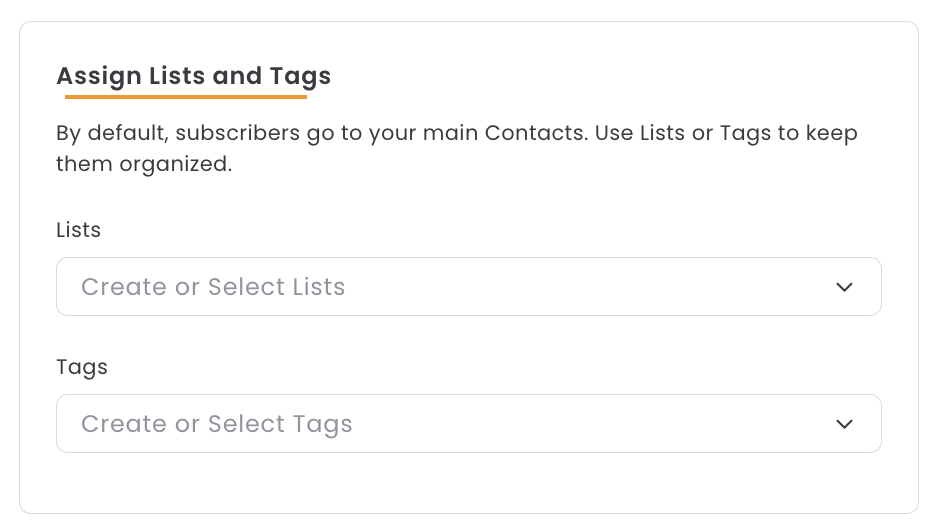
Assign Lists and Tags
Keep your new subscribers organized by applying specific tags or adding them to lists. By default, subscribers are added to your Contacts page.
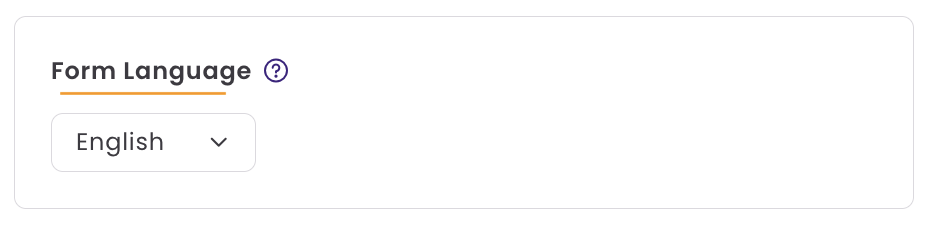
Form Language
By default, the form's language is set to your account's language. The chosen language determines the language used for messages.
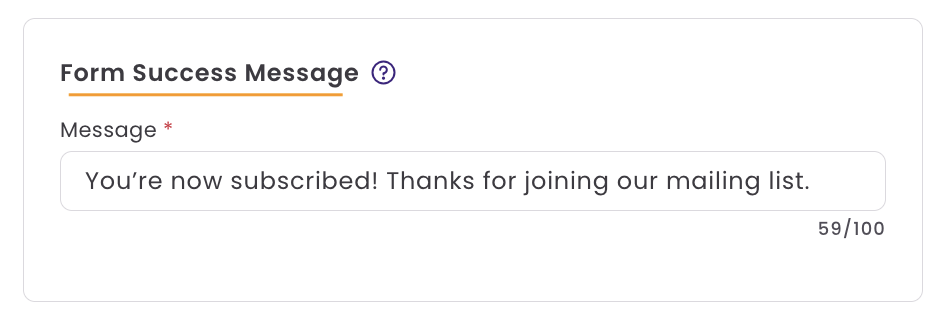
Form Success Message
This message is shown to subscribers after they complete your form.
Once this page is finished, you can click Save and Publish or Save and Exit. If the form has already been published, you'll see Save and Next instead of Save and Publish.
Step 3: Publish
After publishing your form, Benchmark Email generates a unique URL that you can share immediately.
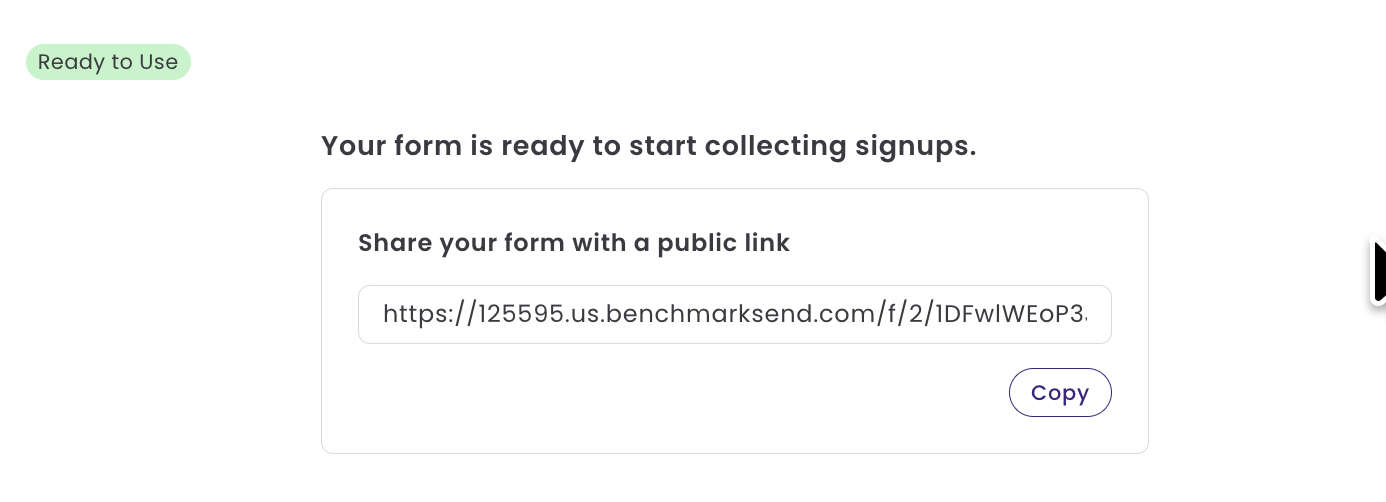
You can share the URL through a variety of channels, depending on where your audience is most active.
You can share the URL through:
|
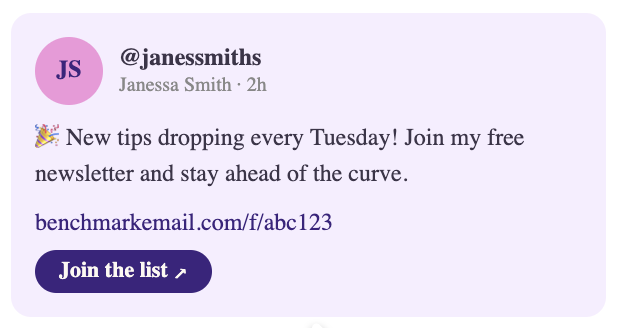
Social media posts Pair the URL with a clear call to action and add it to your profile link-in-bio for ongoing reach. |
|
|
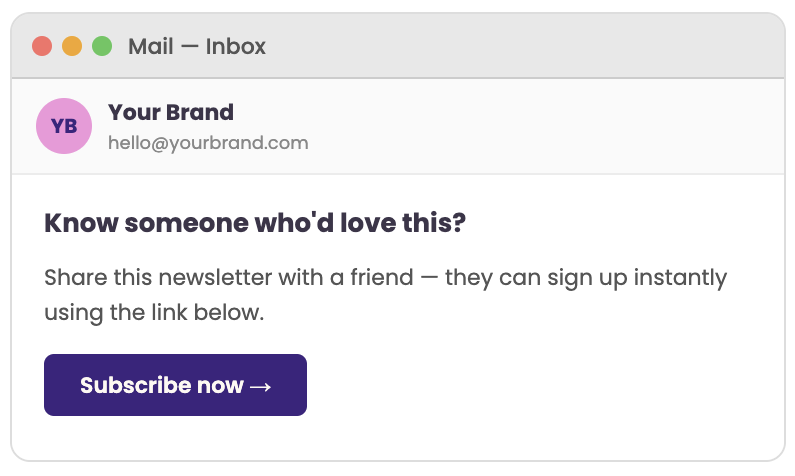
Email campaigns Please place it as a button or link within your email. |
|
|
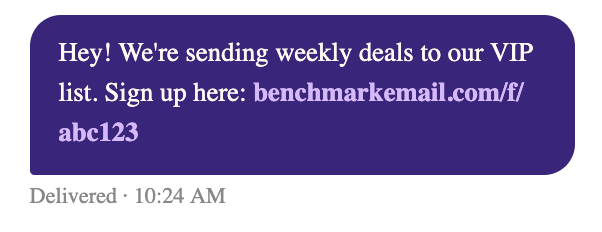
SMS messages Use it in messages. Keep the surrounding text short. The URL should be the focal point. |
|
|
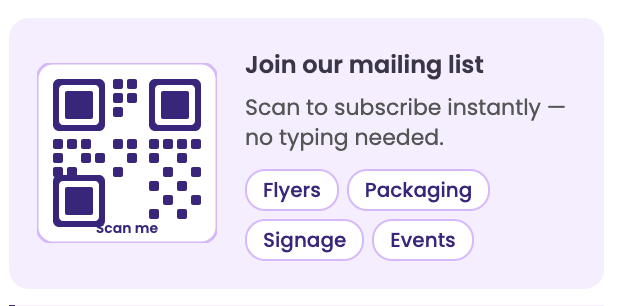
QR codes Generate a QR code from your form URL and add it to any print material. |
|
|
Online Ads Include the URL directly in banner ads or landing pages. |
|
Frequently Asked Questions
Can I embed a Form Page on my website?
No. Form Pages are designed as standalone hosted pages and do not generate embed code.
Where are new contacts added?
New subscribers are added to your Contacts page and to any list selected within your form settings.
Can I use Form Pages without a website?
Yes, Form Pages are specifically designed for users who want to collect contacts without needing a website.