
Forms Overview & Setup
Benchmark Forms let you collect new subscribers directly on your website. New contacts are instantly added to your account and can be organized using lists and tags.
BEFORE GETTING STARTED
- Contacts gathered via the signup form are added to your Contacts Page. In the Form's Settings, you can choose whether to add a contact to a list or assign specific tags.
- Forms in the February 2026 release are embedded only (popup forms are not currently available).
- Contacts collected through forms count toward your plan’s contact limit. If you reach your contact limit, the form will stop collecting new submissions
Create and Publish Form
Creating a form includes three steps: Design → Settings → Publish
Step 1: Design Your Form
Go to Forms and click Create New Form.

The editor works similarly to the email builder. You can add and edit content blocks such as text and images. To edit the predefined text, click on the block, and its settings will open in the left menu.

Form Fields
The form will automatically include the Email Address field.
To add more fields:
Click on the email address field within the form, and the Fields menu will open on the left, where you can select Edit Fields and then choose Show next to the field you want to add. If you'd like to add more fields, click Manage Fields. This will take you to Account Settings > Contact Fields. Once done, return to the Form.
Organize Fields
You can arrange the fields by clicking the left edge of a field name and dragging it to the desired position.
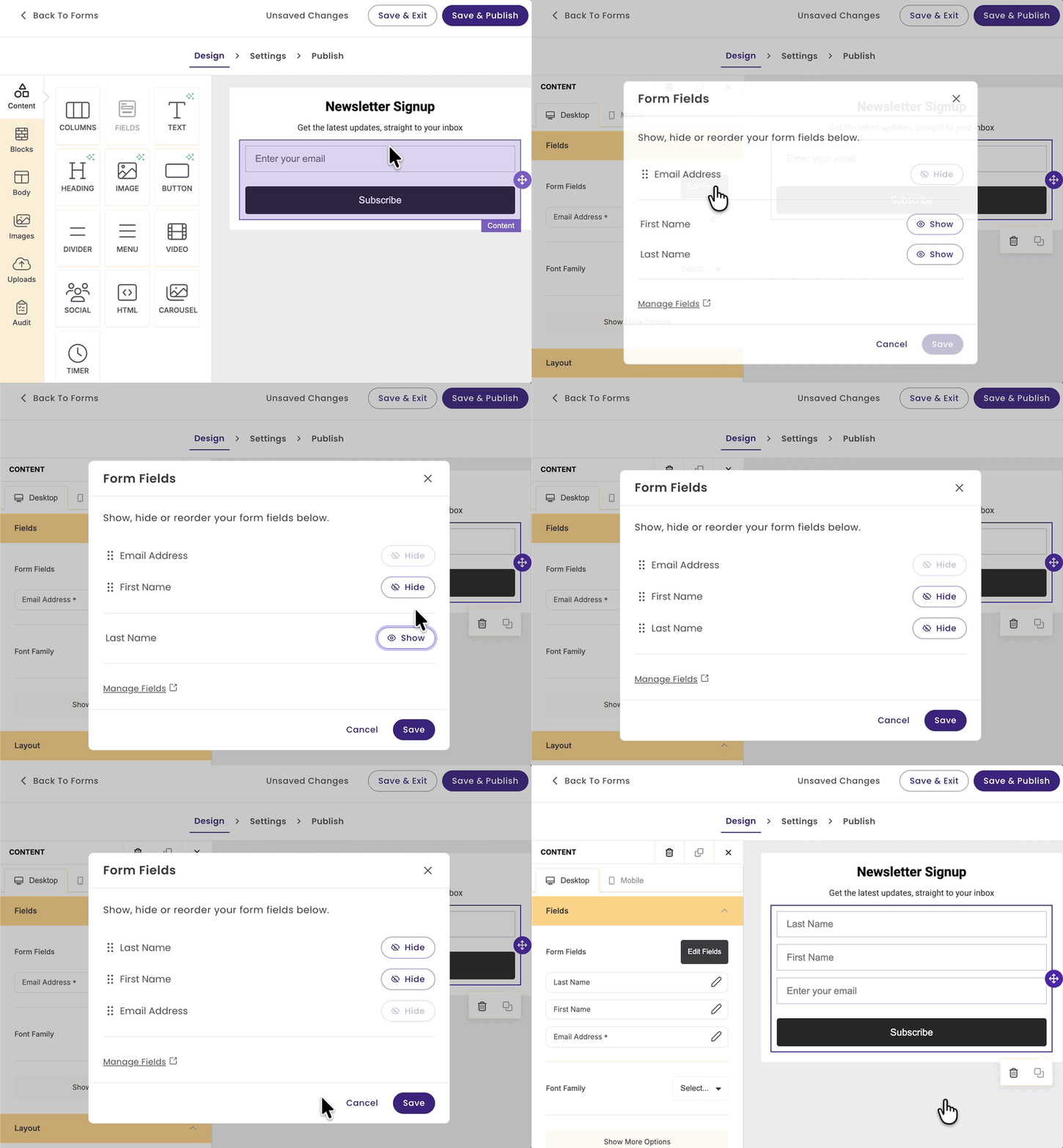
When done Click Save!
Step 2: Settings
In the Forms Settings, you can manage your form's name, enable or disable Spam Prevention, assign lists or apply tags, set the form's language, and edit the form's Success message. Learn more about each option below.
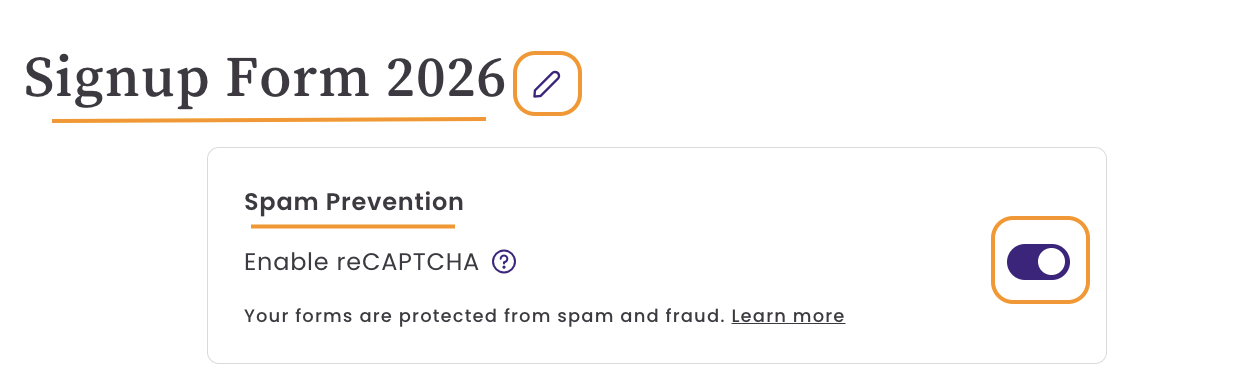
Form name
This name is internal.
Spam Prevention using reCAPTCHA
By default, reCAPTCHA is enabled for all new forms. reCAPTCHA helps prevent bot signups, learn more.
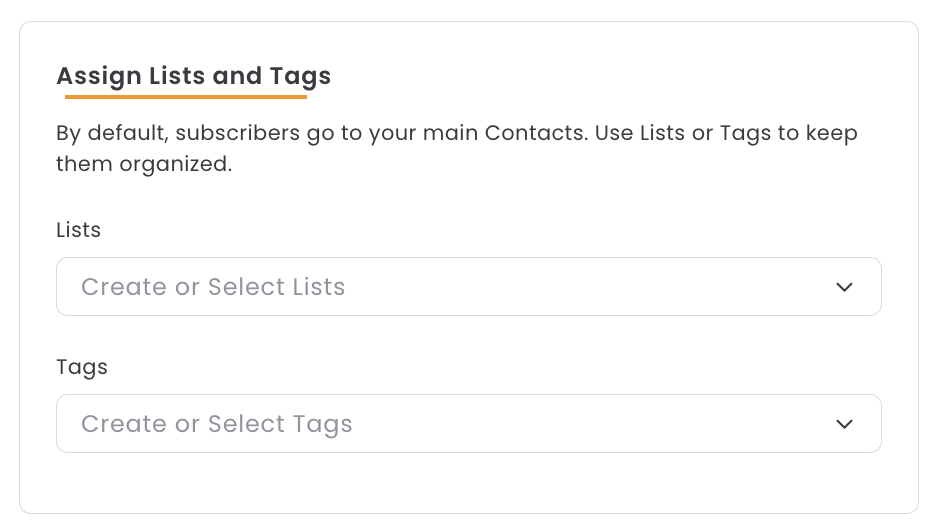
Assign Lists and Tags
Keep your new subscribers organized by applying specific tags or adding them to lists. By default, subscribers are added to your Contacts page.
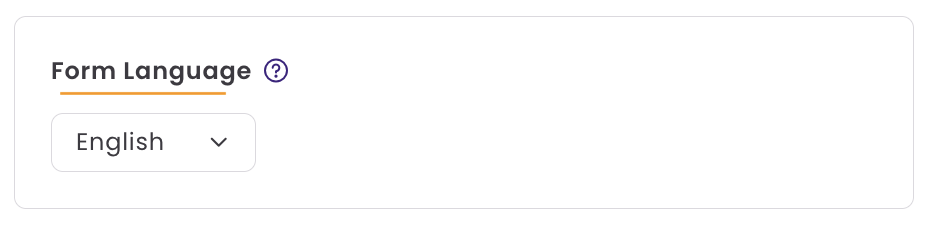
Form Language
By default, the form's language is set to your account's language. The chosen language determines the language used for messages.
Form Success Message
This message is shown to subscribers after they complete your form.
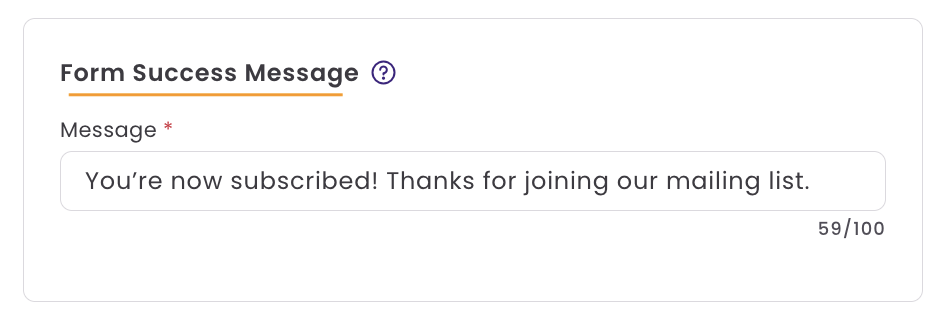
Once this page is finished, you can click Save and Publish or Save and Exit. If the form has already been published, you'll see Save and Next instead of Save and Publish.
Step 3: Publish
The Publish page provides the embed code for your signup form. To display the form on your website, paste the form's code into an HTML or Custom Code block within your website editor.

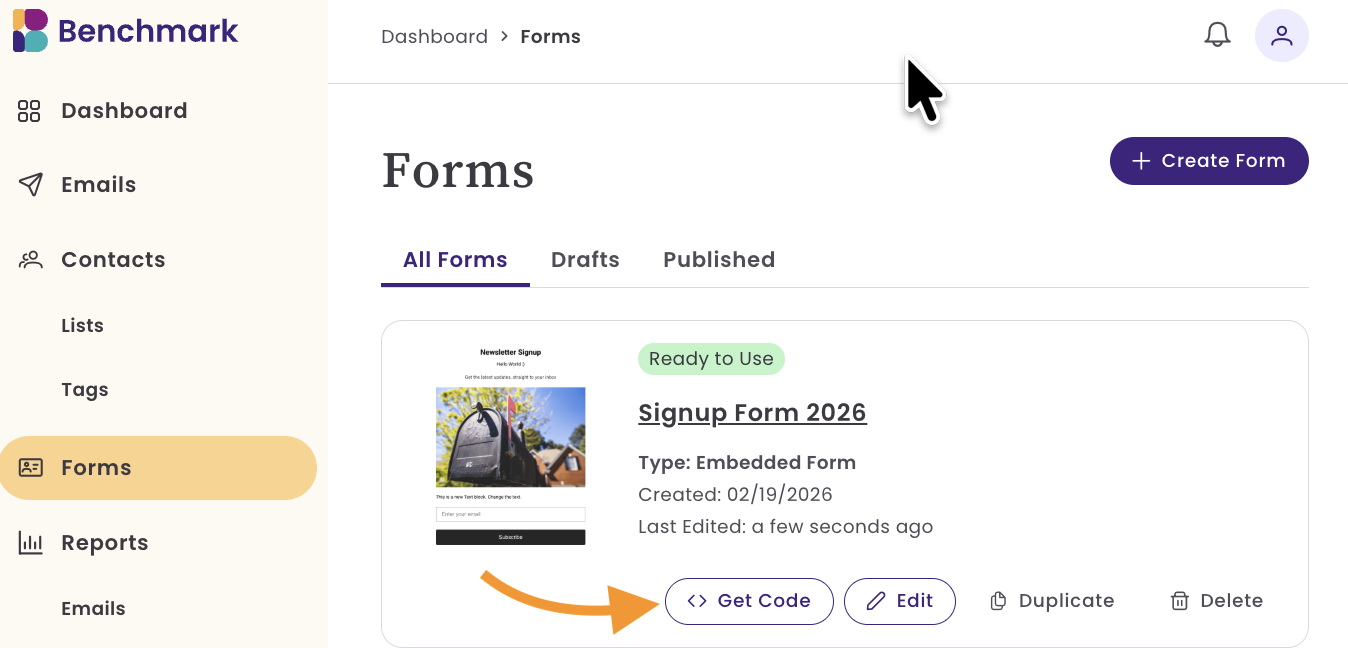
You can access the embed code at any time from the Forms page by selecting Get Code.
Managing Forms
In the Form's Page, you’ll find both Published and Draft forms. By default, the view is set to All Forms. To filter your view, simply click the option you’d like to display.
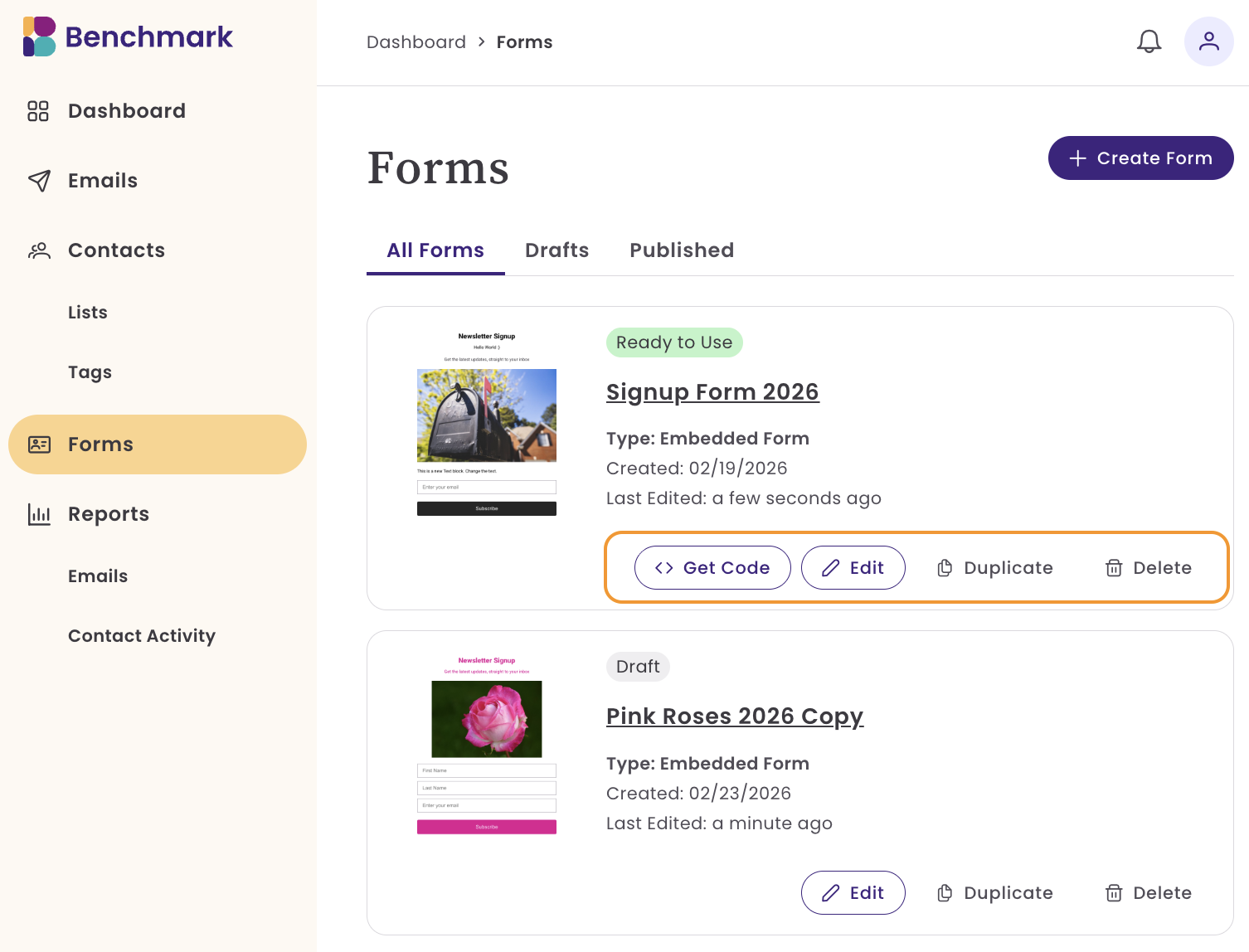
From this page, you can:
- Create New Forms
- Access your form's code: Use the Get Code option to copy your form's code.
- Edit: Takes you directly to the Design step of your form. To update form settings, click Settings within the form builder.
- Duplicate: Creates a copy of your form, including its design and settings (such as selected lists and tags).
- Delete: Permanently removes the form from your account.
Adding More Fields
When creating your form, you can choose from any existing fields in your account. If you need to add a new custom field, you can do so directly from the form editor or from Account Settings > Contact Fields.
To Add a New Field from the Form Editor:
- Click on a Form Field inside the editor.
- Select Edit Fields.
-
Click Manage Fields.
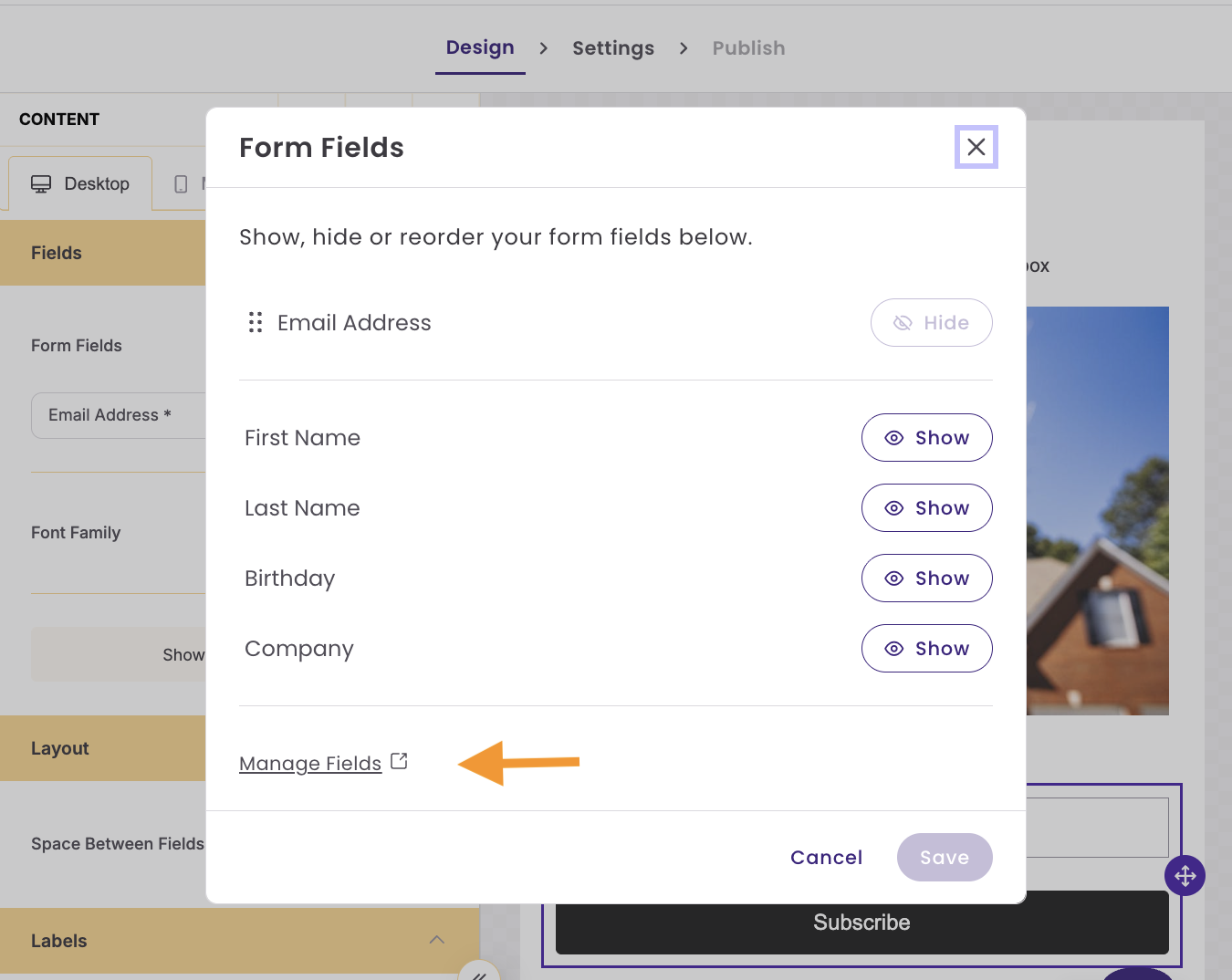
You’ll be taken to the Contact Fields page.
-
Add your new field and click Save.
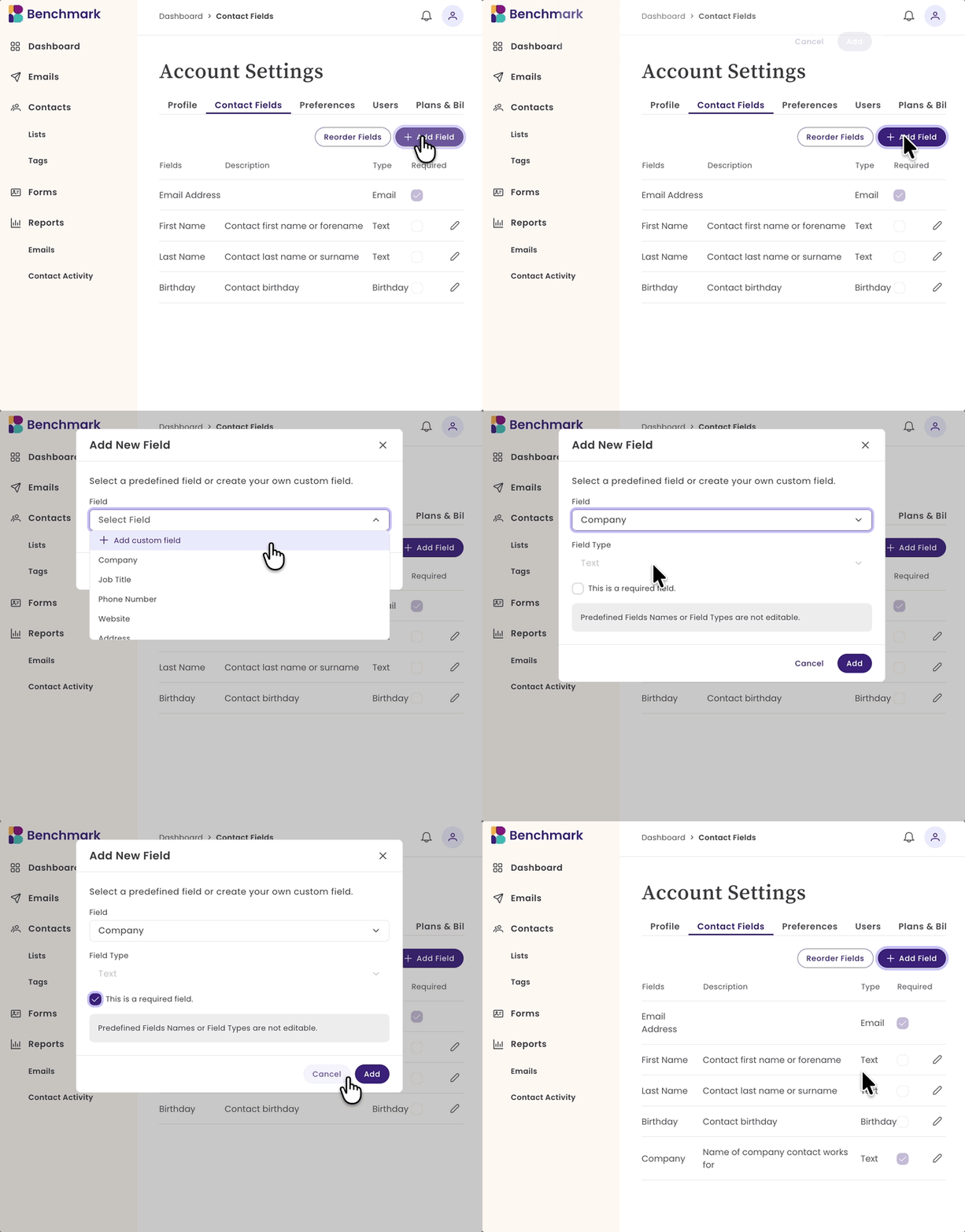
- Return to Forms and reopen your form.
-
Go back to Form Fields, and your new field will now be available to add.
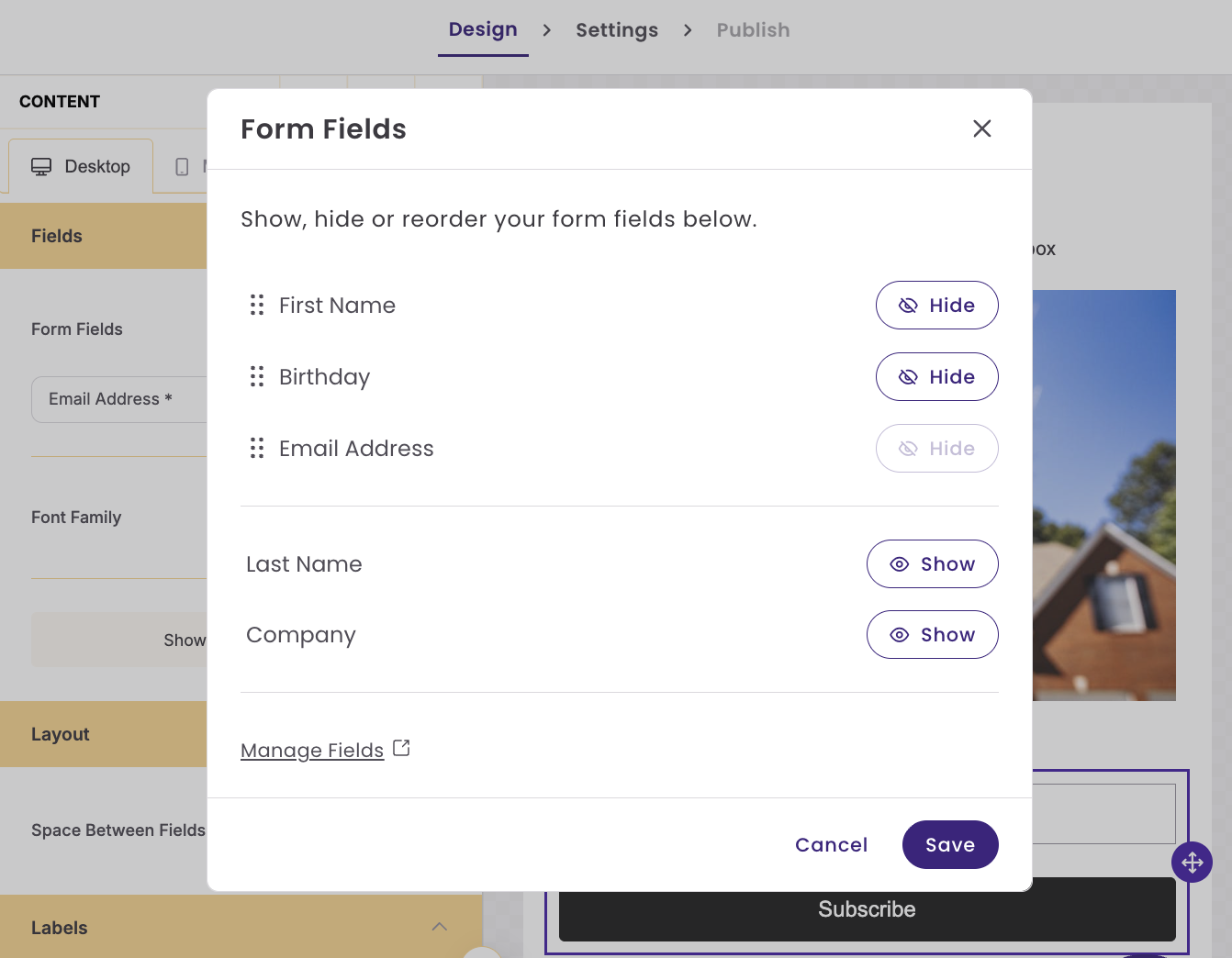
Fields marked as required in Account Settings are pre-selected as required when added to a form
Frequently Asked Questions
Are the forms GDPR compliant?
- Submissions are timestamped.
- The Activity Feed logs which form was used.
- You must manually add consent language if required.
Can I add a link to my signup form?
Yes, you can add a link within your form. Simply add a text block to your form, and then modify the text using the toolbar.
If I edit a published form, do I need new code?
No. Once changes are saved, the embedded form updates automatically.
Can I create a pop-up form?
Popup forms are not available at this time.
Can the forms be embedded in an iframe?
The Benchmark Forms do not currently generate a URL, so they cannot be displayed in an iframe.