
Migrating From Constant Contact
Switching from Constant Contact to Benchmark Email? This article walks you through moving the two things most customers want to keep: your email templates and your contacts.
Topics Covered in This Article
• Bring Over Your Email Templates
Before Getting Started
- Moving from Constant Contact to Benchmark Email is currently a manual process.
- You'll need access to your Constant Contact account to export your templates and contacts.
- Constant Contact doesn't let you copy an email's HTML code, including emails built in its Custom Code editor. Copying a Custom Code email converts it to Constant Contact's drag-and-drop editor. If your email includes a View as Webpage link, you can open that version and copy the code from your browser. Otherwise, you'll need to recreate the email in Benchmark Email.
What You Can Bring Over
Email templates
If your Constant Contact email includes a View as Webpage link, you can copy its HTML from that browser version and paste it into Benchmark Email's Custom HTML editor. Constant Contact doesn't let you copy code from inside its own editors.
If your email doesn't have that link, its code isn't available to copy.
Here are some options:
- Rebuild it using Benchmark Email's drag-and-drop email builder instead.
- Create a copy of the email in Constant Contact, and in a text block add the View as Webpage Link.

Important
Some email providers restrict how their template code can be reused. Check your provider's Terms of Use before bringing that code into Benchmark Email.
Contacts
Export your contacts from Constant Contact as a CSV file, then import that file into Benchmark Email. If you use Zapier, you may be able to connect Constant Contact and Benchmark Email directly, but manual exporting and importing is the reliable option.
Bring Over Your Email Templates
These steps work for any Constant Contact email that includes a View as Webpage link.
- In your Constant Contact account, go to Campaigns.
- Click on the name of the email you want to bring over to Benchmark. Using the preview option, locate and click on the "View as Webpage" link.
-
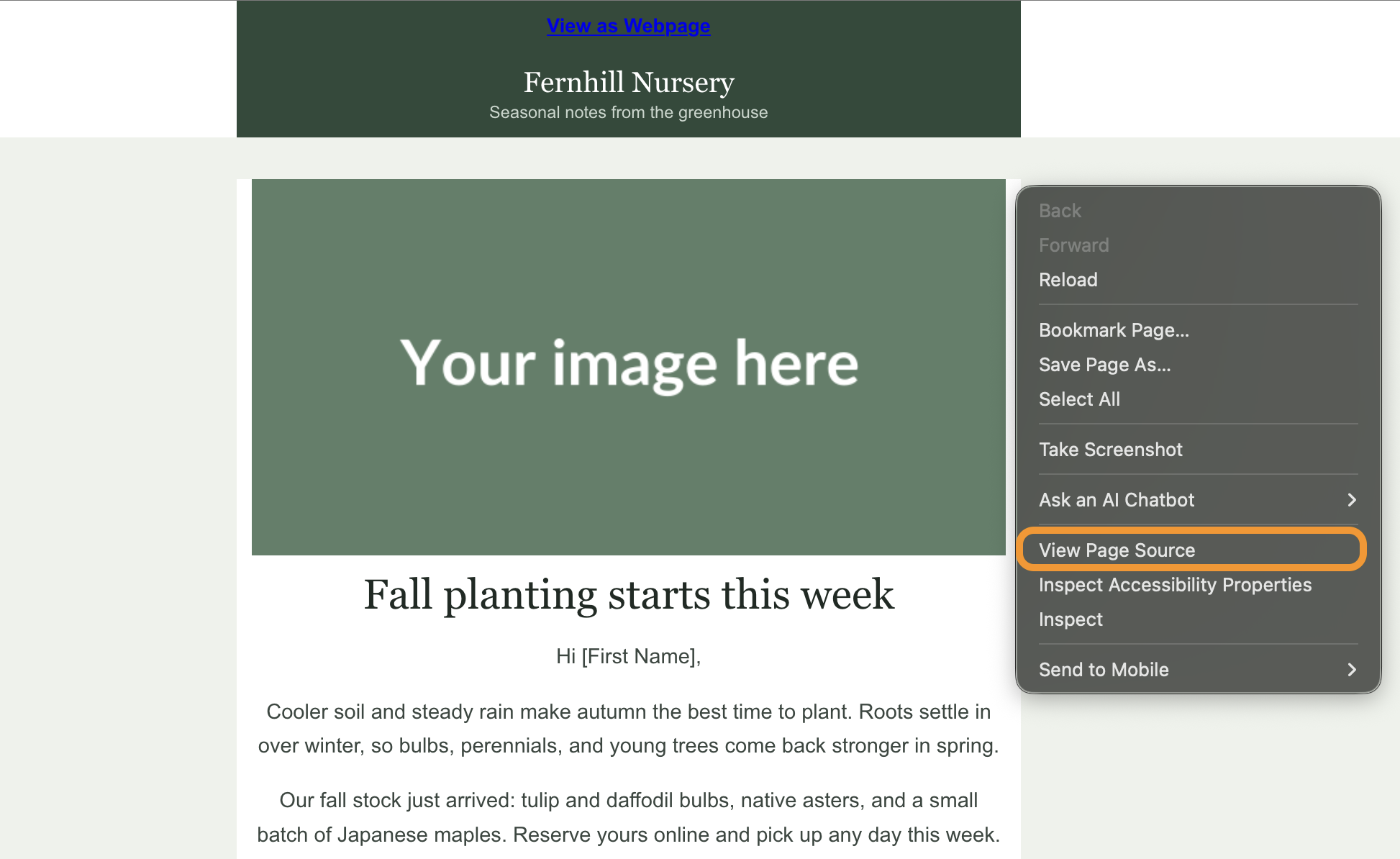
A new browser page will open with your email. Right-click an empty area of the page and select View Page Source. You can also press Ctrl+U (Windows) or Cmd+Option+U (Mac).
- Another page will open with the email's HTML code. Press Ctrl+A (Windows) or Cmd+A (Mac) to select all of the code, then copy it.

- In your Benchmark account, go to Emails and click Create Email.
- Select Custom HTML as your design type.
- Choose Start from Scratch, then paste the copied HTML code into the editor.
- Remove Constant Contact's footer from the code, including its unsubscribe link and mailing address. Benchmark Email adds its own compliance footer to every campaign.
- Links in the copied code may route through Constant Contact's click tracking. Replace them with your original URLs so clicks are tracked in Benchmark Email.
- Check the live preview on the right to confirm your template rendered correctly, toggling between Desktop and Mobile views.
Click Send Test to send yourself a test email before sending to your contacts.
- Click Save & Next to continue building your campaign, or Save & Exit to finish later.
Repeat this process for each email you want to bring over. If an email has no View as Webpage link, rebuild it in Benchmark Email's drag-and-drop email builder.
Exporting Your Constant Contact Contacts
- In Constant Contact, go to Contacts.
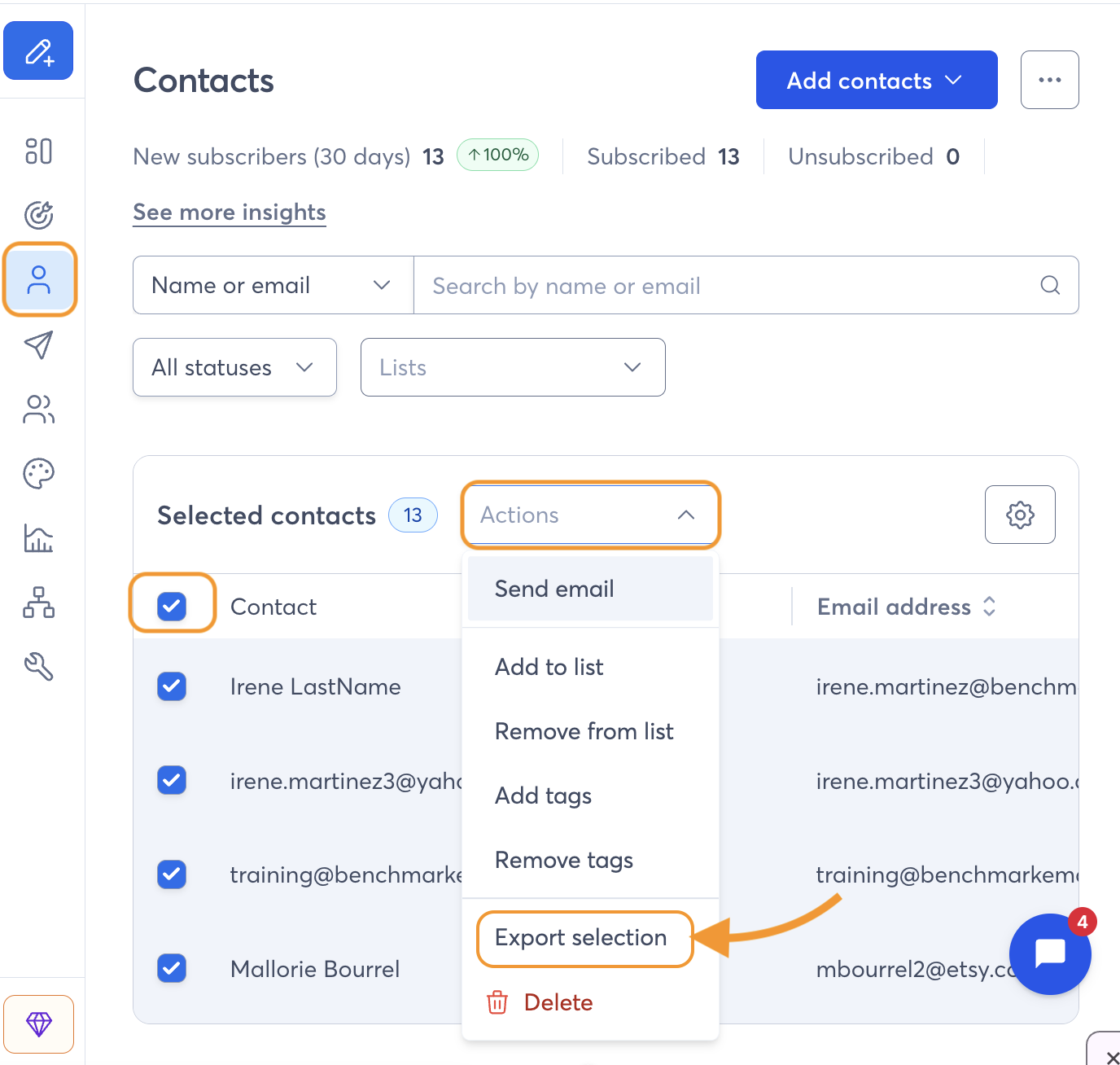
- Select the contacts you want to export. Check the box to select everyone, or filter by list, segment, or tag first.
-
Click Actions, then select Export selection.
-
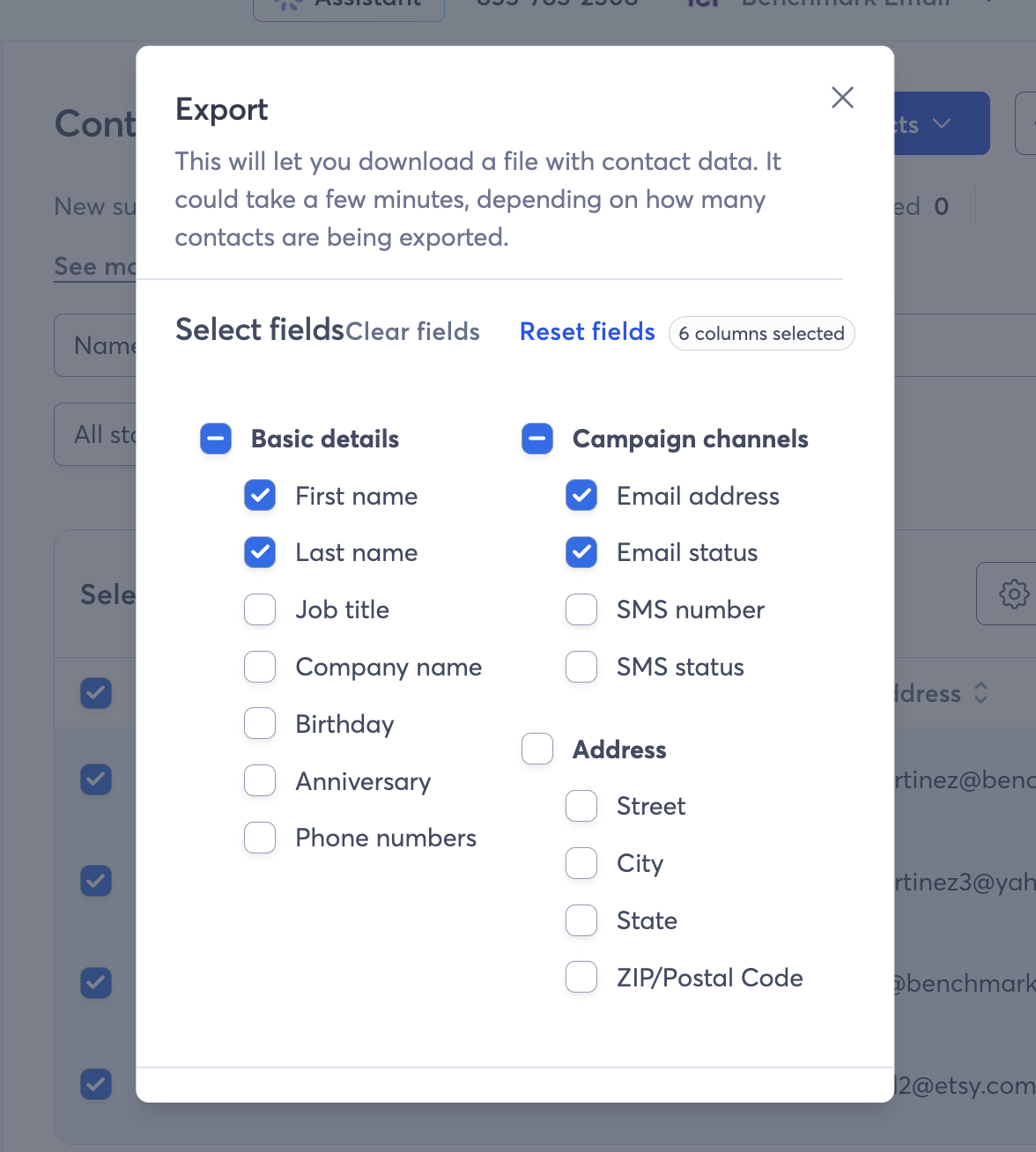
Choose the contact fields to include (like email address, first name, and last name), then scroll down to click Export.
Consider
Include the email permission status field. It isn't selected by default, and it tells you which contacts have unsubscribed.
- A pop-up will appear in the top right with 2 options to download your contacts: CSV and EXCEL. Select the CSV option.

- The CSV file will remain on the Import and Export Activity page for 7 days.
In Benchmark
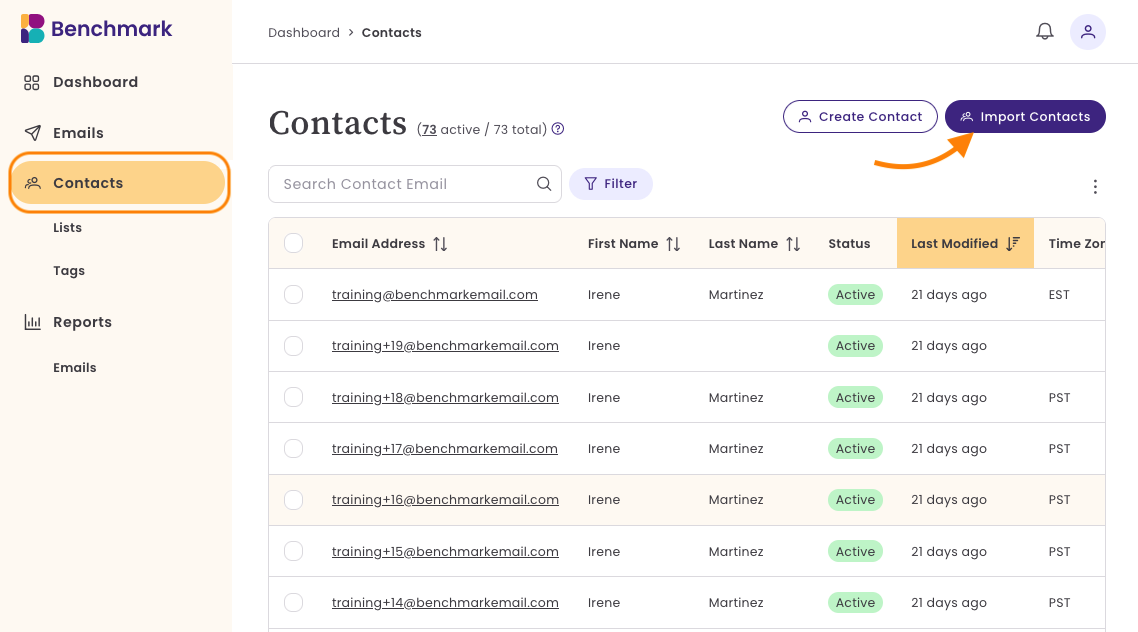
- In your Benchmark account, go to Contacts and select the option to Import Contacts.
-
Upload the CSV file you downloaded from Mailchimp.
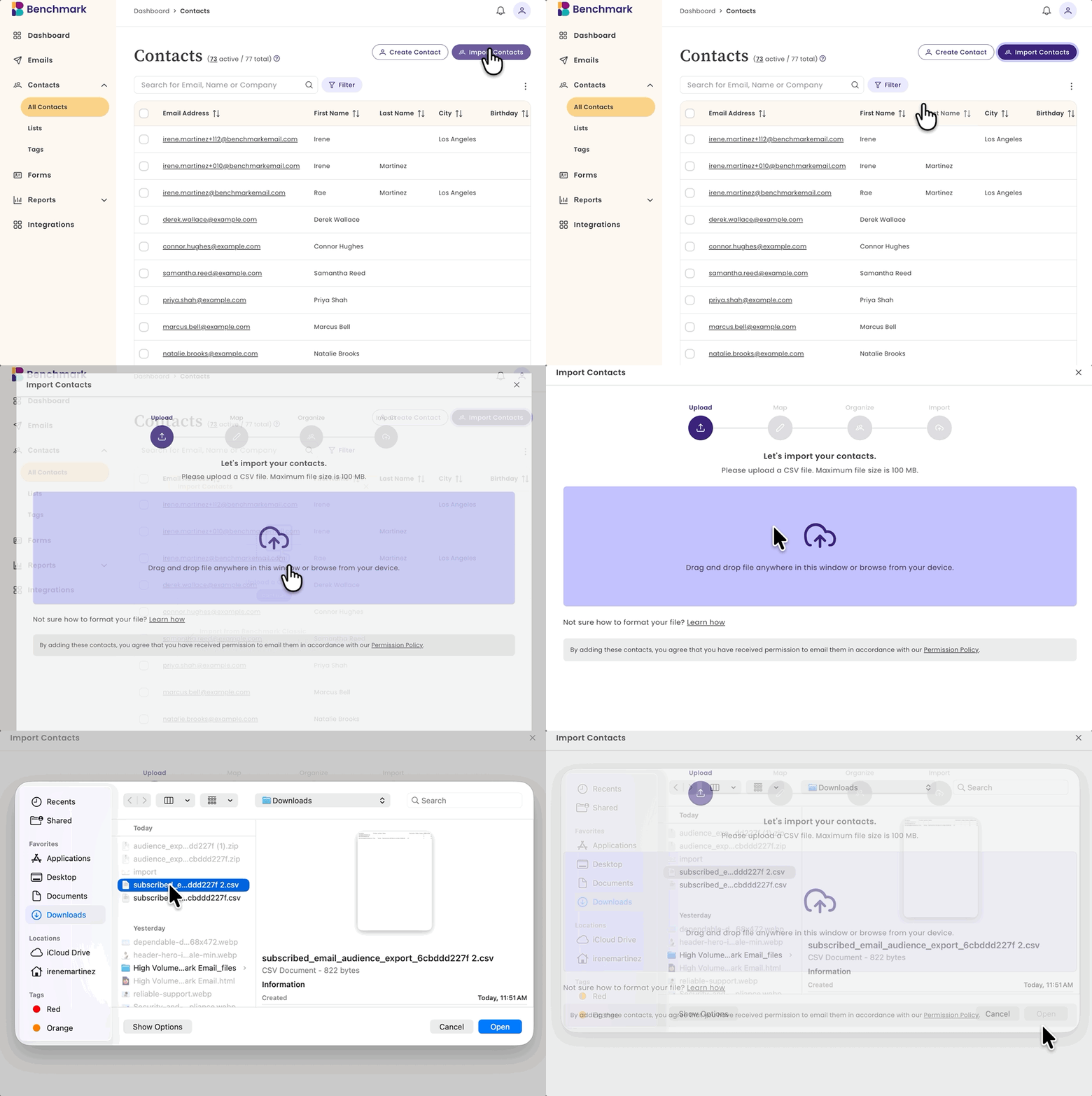
- Match the columns from your file (like email address, first name, and last name) to the correct contact fields in Benchmark Email.
- Review and confirm the import.
Frequently Asked Questions
Can I migrate my Constant Contact templates automatically?
No. For each email, open its browser version from the View as Webpage link, copy the page source, and paste it into Benchmark Email's Custom HTML editor.
Why can't I copy the HTML from inside Constant Contact?
Constant Contact doesn't offer a way to copy or export email code from its editors. Copying an email built in its Custom Code editor converts it to the drag-and-drop editor, so the code is no longer available. If your email has no View as Webpage link, recreate it in Benchmark Email's drag-and-drop email builder.
Will my Constant Contact template look exactly the same in Benchmark Email?
It should, but always check the live preview and send a test email to confirm. Custom code can render differently across email clients.
Do I have to move my contacts manually?
Manual export and import is the current method for everyone. If you use Zapier, you may be able to connect the two platforms directly, but this isn't guaranteed to be available on every account.
Should I import contacts who unsubscribed in Constant Contact?
No. Leave unsubscribed contacts out of your import, or import them as unsubscribed, so they don't receive your emails.
What file format does Constant Contact export contacts in?
Constant Contact exports contacts as a CSV file and an XLS file, and Benchmark's import tool accepts CSV.
Will there be a faster way to migrate in the future?
Benchmark Email may add more automated migration options later. For now, copying HTML for templates and exporting/importing for contacts is the way to bring your account over.