
Brand Kit
The Brand Kit keeps your brand assets in one convenient place. Save your logo, brand colors, and fonts once, and they’ll be ready to use whenever you create an email or form in Benchmark Email.
Once saved, your logo appears in the Uploads folder, your brand colors are available in every color picker, and your selected fonts are used by default for new headings and body text. You’re still in control of what you use for each email or form—the Brand Kit simply keeps your brand assets close at hand.
Topics Covered in This Article
Before Getting Started
- Your brand kit is account-wide: the owner and any additional users on the account can both use and edit it.
- Saved fonts apply only to new text blocks and won’t re-style existing text in a prebuilt template.
- Setting up your brand kit doesn't apply it to anything automatically. You still choose your logo, colors, and fonts each time you build — the brand kit just puts them where you're already looking.
Setting up Brand Kit
- In your Benchmark Email account, go to Settings.
-
Under Account, click Brand Kit.
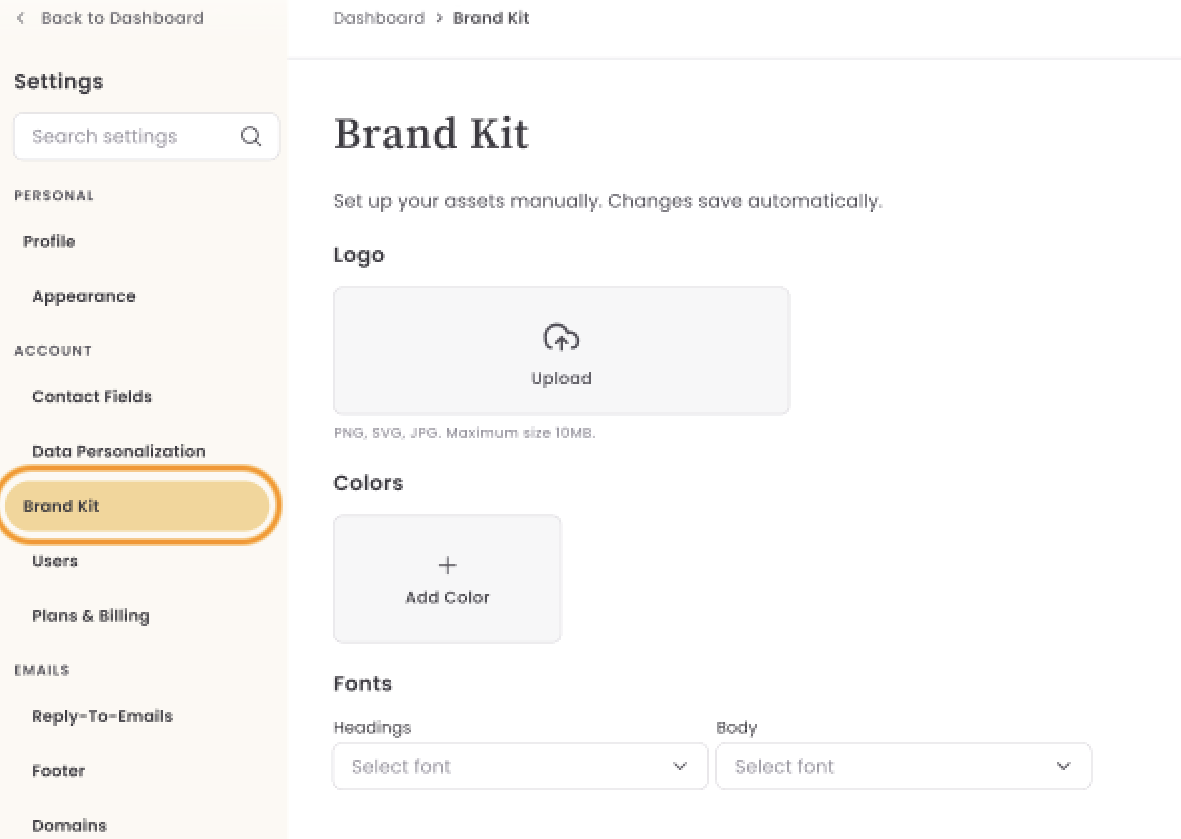
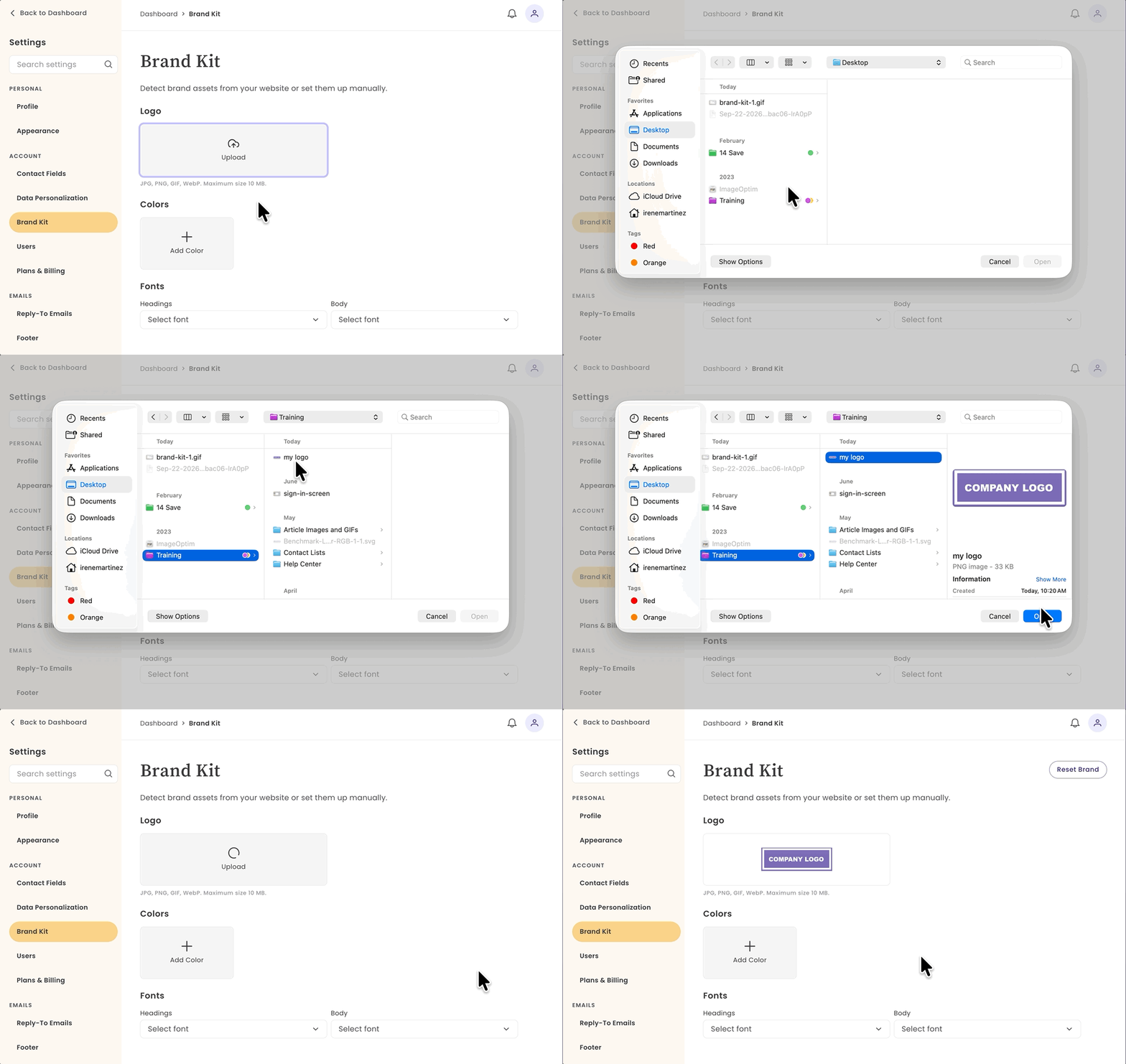
- Under Logo, click Upload and select your logo file.
-
Accepted formats: PNG, SVG, or JPG, up to 10MB.
-
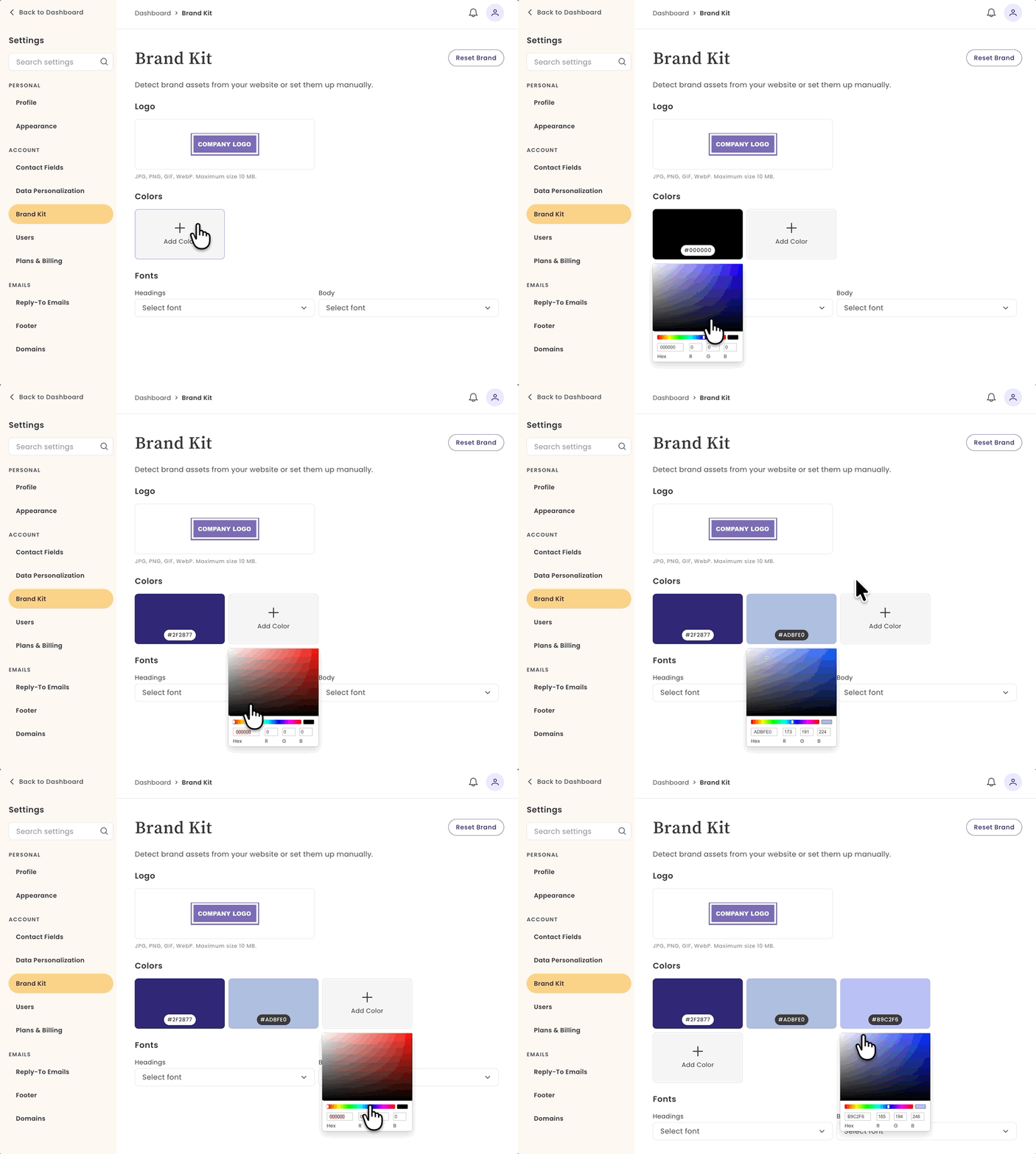
- Under Colors, click Add Color and enter a hex code or pick a color for each brand color you want to save.
-
You can save up to 10 colors.
-
-
Under Fonts, use the Headings and Body dropdowns to choose your default fonts.
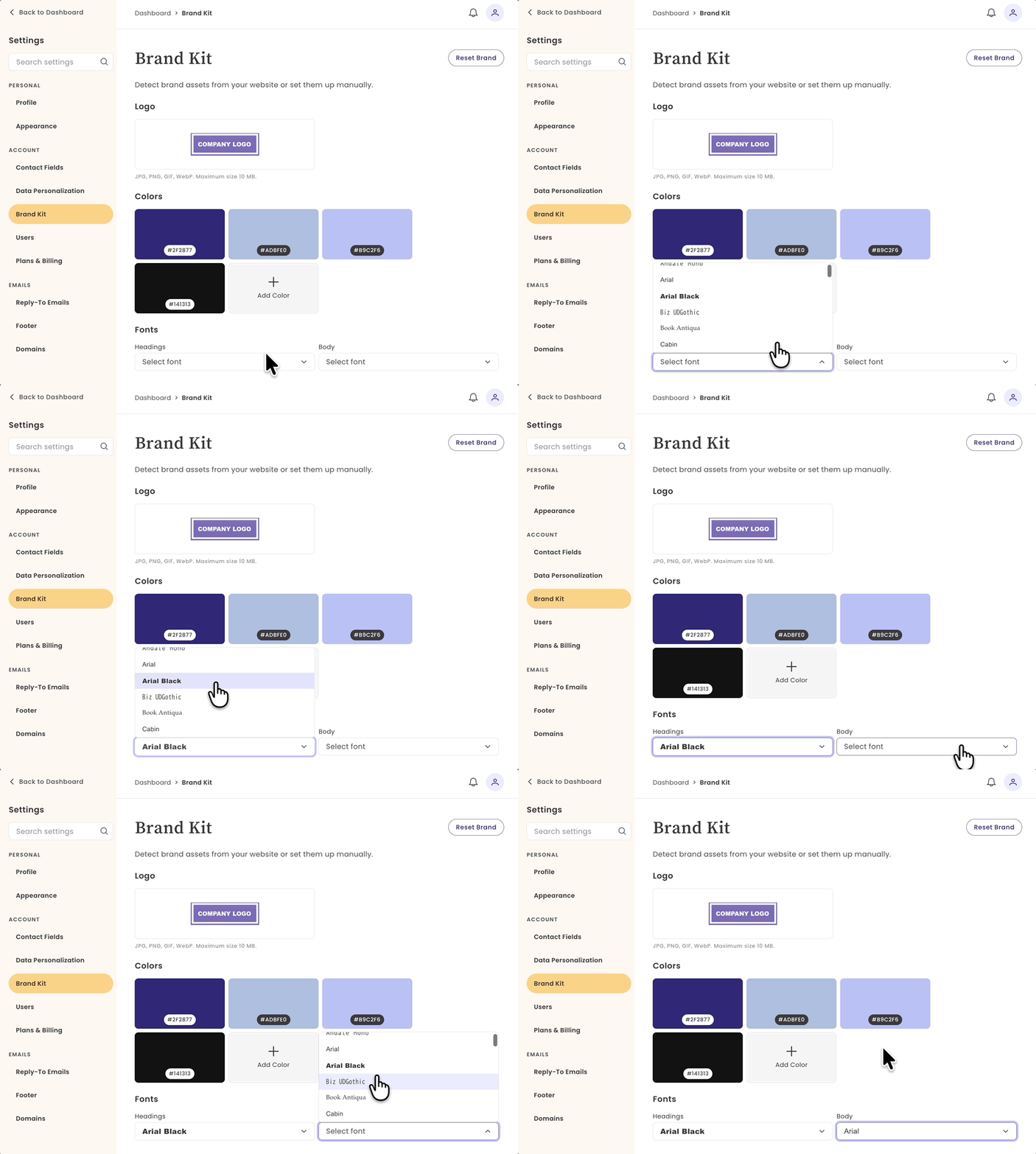
- Changes are saved automatically; there's no separate save button.
Using Brand Kit
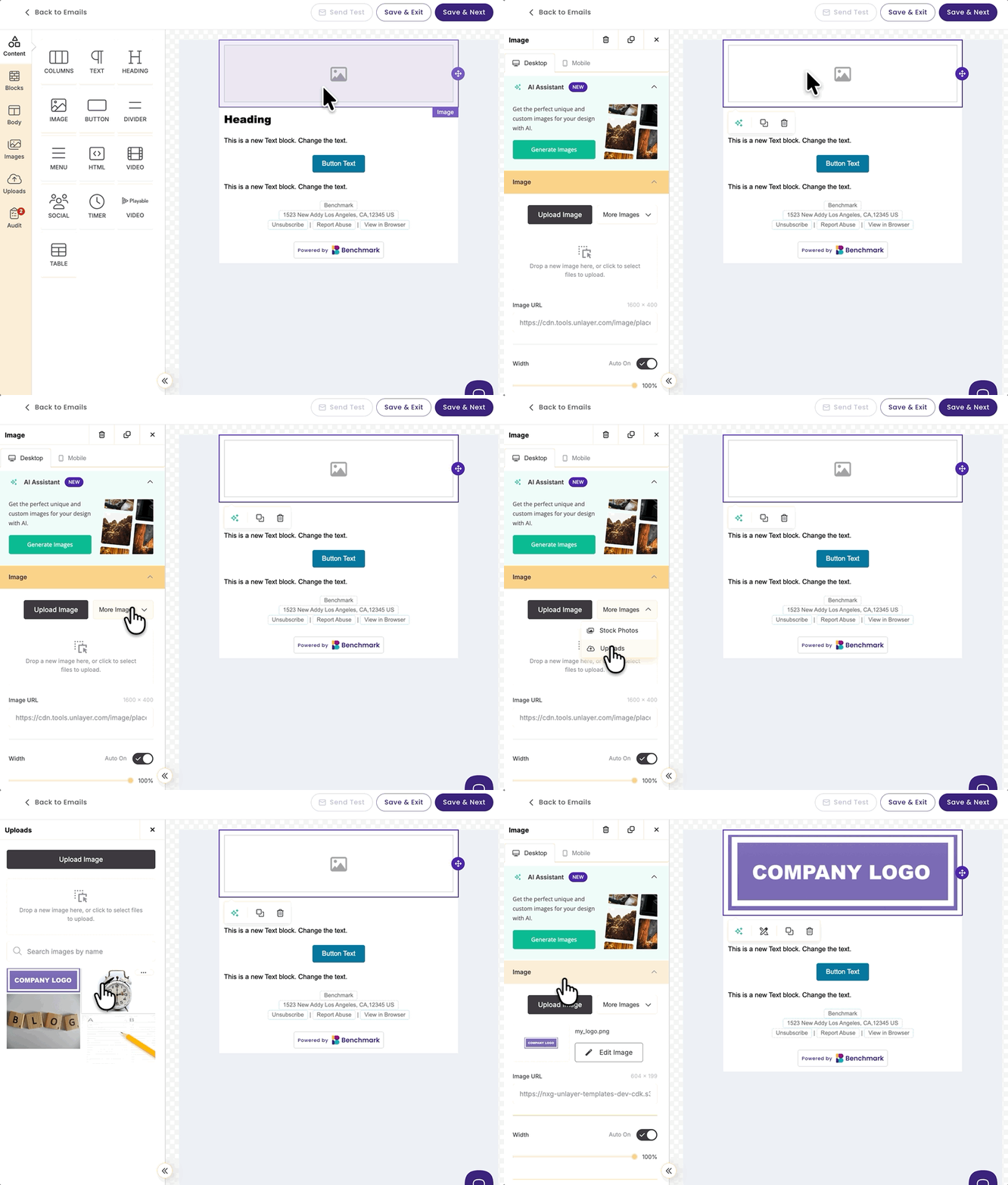
Open the email builder or form builder and add an image, a color, or text.
Logo
- Logo appears first in the Uploads folder selector.
Colors
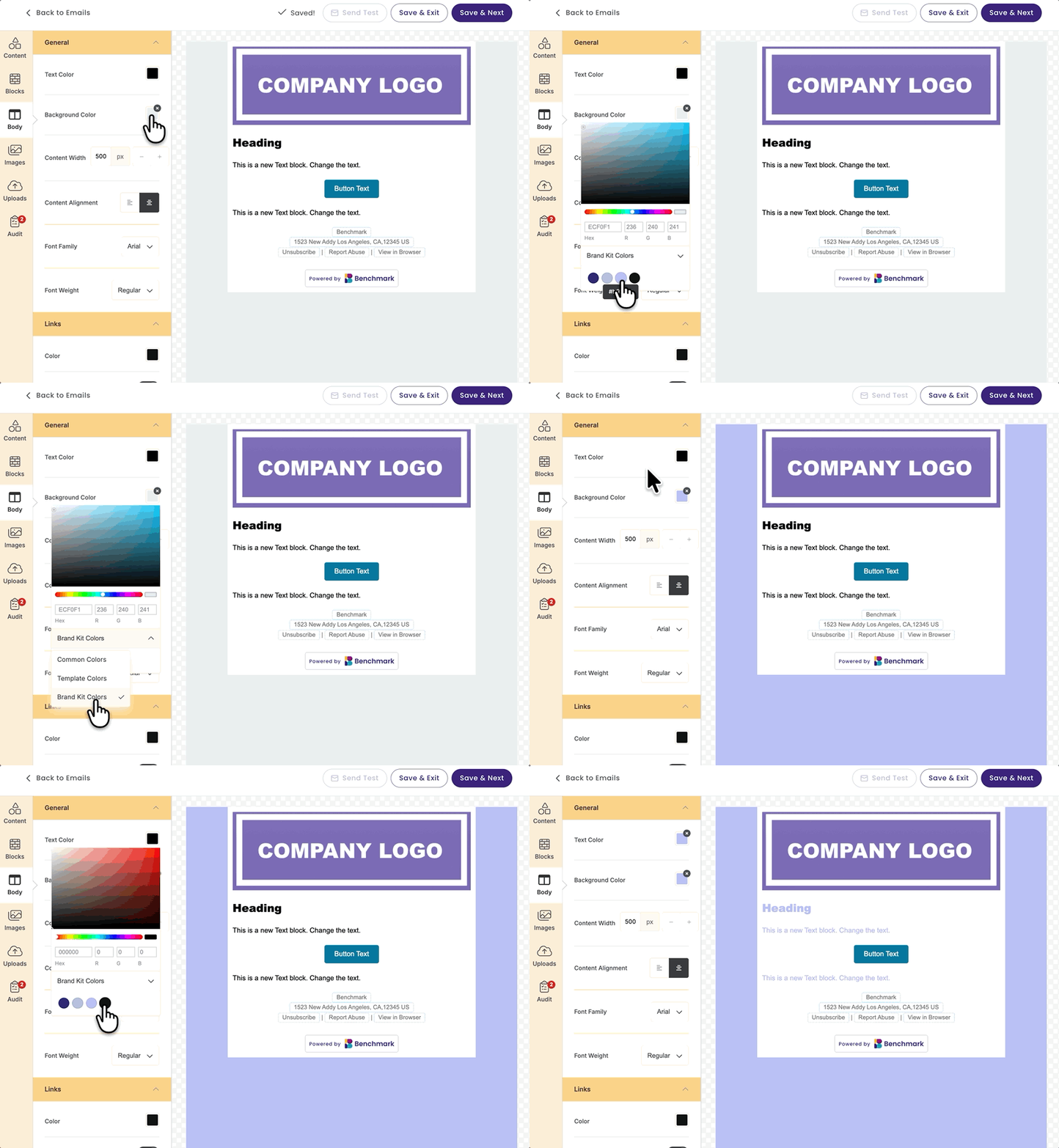
- Saved colors appear in the color picker. Example used: Email Builder, Body background and text colors.
Fonts
- Fonts are the default for any new heading or body text you add.
- Saved fonts apply to new text blocks. They won't restyle text that's already part of a prebuilt template.
Frequently Asked Questions
Does the Brand Kit automatically apply my branding to emails or forms?
No. Saving a logo, color, or font to your Brand Kit doesn't apply it automatically. Your logo appears first in the Uploads folder, your colors appear in the color picker, and your fonts become the default for new text — but you still choose what to use each time you build.
Will my saved fonts change the text in a template I've already built?
No. Saved fonts apply to new headings and body text you add going forward. They don't restyle text blocks that are already part of an existing or prebuilt template.
How many colors can I save to my Brand Kit?
You can save up to 10 colors.
What file types can I upload for my logo?
You can upload a PNG, SVG, or JPG file, up to 10MB.
Is the Brand Kit shared across my account, or is it just for me?
It’s shared: there’s one Brand Kit per account, and both the account owner and any additional users can use and edit it. That way, everyone building an email or form uses the same logo and colors.
Where can I use my Brand Kit assets?
Your Brand Kit assets will be available within the email builder and form builder.