
Migrating From Mailchimp
Switching from Mailchimp to Benchmark Email? This article walks you through moving the two things most customers want to keep: your email templates and your contacts.
Topics Covered in This Article
Before Getting Started
- Moving from Mailchimp to Benchmark Email is currently a manual process.
- You'll need access to your Mailchimp account to export your templates and contacts.
What You Can Bring Over
Email templates
Mailchimp lets you copy the HTML code behind your existing templates. Paste that code into Benchmark Email's Custom HTML editor and your design carries over, ready to send.
Contacts
Export your contact list (an “audience” in Mailchimp) as a file, then import it into Benchmark Email. If you use Zapier, you may be able to connect Mailchimp and Benchmark Email directly, but manual exporting and importing is the reliable option.
Bring Over Your Email Templates
The steps below are specific to email "Campaigns" templates that have been sent. This option will not be available for draft emails.
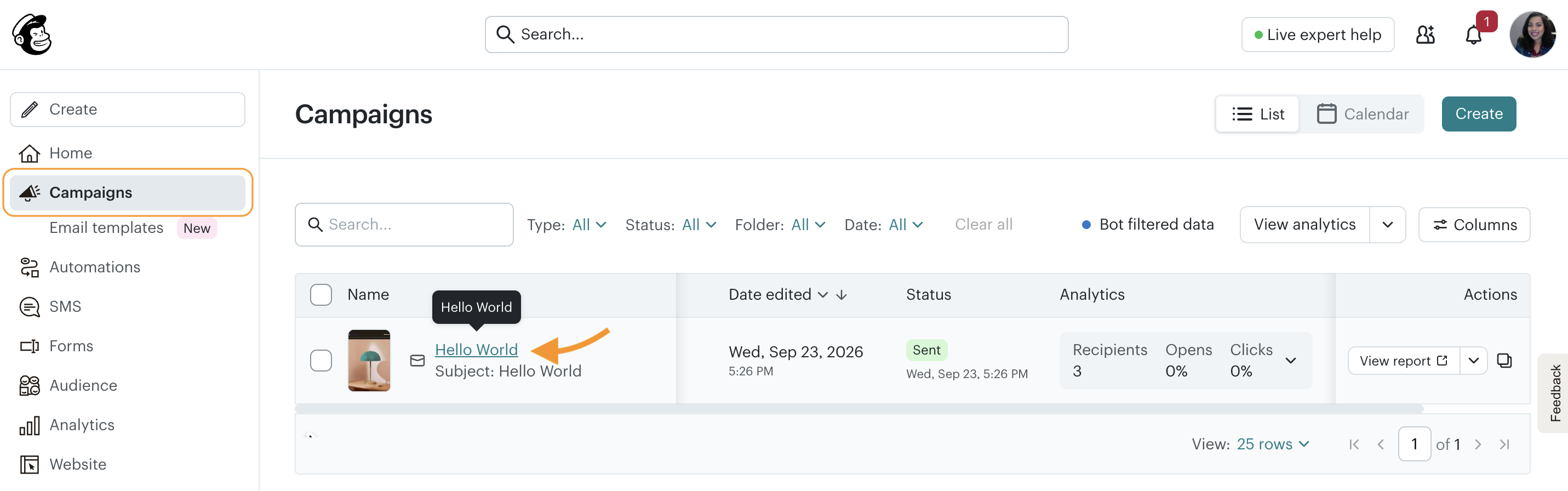
- Log in to your Mailchimp account and click on Campaigns.
-
Click on the name of your email template.
-
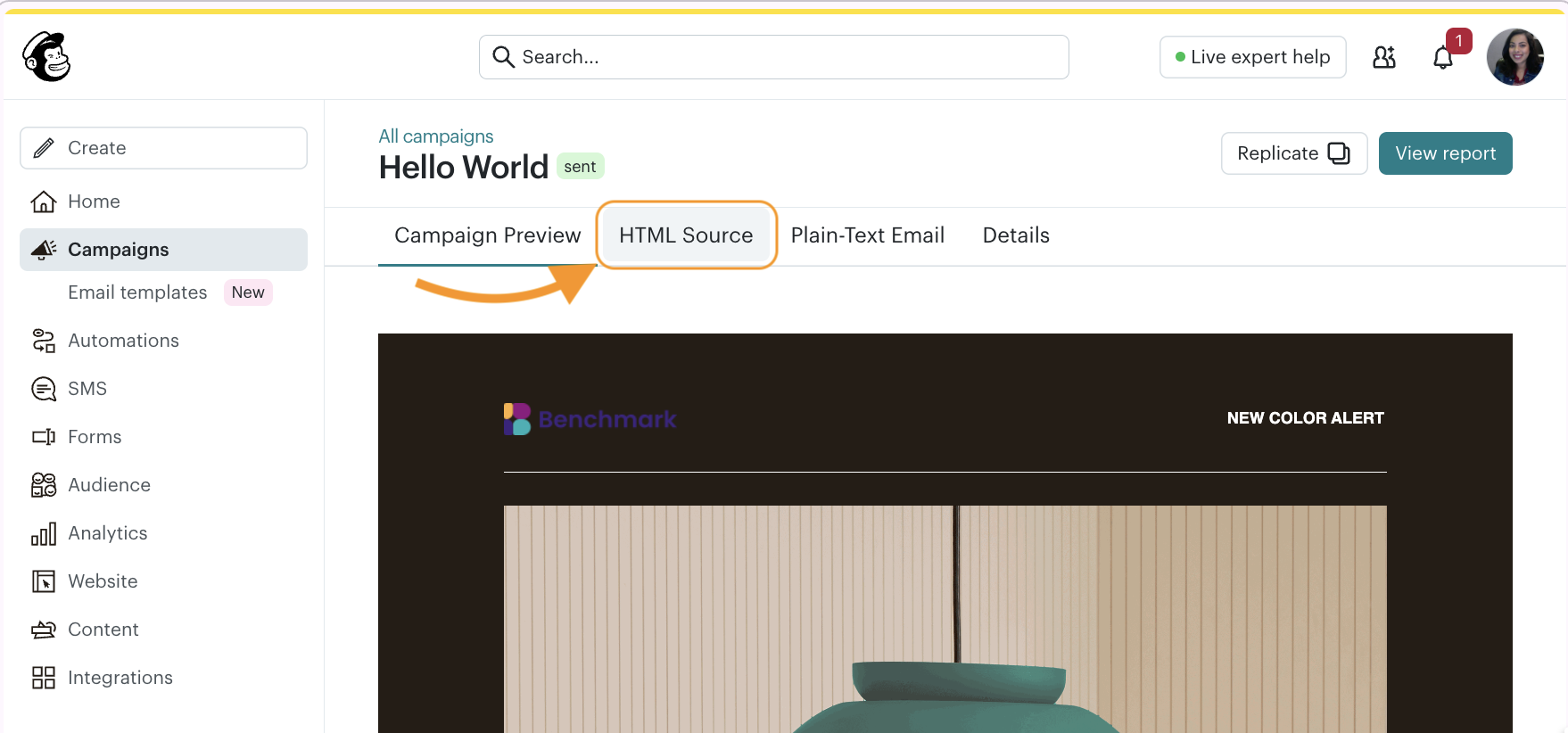
In the Campaign Preview, select HTML Source.
-
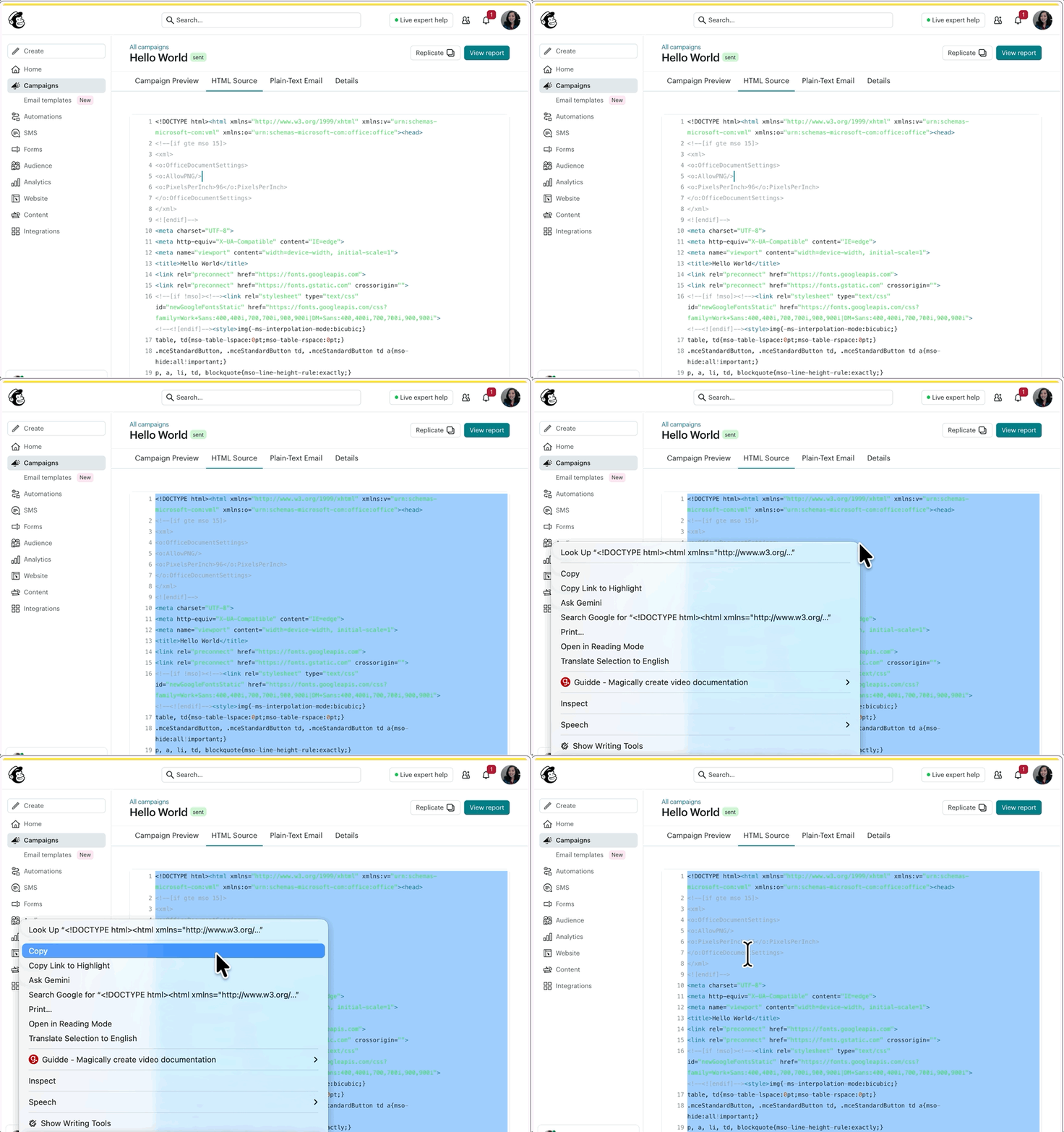
Next, highlight the entire email's HTML code, right-click on the code, and select COPY.
- In Benchmark, go to Emails and click Create Email.
- Select Custom HTML as your design type.
-
Choose Start from Scratch, then paste the copied HTML code into the editor.
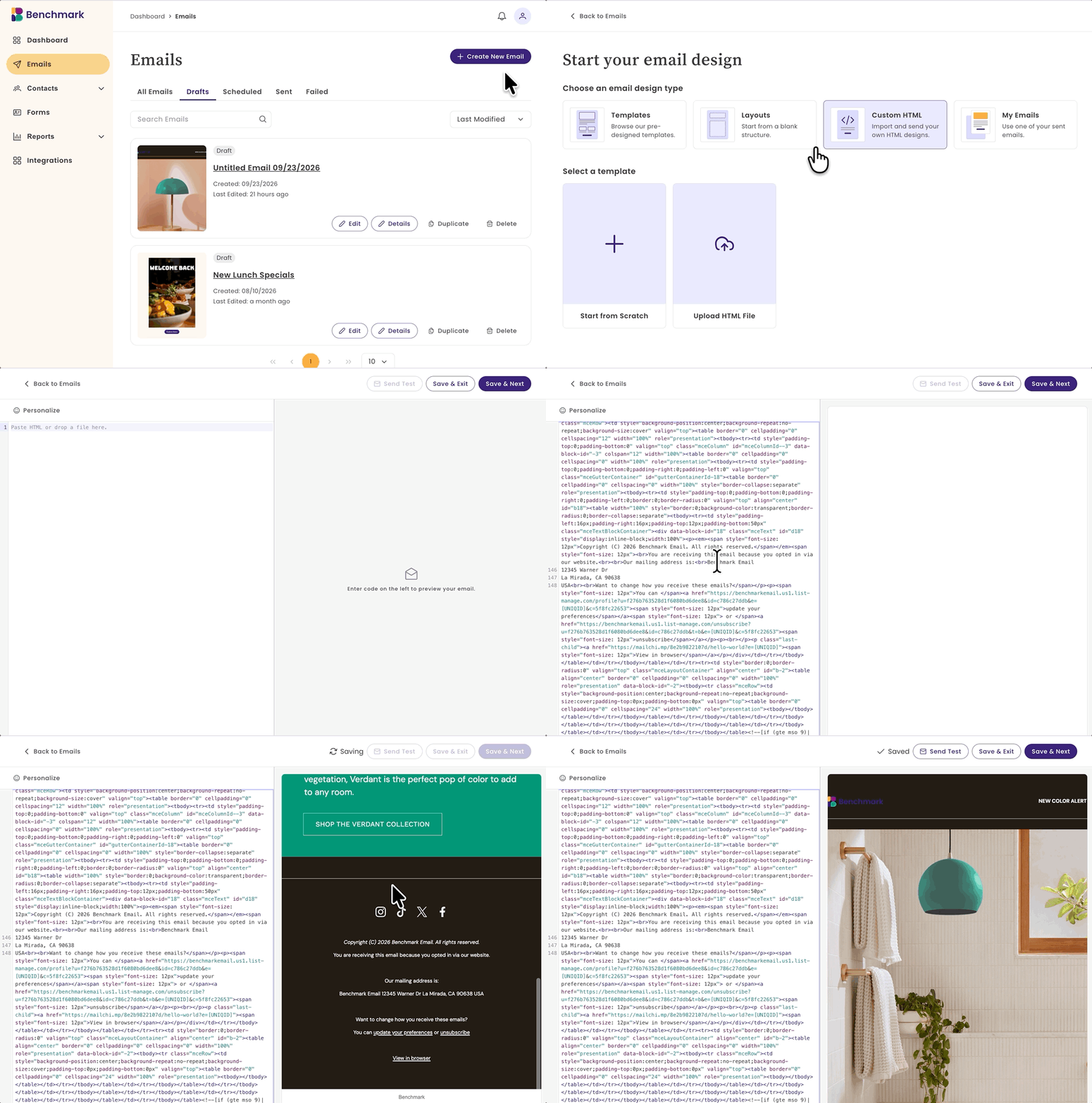
- Check the live preview on the right to confirm your template rendered correctly, toggling between Desktop and Mobile views.
- Tip: Click Send Test to send yourself a test email before using the template in a live campaign.
- Click Save & Next to continue building your campaign, or Save & Exit to finish later.
You'll repeat this process for any other email templates you want to bring from Mailchimp.
Exporting your Mailchimp contacts
-
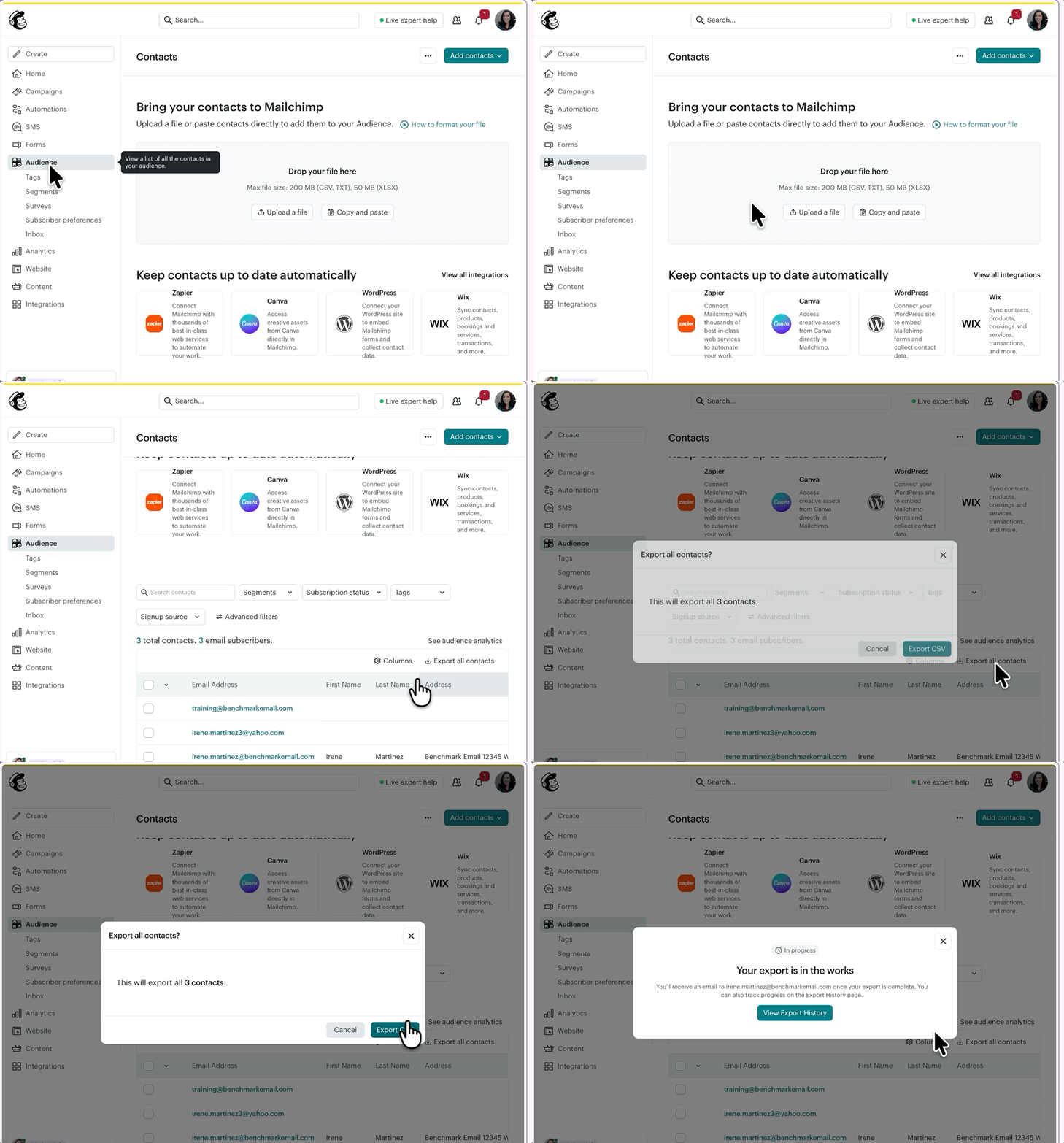
In Mailchimp, go to your Audience and select the option to Export All Contacts. Once the export is complete, you'll receive an email with a link to download your Mailchimp contacts.
-
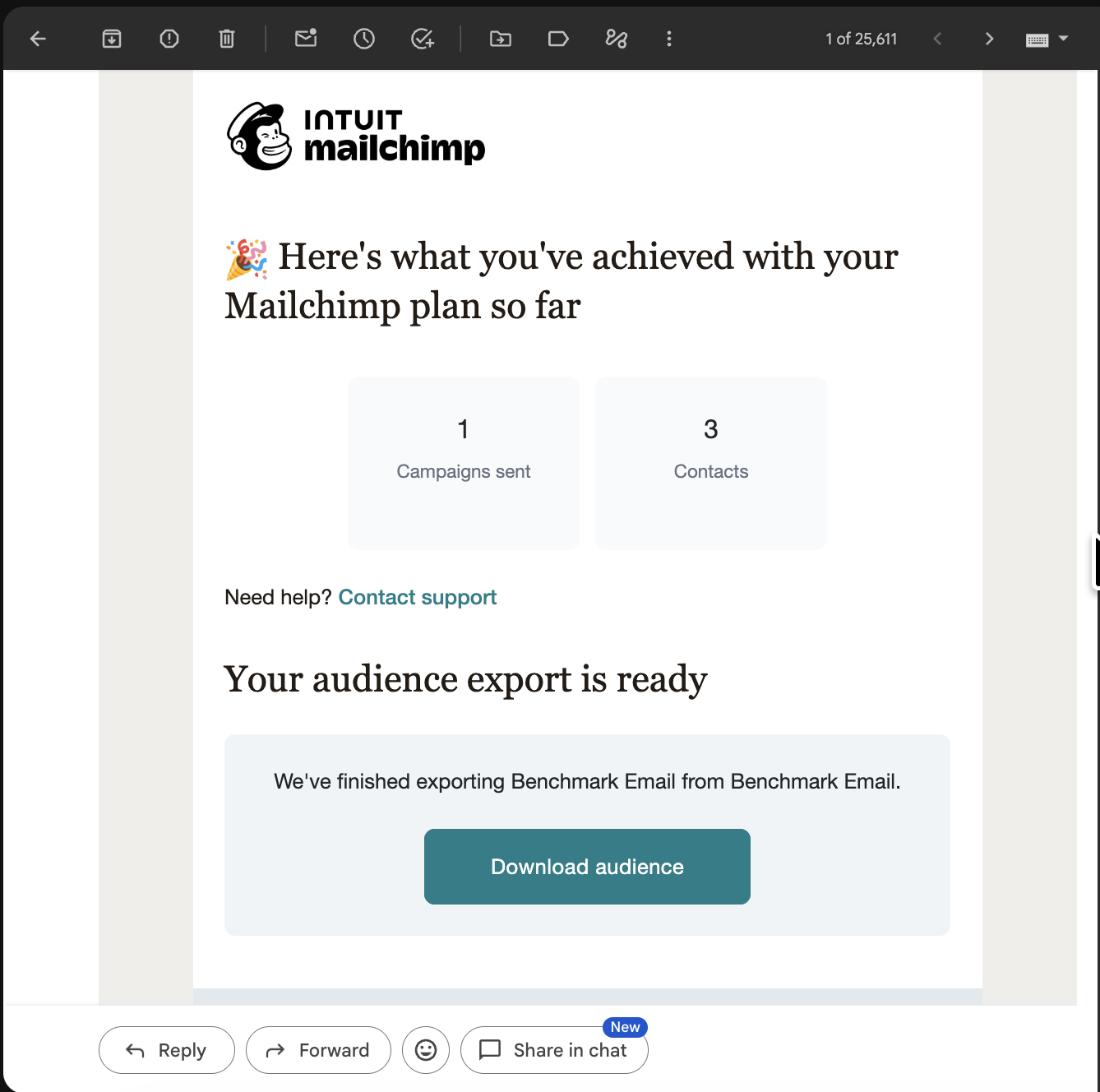
Once the export is complete, you'll receive an email with a link to download your Mailchimp contacts.
-
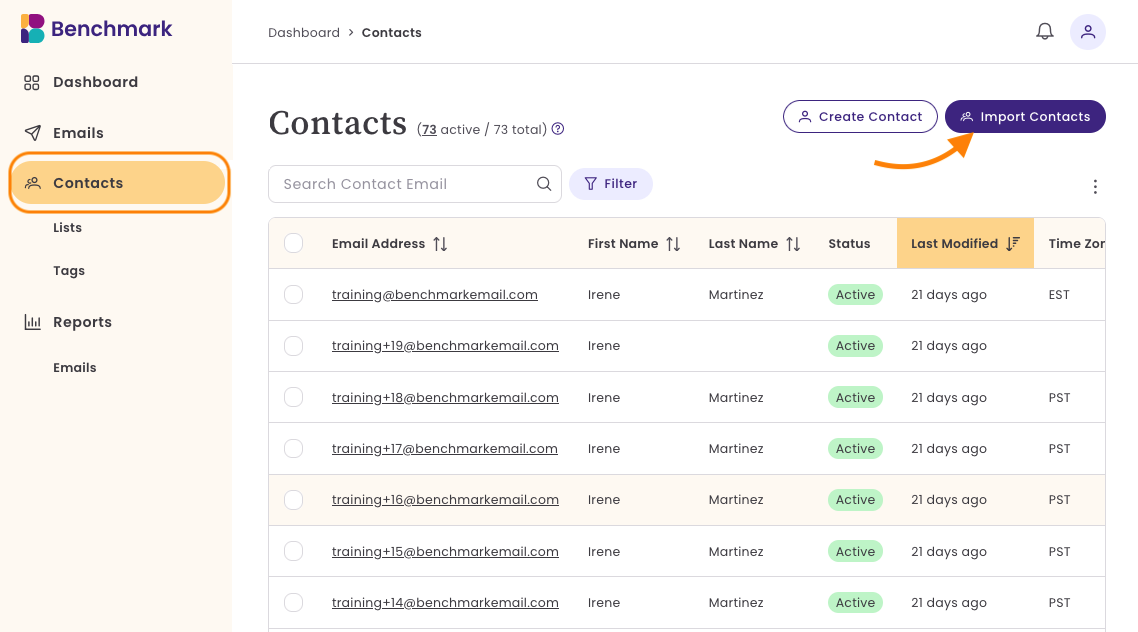
In Benchmark Email, go to Contacts and select the option to Import Contacts.
-
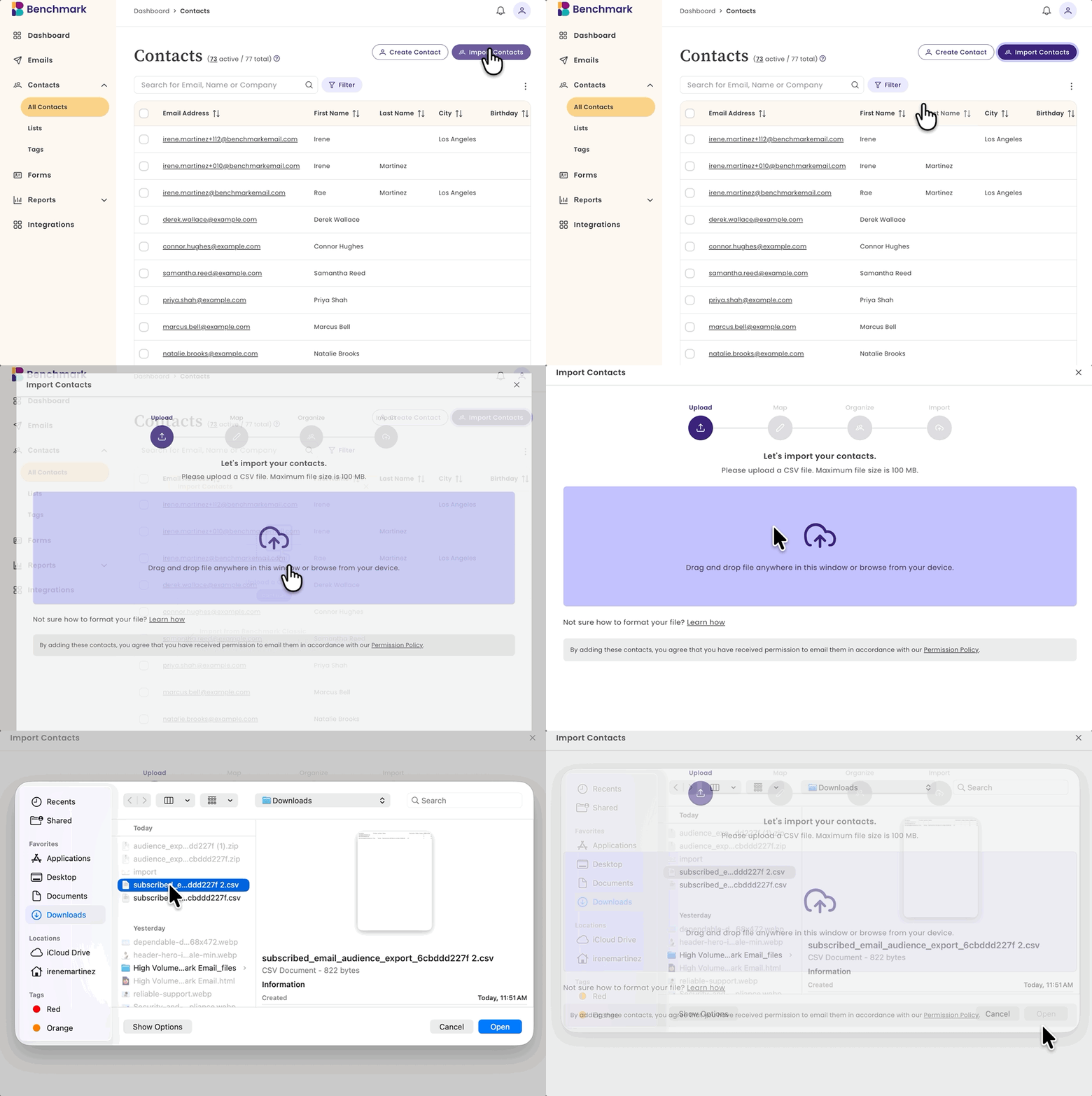
Upload the CSV file you downloaded from Mailchimp.
- Match the columns from your file (like email address, first name, and last name) to the correct contact fields in Benchmark Email.
- Review and confirm the import.
- Tip: If you use Zapier, check whether a Mailchimp-to-Benchmark Email connection is available as an alternative to manual export and import. Availability varies by account, so don't rely on it until you've confirmed it works for you.
Frequently Asked Questions
Can I migrate my Mailchimp templates automatically?
No. You'll need to copy the HTML code from each Mailchimp template and paste it into Benchmark Email's Custom HTML editor. This is a one-time step per template.
Will my Mailchimp template look exactly the same in Benchmark Email? It should, but always check the live preview and send a test email to confirm. Custom code can render differently across email clients.
Do I have to move my contacts manually? Manual export and import is the current method for everyone. If you use Zapier, you may be able to connect the two platforms directly, but this isn't guaranteed to be available on every account.
Will there be a faster way to migrate in the future? Benchmark Email may add more automated migration options later. For now, copying HTML for templates and exporting/importing for contacts is the way to bring your account over.
What file format does Mailchimp export contacts in? Mailchimp exports your audience as a CSV file, which Benchmark Email's import tool accepts.