
How to Add DNS Records to OVHcloud
To send emails using your private domain name, you will first need to add your domain and create a subdomain within your Benchmark account. After the subdomain has been added, Benchmark will generate the DNS record that you'll add to your OVHcloud account under DNS zone settings.
This guide provides step-by-step instructions for adding the Benchmark DNS record to OVHcloud.
Topics Covered in This Article
Before Getting Started
- Benchmark does not have access to your OVHcloud account.
- Your DNS record is unique to the domain and subdomain you added to Benchmark.
- Once your record is created, find it under Email Settings > Domain.
- Propagation can take up to 48 hours.
- You'll need an OVHcloud DNS zone for your domain. The steps below add an NS record for a subdomain — do not edit the NS records already listed for your root domain, as that can break DNS resolution for your whole zone.
How to Add Your DNS Record to OVHcloud
The instructions included in this article were developed using resources from OVHcloud.
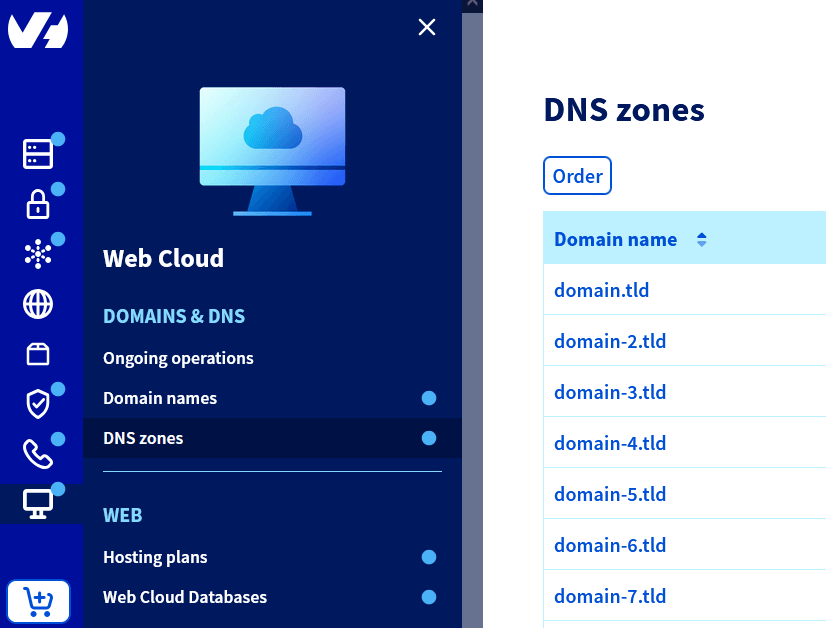
- Log in to the OVHcloud Control Panel and go to Web Cloud > Domain names.
-
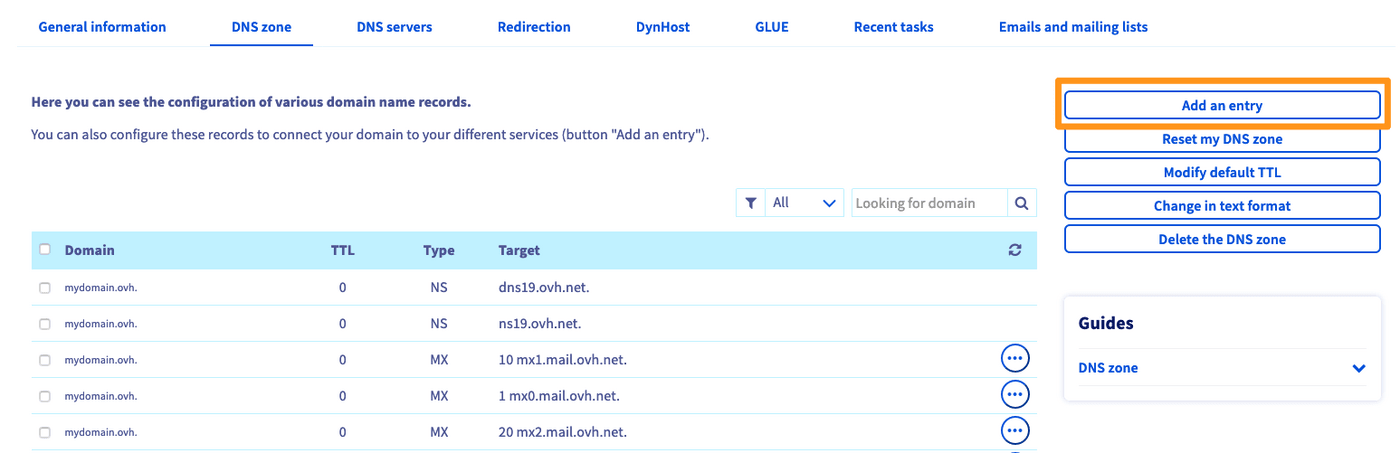
Select the domain you're updating, then click the DNS zone tab.
-
Click Add an entry (or Add a record).
- Choose NS from the list of record types.
- Enter the details for your new NS record, using the values provided in Benchmark:
- Sub-domain: paste the hostname provided in Benchmark.
- TTL: use the suggested time. If none is given, the default TTL is a reasonable choice.
- Target: paste the NS value provided in Benchmark.
- Review the summary, then click Confirm (or Next, then Confirm) to save the record.
After you have finished adding the record, you may return to your Benchmark account to complete the process. If you have navigated away from the records screen, you can still verify your work by checking your domain on the Domain page. From there, click the Retry Verification button next to the domain you are validating. This will initiate a web check to confirm whether the record was added successfully. Please note that DNS record propagation — once the record is valid on the web — can take anywhere from 24 to 48 hours.
If the record is not added, your domain's verification will remain pending.
Frequently Asked Questions
Will adding this record affect my existing website or email?
No. This record only applies to the subdomain you added in Benchmark — it doesn't change or remove any existing records on your root domain.
How long does it take for my record to be verified?
Most records are verified within a few hours, but DNS changes can take up to 48 hours to fully propagate. If your domain still shows as unverified after 48 hours, double-check that the record matches exactly what's listed on your Domain page in Benchmark.
Is it safe to add an NS record in my OVHcloud DNS zone?
Yes, as long as it's for a subdomain (like the hostname Benchmark gave you) rather than your root domain. OVHcloud specifically advises against manually changing the NS records that point your root domain's zone to OVHcloud's own name servers, since that can stop your domain from resolving. Adding a new NS record for a subdomain, as described above, doesn't touch those records.
Can I add records for more than one subdomain?
Yes. Each subdomain you verify in Benchmark gets its own unique record. Add each subdomain in Benchmark first, then repeat the steps above for each one.