
Import Contacts From Benchmark Classic
Transferring contacts from Benchmark Classic to the new Benchmark is simple with the built-in migration tool in the New Benchmark application. The tool moves your lists and selected custom fields from Benchmark Classic to your new Benchmark account. You can import all lists at once or select specific lists.
Topics Covered In This Article
BEFORE GETTING STARTED
- The process begins within the New Benchmark account.
- You'll need your Benchmark Classic API Key, accessible during the import.
- If you have multiple Benchmark Classic accounts, you can regenerate a new API Key by restarting the migration import process. Make sure to log out of the classic account you are signed into first.
- The migration tool can import up to 100,000 contacts or up to 50 contact lists at a time.
- The import automatically pulls all Unsubscribes and Bounces from your Benchmark Classic account. These contacts are added as inactive in your new Benchmark account.
- Classic contacts labeled "Not Opted In" will not be imported into the new Benchmark.
- At this time, Benchmark Classic segments can not be imported.
If you haven’t created a new Benchmark account yet, you can set one up here.
How to Use the Migration Tool
To get started, you'll first need to log in to your new Benchmark account.
-
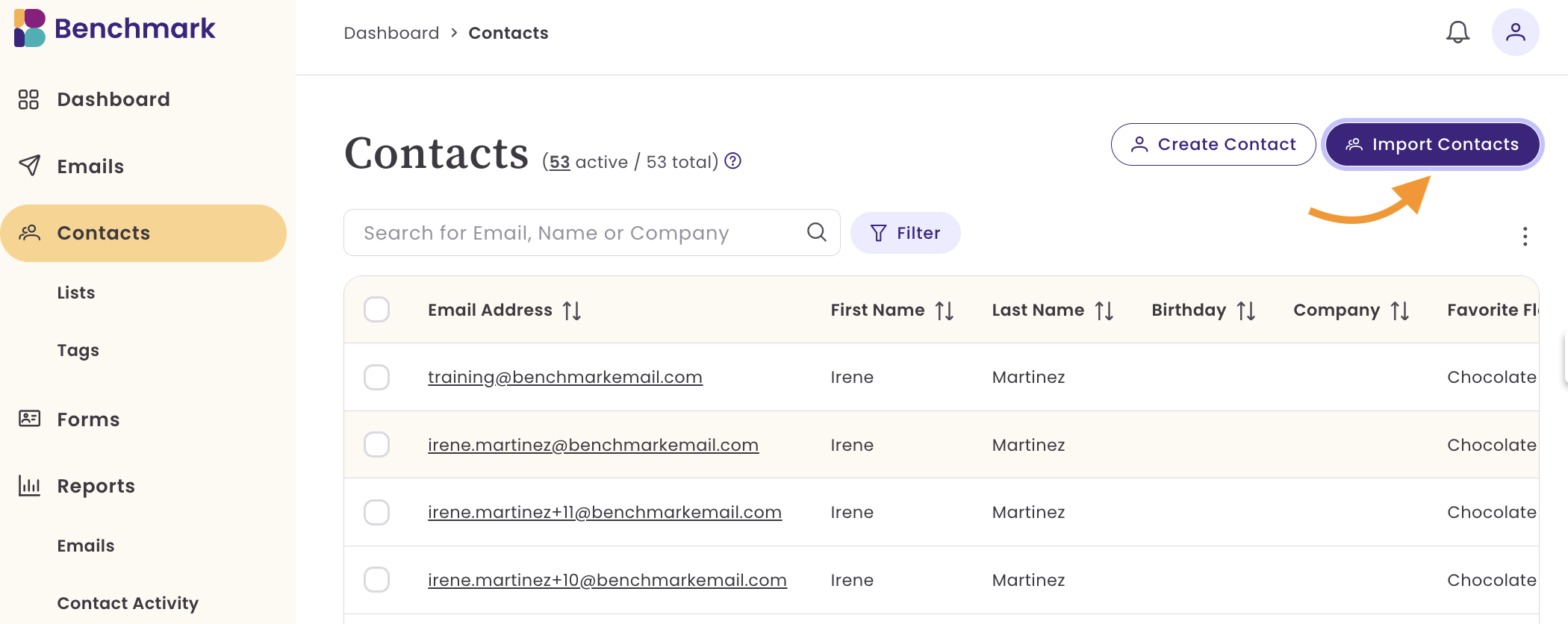
From the home page or the Contacts page, select the Import option.
-
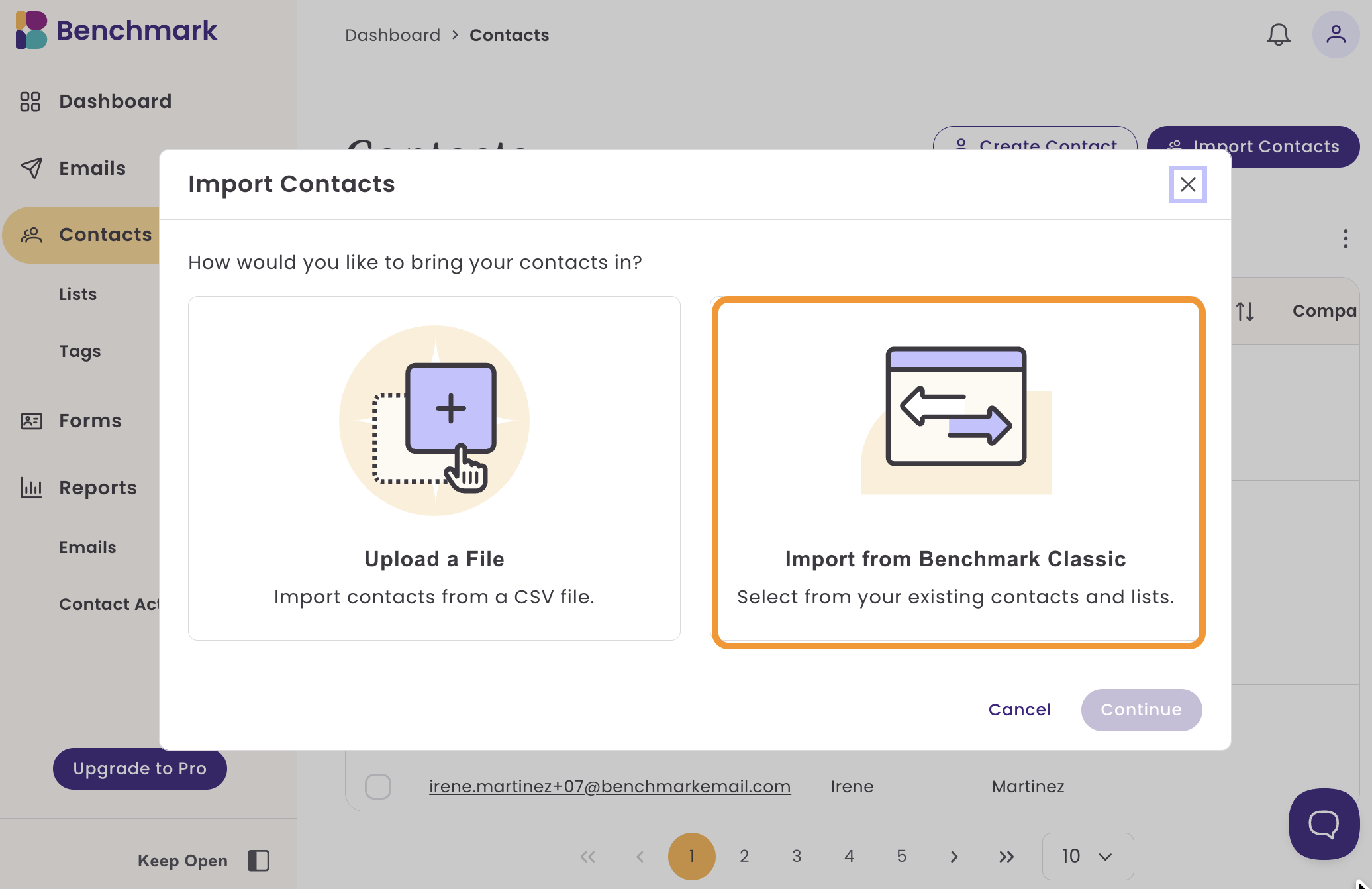
Select the Import From Benchmark Classic option.
-
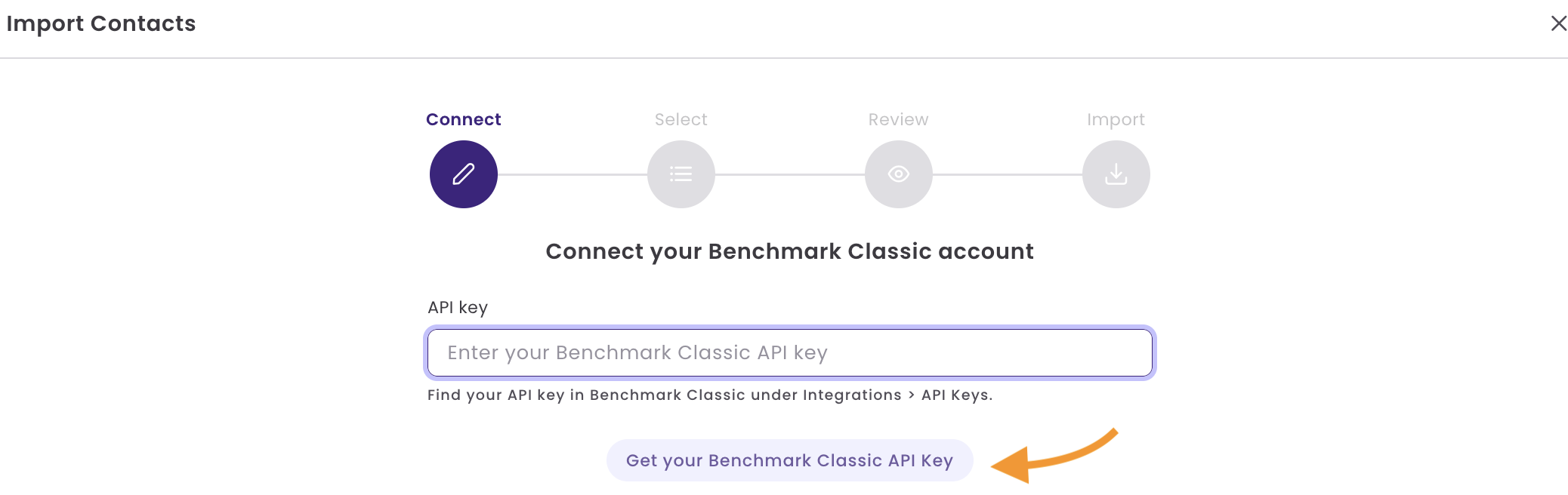
Next, select Generate your Benchmark API Key. This will open a new tab where you'll log in to your Benchmark Classic account.
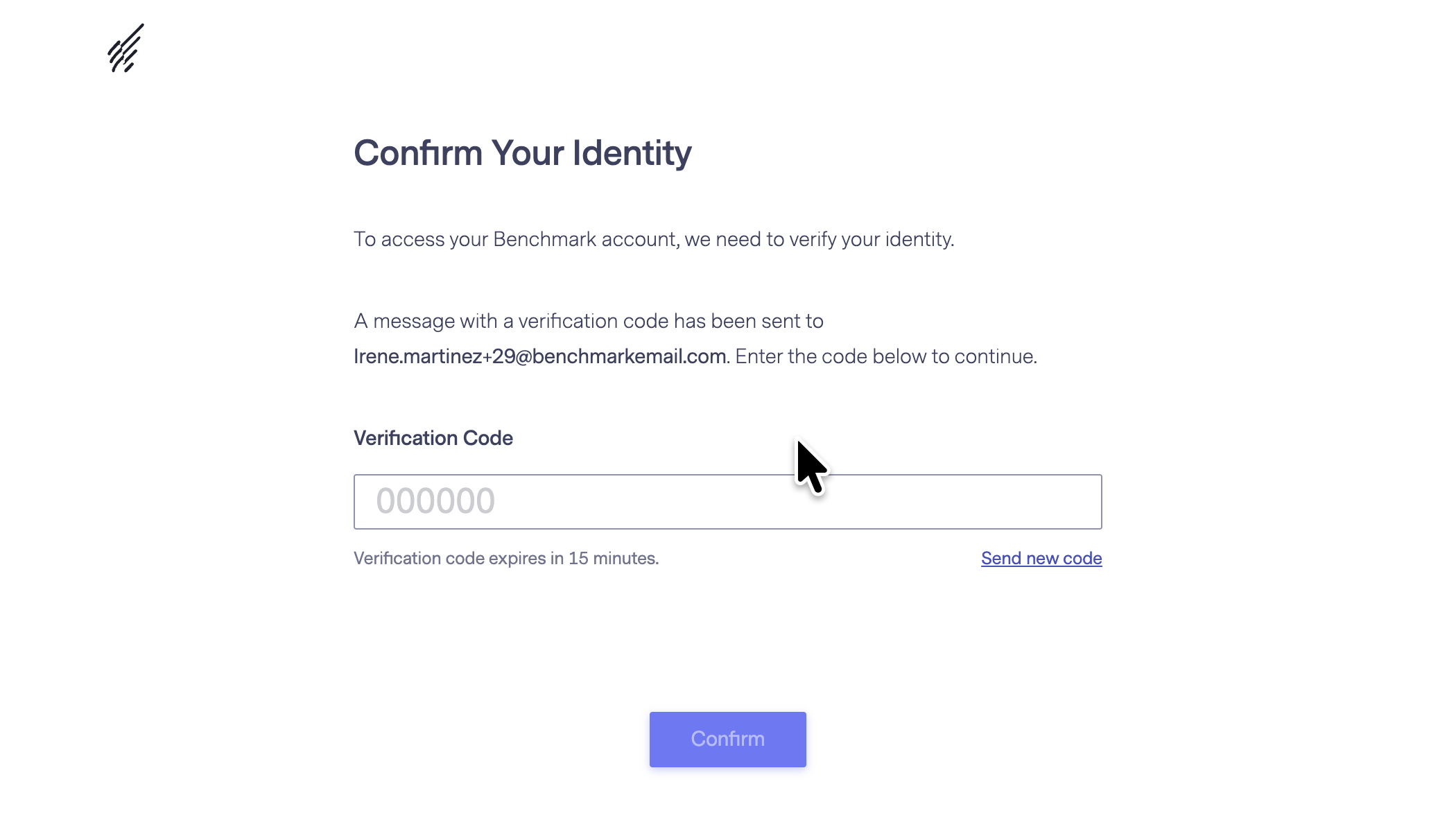
If you have 2-step verification on your Benchmark Classic account, you'll need to enter the verification code sent to your email.
After entering the code, you'll be logged in to your account. Then click your account name, select Integrations, select API Key, and last click on Copy Key.

- Return to your new Benchmark account, and paste your Classic API Key and select Continue..
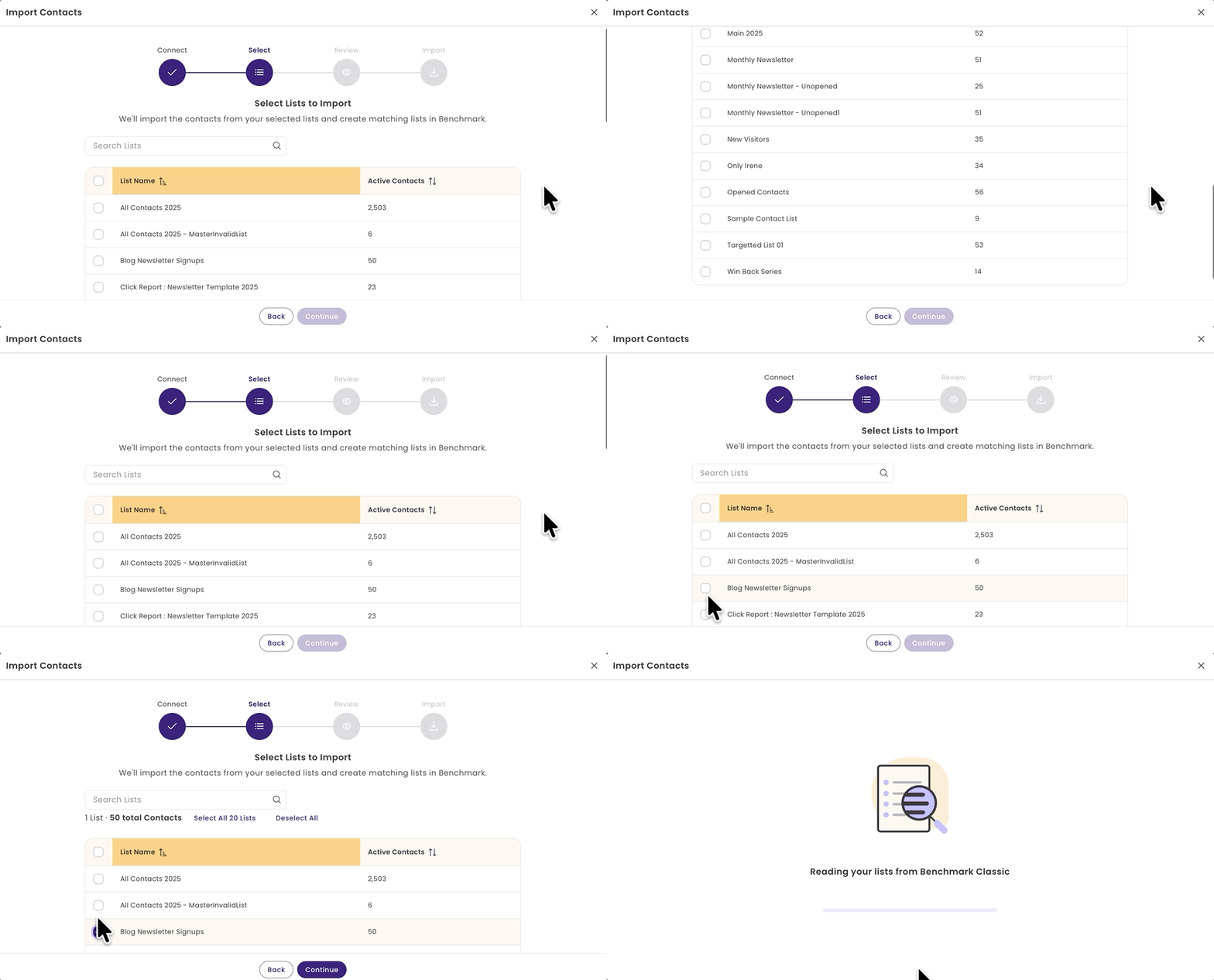
- Select the lists you want to migrate. The lists will be added to your new Benchmark account and stored on the Lists page.
- You can select up to 50 Lists and up to 100,000 contacts. If you need to add more than 50 lists or 100,000 contacts, you can repeat the import process.
- Select the fields you want to import into your new Benchmark account, then click Continue.
- All fields are selected by default. Any field left unchecked won't be added to your new Benchmark account.
- Fields with similar names are combined into a single field. For example, two fields titled "Cell Phone" and "Cell" will be grouped into one field in the new Benchmark. If you don't want them grouped, update the field names in your Classic account first.
- If a field being imported already exists in the new Benchmark, it will show a Matched status.
- If the field doesn't exist yet, it will show a Custom Field status. If checked, the custom field will be added to your new Benchmark account.

- Review the import summary, which includes

- The number of contacts being imported and whether they are new or existing.
- Update existing contacts with the data you're importing. If left unchecked, imported data won't be applied to existing contacts. If checked, it will override any data already present in your new account.
- When selecting multiple lists with different data points, the migration tool will use the most recent data.
- Total inactive contacts include Unsubscribed and Hard Bounce contacts. These contacts are not included in your active contact count, and their inactive status will be added to the new account.
- If all looks good, select Begin Import.
Congratulations, you've now completed the contact list migration! 🎉
Contact & List Information
The new Benchmark application focuses on Contacts, unlike the Benchmark Classic, which focused on Lists.
New Benchmark Contacts Page

Benchmark Classic List Page - this was the area where you accessed your contacts.

After importing your Benchmark Classic lists, all contacts will appear on the Contacts page, and your Classic lists will be added to the List page.

Deleting a list in the new Benchmark only removes the list itself, not the contacts associated with it.

The new list’s names will remain exactly the same as in your Classic account. If you’d like to change the list name, just open the list and click the pencil icon next to the current list name.
Duplicates
If the same person appears on multiple Classic lists, the migration merges them into one contact in the new Benchmark. They remain in every list they were in, but they show up only once on the Contacts page. If your total contact count seems lower than expected, this is why—duplicates are being merged, not data missing.
Frequently Asked Questions
Why does my contact count look lower than expected after migration?
This is usually expected, not an error. If the same person appears in multiple Classic lists, the migration combines them into a single contact in your new Benchmark account. You won't lose any list. The contact still belongs to every list they were in, but will only appear once on your Contacts page.
How does the migration decide which data to keep when lists have different values? When the same field has different values across lists, the migration keeps the best one: a filled-in value always beats a blank field, placeholder text like "N/A" or "test" is treated as blank, and only when two lists have different real values does the most recently updated one win.
A contact that was unsubscribed in Classic now shows as Inactive. Is that accurate? Yes. Unsubscribed and bounced contacts are always imported as Inactive. You can view the sub-status of Unsubscribed or Bounced in the contact's page or in the contact profile. This is intentional and can't be turned off.
Why didn't all of my contacts get imported?
A few reasons this can happen:
- The contact already exists in your new Benchmark account, active or inactive.
- The list they belonged to wasn't selected during import.
- The contact's data had an issue (such as an invalid email format) that caused the migration to skip it.
Can I run the migration again? Yes. Running it again won't create duplicates — existing contacts are updated, if importing the same classic list, the new list name has "List Name - Benchmark Classic"
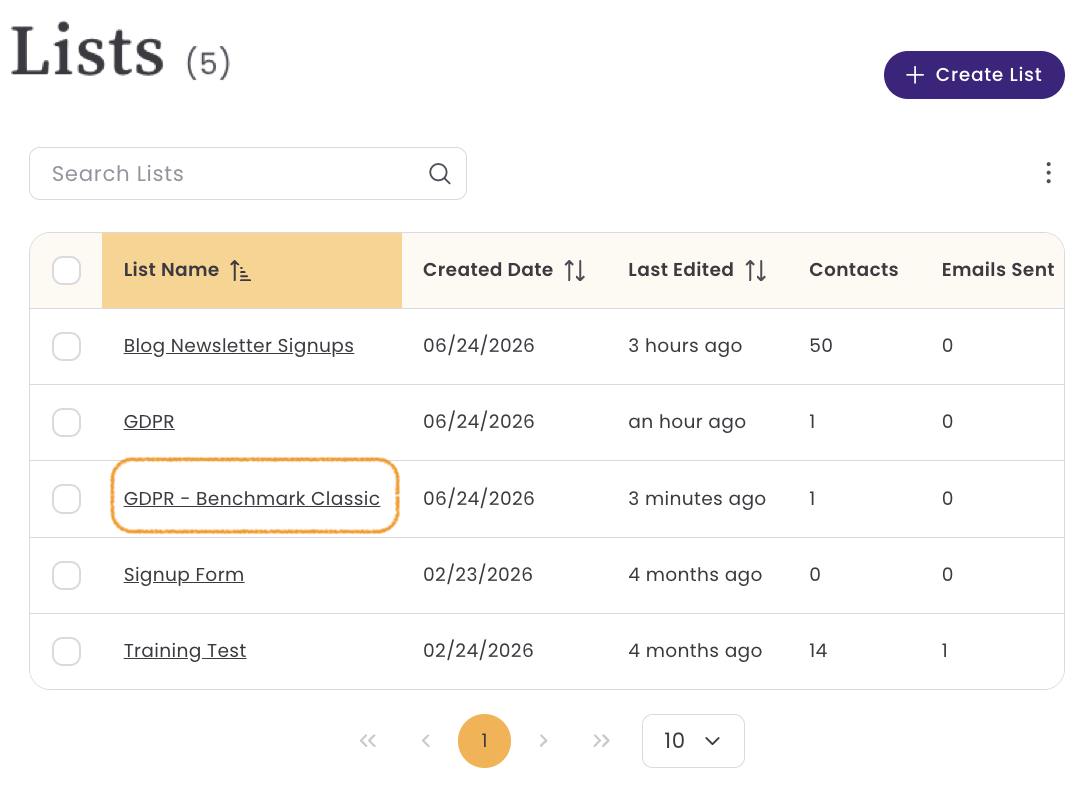
Can I undo a migration? No. There's no built-in undo. Contacts and lists imported into your new Benchmark account stay there. If you need to start over, you can run the import again, but it will add to your existing data rather than replace it.
Some options to consider:
- Delete the new lists - does not delete contacts
- Delete the contacts from the contacts page - does not delete lists, only removes the contact from the account and all the lists it was previously in.
- Delete new custom fields in the Account Settings page. Deleting a field removes any stored values across your contacts.
Why don't I see a "Select All" option for my lists? "Select All" only appears if your Classic account has 50 or fewer lists. If you have more than that, you'll need to select lists in batches and repeat the import.