
Sign-in Options
When you first create an account, you'll need to verify your email address. We offer two sign-in methods: email address and Google Sign-in.
BEFORE GETTING STARTED
- If you sign up using the Google Sign-in option, you'll continue using this option to log into your Benchmark Email account.
- If you'd like to add another email address to use as a reply-to email, go to Email Settings>Reply-To Emails and select "Add Reply-to Email."
Email Address Sign-in
A common way to create an account is to manually enter your email address and password. You'll need to verify your email address by clicking the verification link that we send to your inbox. This quick, simple method helps confirm that your email is valid.
To use this option, see the steps below.
-
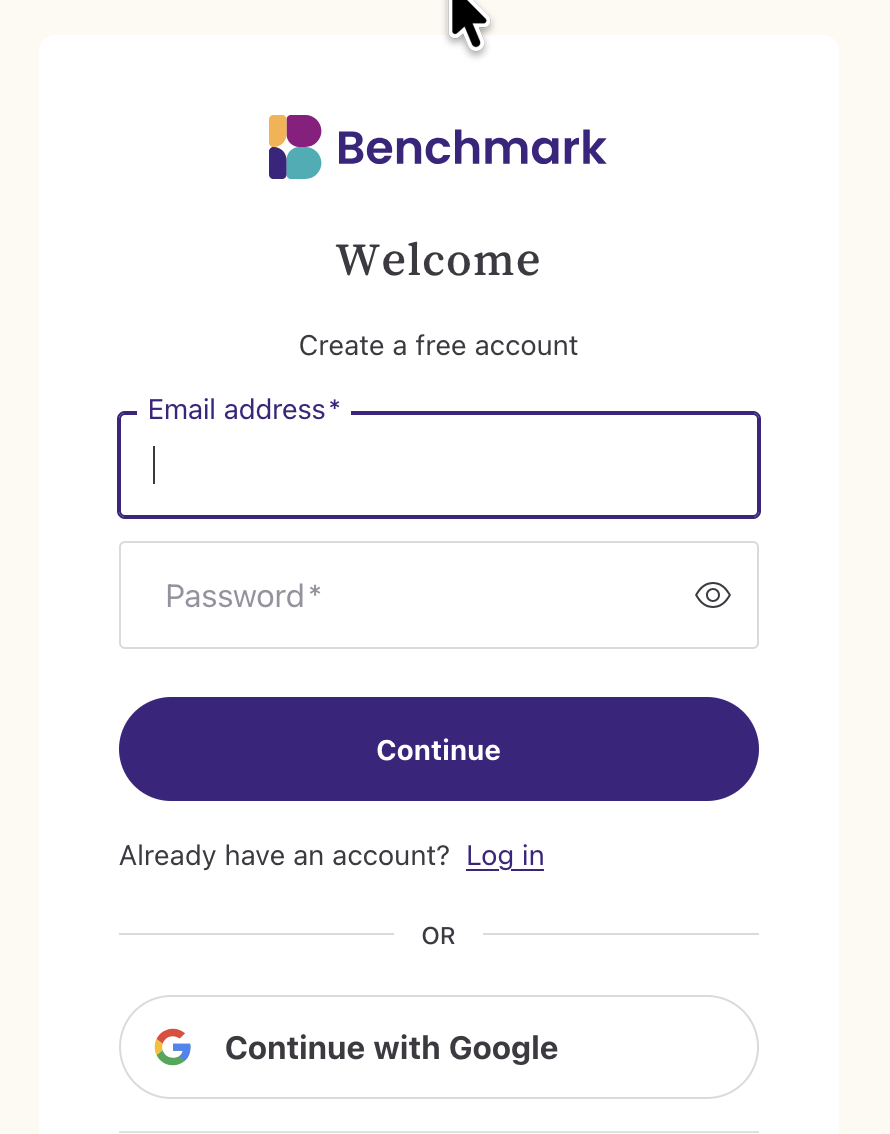
Add your email address and a password.
-
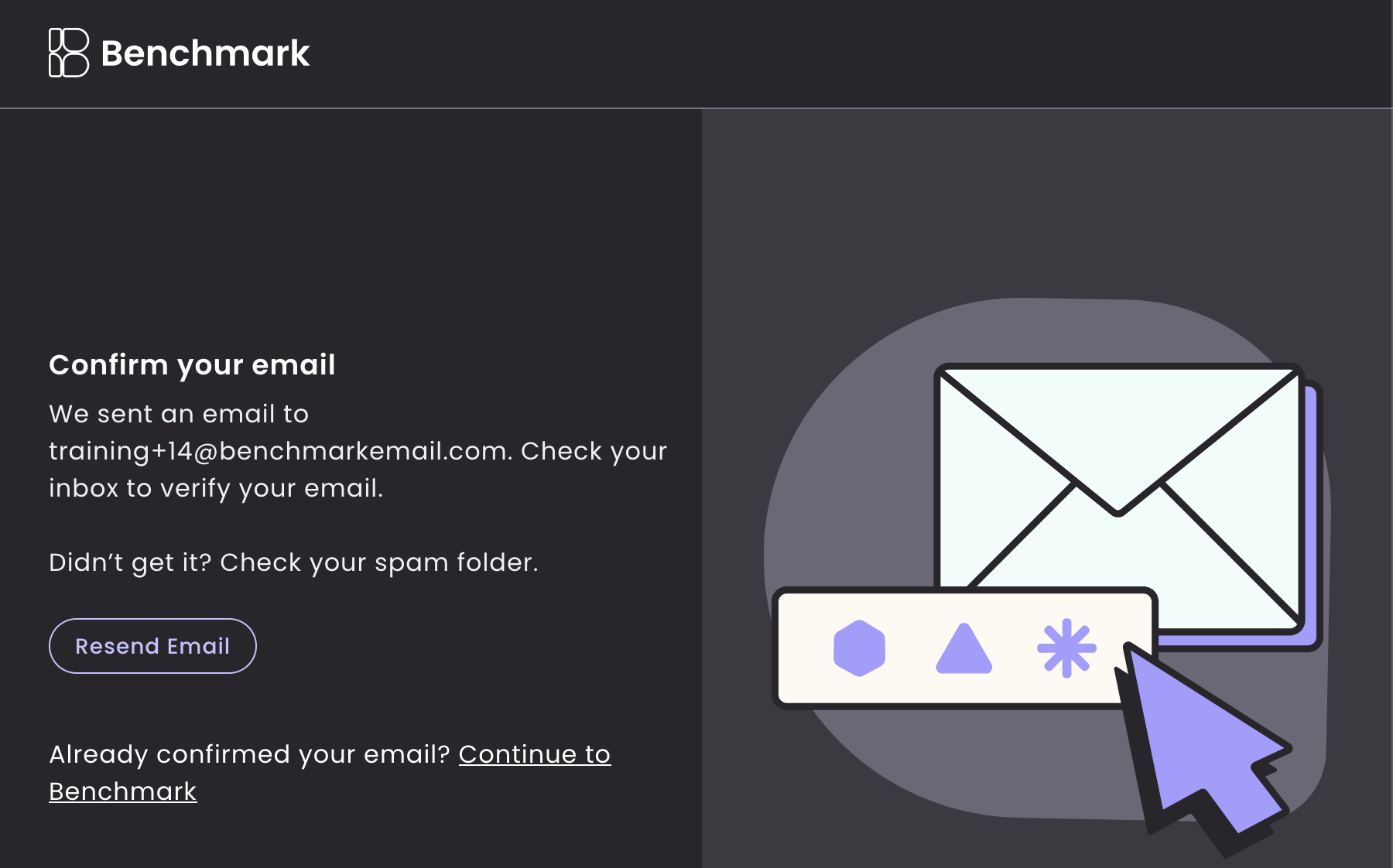
After entering your email address, you will see the Confirm Email Page.
-
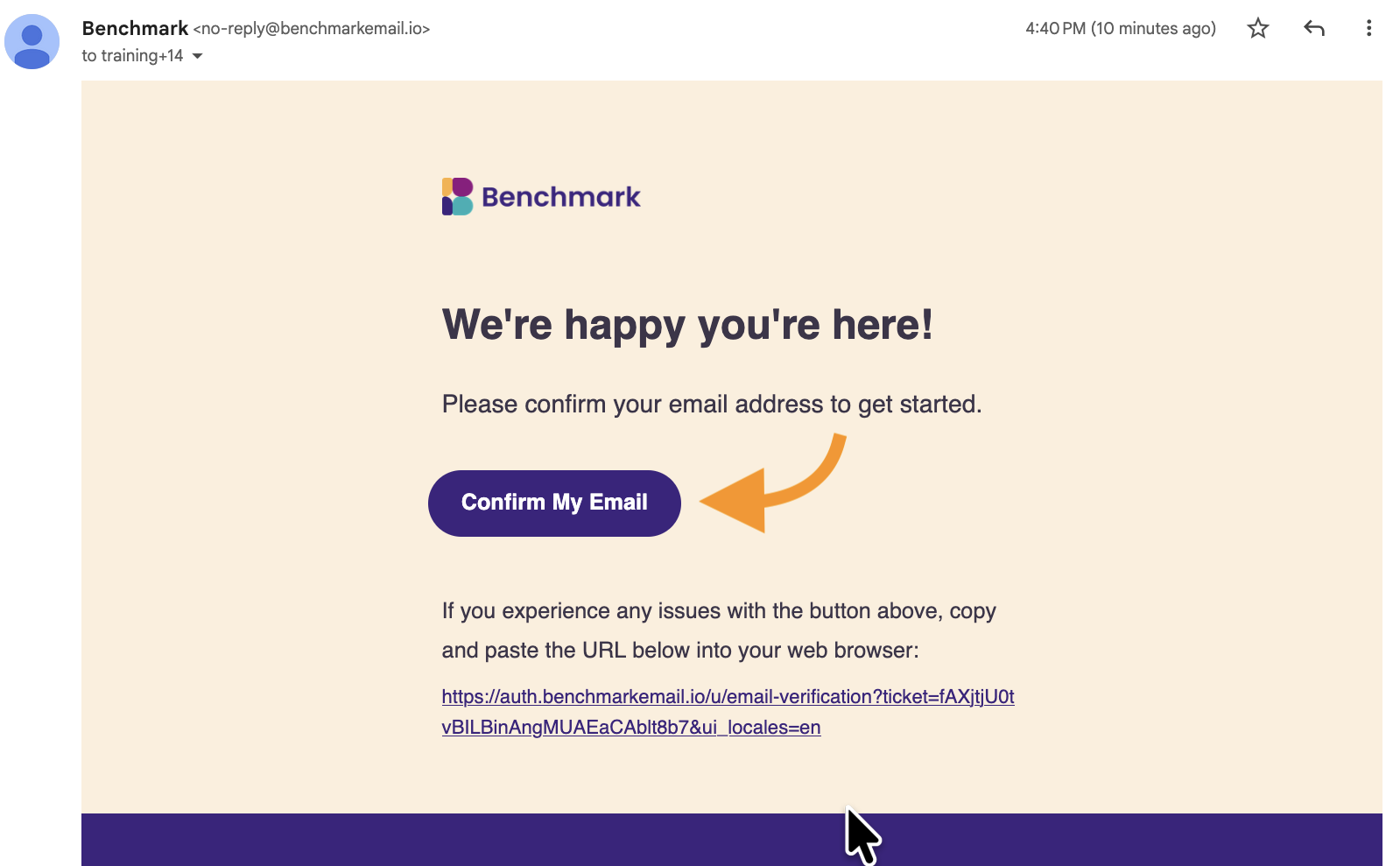
Check your inbox, open our email, and click the Confirm My Email button. The email will come from no-reply@benchmarkemail.io.
- Last, you will be directed to your New Benchmark account.
Not receiving the verification email?
- If you don't see the verification email in your inbox, check your Spam folder.
- Make sure there are no typos in your email address.
- Click Resend Email.

Google Sign-in
Start by visiting our site, Benchmark Email, and clicking on the Sign Up button.

This will bring you to the register screen, where you can choose the Google Sign-in option.

Now you can just select the Google account you'd like to use to sign up or choose Use another account.
If you've previously signed up with the same email address using Google Sign-in, you'll be logged into your account.
In the next screen, select Continue.

Last, fill in your profile details and hit Save! After completing this page, you'll be logged into your brand new Benchmark Email account.

If you sign up using the Signin option, you'll continue using this option to log into your Benchmark Email account.
Reset Password
If you've forgotten your password and can't sign in, you can use the Reset Password option where we send you an email with a Reset Password link.
Follow these steps to reset your Benchmark password.
- Go to the login page.
- Then select the Forgot Password link.
- Next, enter your account's email address and select Continue. If an account with that email address exists, you will receive a link to reset your password.

- If the email doesn't appear in your inbox, check other folders, including Spam or Junk.
- If you don't get the reset email, review your email address for typos.
- This option isn't available for users who signed up with Google Sign-in.
Troubleshooting Sign-in Issues
Not receiving Benchmark emails?
This includes verification and password reset emails.
Steps to troubleshoot
- Check all inbox folers including the Spam/Junk folder.
- Add us to your inbox contacts. Here are some emails to add.
Don't have access to the Gmail account used for Google Sign-in?
If you no longer have access to the account used for Google sign-in, you'll need to create a new Benchmark account.